Finder Is More Powerful Than You Think
For most Mac users, Finder is just a file browser. You open it, navigate to a folder, double-click a file, and move on. But hidden beneath its simple interface is a sophisticated file management system that power users leverage to navigate thousands of files in seconds.
The difference between a casual user and a power user isn’t the files they manage—it’s the speed and precision with which they find, organize, and manipulate those files.
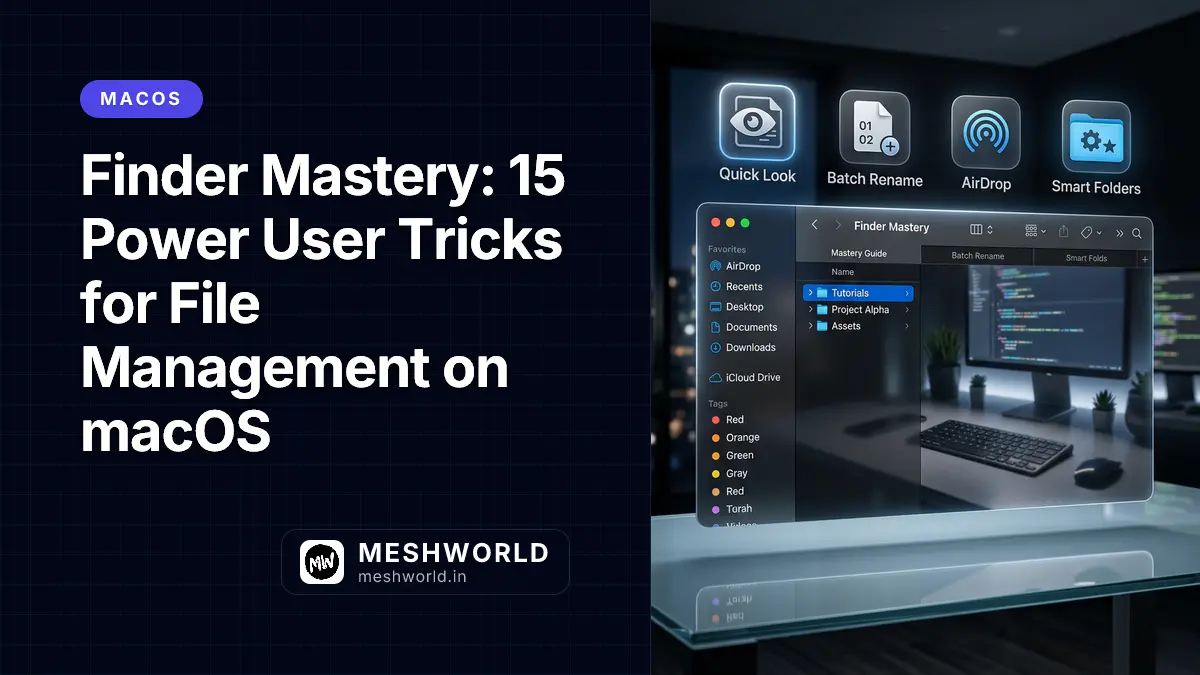
This guide reveals 15 Finder features that transform it from a basic utility into a productivity weapon. You’ll learn to:
- Preview any file instantly without opening it
- Rename hundreds of files in one action
- Navigate complex folder structures in a single click
- Combine images into PDFs seamlessly
- Customize Finder to match your workflow
Quick Look: Preview Without Opening
The simplest yet most underused Finder feature is Quick Look. Select any file and press the Space bar to see an instant preview—no application launch required.
What Quick Look Can Preview
| File Type | Preview Capability |
|---|---|
| Images | Full-size view with zoom |
| PDFs | Scroll through pages |
| Documents (Word, Pages, etc.) | Read content without opening |
| Videos | Play/pause, scrub timeline |
| Audio | Play with timeline |
| Archives (ZIP) | Browse contents without extracting |
| Code files | Syntax-highlighted view |
Quick Look Navigation
While Quick Look is open:
- Arrow keys → Navigate between files in the folder
- Space → Close Quick Look
- ⌘ + R → Rotate images
- ⌘ + A → Select all (in multi-file preview)
- Scroll → Navigate pages in documents/PDFs
Markup in Quick Look
Click the Markup button in the top-right of the Quick Look window to annotate:
- Draw arrows and shapes
- Add text annotations
- Sign documents with your trackpad or camera
- Crop and rotate images
This is perfect for quick feedback on screenshots or signing PDFs without opening Preview.
The Path Bar: Never Get Lost Again
The Path Bar shows your current location in the folder hierarchy at the bottom of every Finder window. It eliminates the “where am I?” confusion when navigating deep folder structures.
Enabling the Path Bar
Menu method:
- Open Finder
- Click View > Show Path Bar (or
Option + ⌘ + P)
The Path Bar appears at the bottom of your window, showing the complete path from your home folder to the current location.
Navigating with the Path Bar
Click any folder in the Path Bar to jump directly to it:
Users > darsh > Documents > Projects > Website > Assets
         ↑        ↑           ↑         ↑
Click Click Click Click- Click Documents to jump up to the Documents folder
- Click Projects to see all your projects
- Click darsh to return to your home folder
Double-click any folder in the Path Bar to open it in a new window.
Copying the Full Path
Right-click any folder in the Path Bar and select Copy “FolderName” as Pathname to get the complete file path for pasting elsewhere.
View Options: Customize How You See Files
Finder offers four distinct view modes, each suited to different tasks. Master them all to choose the right view for any situation.
The Four View Modes
| View | Shortcut | Best For |
|---|---|---|
| Icon View | ⌘ + 1 | Visual browsing, image folders |
| List View | ⌘ + 2 | Detailed information, sorting |
| Column View | ⌘ + 3 | Deep folder navigation |
| Gallery View | ⌘ + 4 | Image review, metadata inspection |
Icon View (⌘ + 1)
- Files displayed as icons in a grid
- Best for: Visual folders (images, designs, screenshots)
- Customize: Icon size, grid spacing, label position
Customization:
- In Icon View, press
⌘ + J(or View > Show View Options) - Adjust:
- Icon size
- Grid spacing
- Text size
- Label position (bottom or right)
- Show item info (file size, dimensions)
- Show icon preview (thumbnail vs generic icon)
List View (⌘ + 2)
- Files in a scrollable list with columns
- Best for: Folders with many files, detailed sorting
- Customize: Which columns appear, column widths
Adding Columns:
- Right-click the column header bar
- Check columns to display:
- Date Modified
- Date Created
- Date Last Opened
- Size
- Kind
- Version
- Tags
- Comments
Pro Tip: Click any column header to sort by that attribute. Click again to reverse the sort order.
Column View (⌘ + 3)
- Multiple columns showing folder hierarchy
- Best for: Navigating deep folder structures
- Unique feature: Preview column shows file contents
Navigation:
- Click a folder in one column → Its contents appear in the next column
- Keep clicking deeper → New columns appear
- Preview column (rightmost) shows file contents
Pro Workflow: Column View + Path Bar = Never lose your place in complex projects.
Gallery View (⌘ + 4)
- Large previews with filmstrip of all files below
- Best for: Reviewing images, inspecting metadata
- Unique feature: Full metadata panel on the right
Metadata Panel Shows:
- File size
- Dimensions (for images)
- Created/modified dates
- Camera settings (for photos)
- Location data
- Tags
Batch Rename: Rename Hundreds of Files Instantly
Need to rename a folder of photos, downloads, or project files? Finder’s built-in batch rename tool handles it in seconds.
How to Batch Rename
- Select the files you want to rename (use
⌘ + Ato select all) - Right-click and choose Rename (or press
Returnafter selecting) - Choose one of three options:
- Replace Text
- Add Text
- Format
Replace Text
Use when you want to change part of existing filenames.
Example: Rename photos from “IMG_2024_001.jpg” to “Vacation_2024_001.jpg”
- Find:
IMG - Replace with:
Vacation - Result: All files matching the pattern get updated
Add Text
Use when you want to insert text before or after the existing name.
Example: Add resolution to video files
- Add:
1080p_ - Where: Before name
- Files:
video_001.mp4→1080p_video_001.mp4
Or add after:
- Add:
_backup - Where: After name
- Files:
document.pdf→document_backup.pdf
Format
Use when you want to completely reformat filenames with custom naming schemes.
Example: Organize screenshots with sequential numbering
- Name Format:
Screenshot - Where: After name
- Start numbers at: 1
- Result:
Screenshot 1.png,Screenshot 2.png,Screenshot 3.png
Advanced Formatting:
- Include Name, Index, or Counter
- Choose where index appears (before/after name)
- Set starting number
Sidebar Cleanup: Remove the Clutter
The Finder sidebar comes pre-populated with items Apple thinks you’ll use: AirDrop, Recents, Applications, Desktop, Documents, Downloads. But your workflow is unique—customize the sidebar to match it.
Customizing the Sidebar
- Open Finder > Settings (or
⌘ + ,) - Click the Sidebar tab
- Check/uncheck items to show or hide them
Recommended Setup:
Keep Checked:
- AirDrop (quick file sharing)
- Home folder (your user directory)
- Desktop (files you can see)
- Documents (your main storage)
- Downloads (temporary files)
Consider Unchecking:
- Recents (creates clutter, use search instead)
- Applications (use Launchpad or Spotlight)
- Pictures/Movies (if you store them elsewhere)
- iCloud folders (if you don’t use them)
Adding Custom Folders to Sidebar
Drag any folder from Finder into the sidebar. It appears in the Favorites section.
Folders to Consider Adding:
- Current project folder
- Screenshots folder
- Work-in-progress directory
- Shared team folder
- Cloud storage sync folder
Removing Sidebar Items
Drag any item out of the sidebar to remove it. This doesn’t delete the folder—just removes the shortcut.
Default New Window Location
Every time you open a new Finder window, it opens to a specific location. Make that location useful.
Changing the Default
- Open Finder > Settings > General
- Under “New Finder windows show:”, select from:
- Recents
- Your home folder (
~) - Desktop
- Documents
- Downloads
- iCloud Drive
- Other…
Recommendations by Use Case:
| User Type | Recommended Default | Why |
|---|---|---|
| General | Documents | Most files live here |
| Developer | Home folder (~) | Easy access to projects, code |
| Creative | Desktop | Quick access to current work |
| Organized | Downloads | Process new files immediately |
Pro Workflow: Downloads as Default
Set Downloads as your default, then develop a habit:
- File arrives in Downloads
- Review and move it to proper location immediately
- Downloads stays clean, you stay organized
Search Within Current Folder
By default, Finder searches your entire Mac when you type in the search box. For faster, more relevant results, limit searches to your current folder.
Enabling Current Folder Search
- Open Finder > Settings > Advanced
- Under “When performing a search:”, select “Search the current folder”
How It Works
Before:
- Type “budget” in Documents folder
- Results from entire Mac (slow, irrelevant)
After:
- Type “budget” in Documents folder
- Results only from Documents (fast, relevant)
Overriding When Needed
Sometimes you DO want to search everywhere. In the search results window, click the Search: dropdown and select “This Mac” to expand the search scope.
Combine Images into PDF
Need to turn screenshots, photos, or scanned documents into a single PDF? Preview can combine any images into one document—no additional software required.
Step-by-Step Process
- Select the images in Finder (use
⌘ + Afor all) - Right-click and choose Open With > Preview
- In Preview, press
⌘ + Ato select all pages - Go to File > Print (or
⌘ + P) - In the print dialog, click the PDF dropdown in the bottom-left
- Select Save as PDF
- Choose location and filename
- Click Save
Result: All images combined into a single PDF document, one image per page.
Use Cases
- Combine screenshots for documentation
- Create photo albums from event pictures
- Assemble scanned document pages
- Build presentations from design mockups
Tab Management in Finder
Just like browsers, Finder supports tabs. Use them to reduce window clutter and switch between locations quickly.
Opening Tabs
| Action | Method |
|---|---|
| New Tab | ⌘ + T or File > New Tab |
| Open folder in new tab | Double-click with ⌘ held |
| Close tab | ⌘ + W or click X |
| Reopen closed tab | ⌘ + Shift + T |
Tab Navigation
| Shortcut | Action |
|---|---|
⌘ + Shift + ] | Next tab |
⌘ + Shift + [ | Previous tab |
⌘ + 1-9 | Jump to tab 1-9 |
Pro Workflow: Project Tabs
Open tabs for each area of a project:
- Tab 1: Project root
- Tab 2: Source code folder
- Tab 3: Assets/images
- Tab 4: Documentation
- Tab 5: Build output
Switch between them with ⌘ + number without navigating the folder tree repeatedly.
Close All Windows at Once
Have 15 Finder windows open? Close them all instantly with a hidden menu option.
The Hidden “Close All” Command
- Hold the Option (⌥) key
- Click the File menu
- Notice “Close Window” becomes “Close All”
- Click it
All Finder windows close simultaneously. Your desktop is clean in one action.
Custom Folder Icons
Replace the default blue folder icons with custom images to make important folders stand out or create a personalized desktop aesthetic.
Changing a Folder Icon
- Find or create an image (JPG or PNG)
- Right-click the image and select Copy
- Right-click the folder you want to customize
- Select Get Info (or
⌘ + I) - Click the small folder icon in the top-left of the Get Info window
- Select Edit > Paste (or
⌘ + V)
The folder icon updates instantly on your desktop and in Finder.
Removing Backgrounds (macOS Ventura+)
For clean folder icons without backgrounds:
- Open the image in Photos, Quick Look, or Safari
- Control-click on the subject
- Select Copy Subject
- Paste into the folder’s Get Info window
The subject appears without background, creating clean, professional folder icons.
Creative Uses
- Color coding: Red for urgent, green for completed, yellow for pending
- Project icons: Client logos for project folders
- Category icons: Camera for photos, music note for audio
- Visual navigation: Important folders stand out at a glance
Copy Subject from Images
macOS Ventura and later can intelligently identify and copy subjects from images, removing backgrounds automatically.
How to Copy Subject
- Open the image in Photos, Preview, or Safari
- Control-click on the subject (person, object, pet)
- Select Copy Subject
- Paste the isolated subject anywhere
Works in:
- Photos app
- Quick Look (Space bar preview)
- Safari (images on web pages)
- Preview
- Screenshot previews
Use Cases
- Create profile pictures without backgrounds
- Build collages from multiple photos
- Remove distracting backgrounds from screenshots
- Extract objects for design work
Quick Reference: Finder Shortcuts
| Shortcut | Action |
|---|---|
⌘ + N | New Finder window |
⌘ + T | New tab |
⌘ + W | Close window/tab |
⌘ + Shift + T | Reopen closed tab |
⌘ + I | Get Info |
Space | Quick Look |
⌘ + 1/2/3/4 | Change view mode |
⌘ + J | Show View Options |
⌘ + Shift + . | Show/hide hidden files |
⌘ + Option + P | Show/hide Path Bar |
⌘ + Shift + C | Go to Computer |
⌘ + Shift + H | Go to Home |
⌘ + Shift + A | Go to Applications |
⌘ + Shift + D | Go to Desktop |
⌘ + Shift + O | Go to Documents |
⌘ + Shift + G | Go to Folder (type path) |
⌘ + [ or ] | Back/Forward navigation |
⌘ + Up | Go to parent folder |
Return | Rename selected file |
⌘ + C then Option + ⌘ + V | Move file (not copy) |
Putting It All Together: Power User Workflow
Daily File Management:
- Open Finder to your project folder (custom default location)
- Use Column View (
⌘ + 3) for deep navigation - Enable Path Bar to never lose your place
- Open tabs (
⌘ + T) for frequently accessed subfolders - Use Quick Look (
Space) to preview files without opening
Weekly Organization:
- Clean Downloads: Review and move files to permanent locations
- Batch rename: Organize accumulated screenshots/photos
- Combine to PDF: Turn weekly screenshots into documentation
- Customize icons: Make active project folders visually distinct
Project Wrap-Up:
- Combine deliverables into single PDF using Preview
- Batch rename with consistent naming scheme
- Close all windows (
Option + File > Close All) for clean slate
Related Articles
Master every aspect of macOS:
- Keyboard Mastery on macOS — Master shortcuts and text snippets
- Master macOS Window Management — Split Screen, Stage Manager, and Hot Corners
- The Connected Mac: iPhone Mirroring, Universal Control, and Continuity Camera — Use your Apple devices together seamlessly
- macOS Screenshot & Media Mastery — Capture, edit, and share visual content
- Hidden macOS Settings: 20 Customizations Most Users Never Discover — Personalize your Mac beyond the obvious