Communication Efficiency
Email and messaging are unavoidable parts of modern work. The average professional spends 2-3 hours daily on email alone. Any efficiency gained here compounds across your entire workweek.
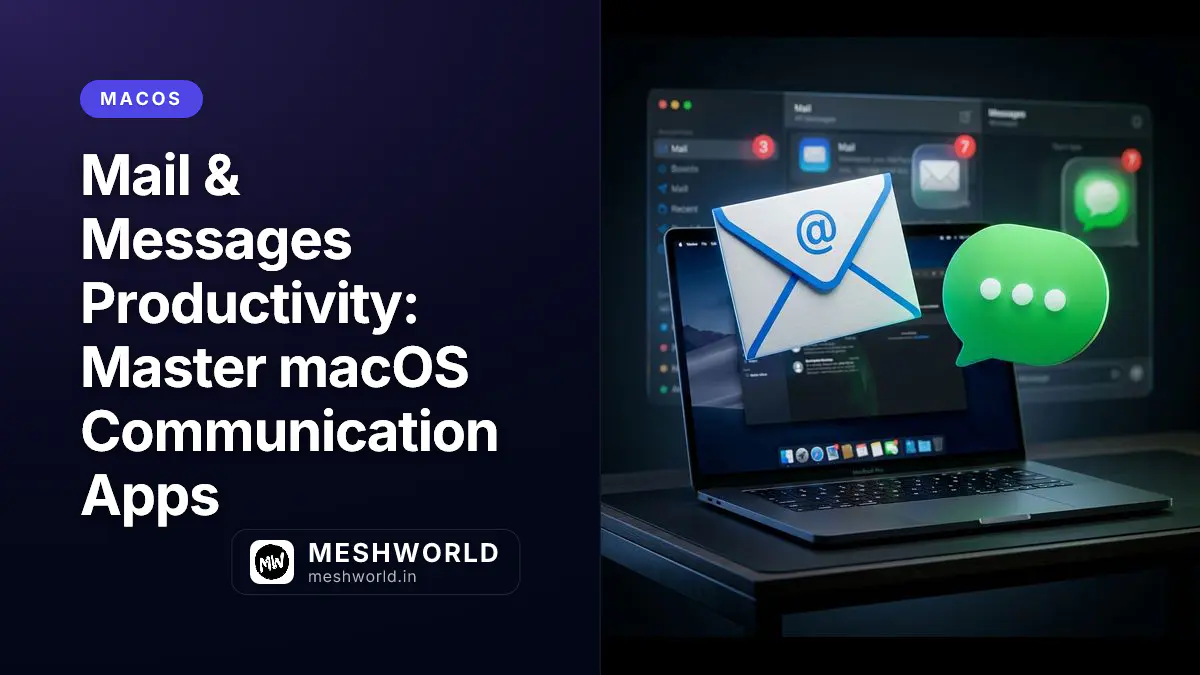
macOS Mail and Messages apps have evolved into powerful communication tools with features most users never discover:
- Mail’s VIP system, smart mailboxes, and rules
- Messages’ pinned conversations, group tools, and search
This guide covers practical workflows that cut communication time while improving responsiveness.
Mail: Beyond the Inbox
VIPs: Prioritize Important Senders
VIPs (Very Important People) get special treatment—their emails appear in a dedicated mailbox and can trigger unique notifications.
Setting Up VIPs:
- Open an email from important contact
- Click sender’s name/email
- Select “Add to VIPs”
- Or: Click star icon in message header
VIP Features:
| Feature | Benefit |
|---|---|
| VIP Mailbox | All VIP emails in one place |
| Special Notifications | Different alert for VIPs vs. others |
| Lock Screen Alerts | VIP emails show sender and preview |
Configuring VIP Notifications:
- Mail > Settings > General
- Click VIP Alerts
- Choose:
- Play sound — Specific alert tone
- Badge app icon — Count on Mail icon
- Show notification — Banner/alert style
Use Cases for VIPs:
- Boss or direct reports
- Key clients
- Family members
- Critical system alerts (monitoring, security)
Smart Mailboxes: Automated Organization
Smart Mailboxes collect emails matching criteria you define. They update automatically as new mail arrives.
Creating Smart Mailboxes:
- Mailbox > New Smart Mailbox
- Name it
- Set conditions:
- From — Specific sender(s)
- To — Specific recipient
- Subject — Contains keywords
- Date — Received today, yesterday, etc.
- Attachments — Has attachments
- Account — Specific email account
Example Smart Mailboxes:
| Name | Conditions |
|---|---|
| Today’s Action Items | Date is Today AND flagged |
| Awaiting Reply | Subject contains “re:” AND date within 3 days |
| Newsletters | From contains “newsletter” OR “noreply” |
| Large Attachments | Attachment size > 5MB |
| Work Projects | Subject contains project code AND to: work email |
Rules: Automatic Email Processing
Rules filter and process incoming email automatically.
Creating Rules:
- Mail > Settings > Rules
- Click Add Rule
- Set conditions (if any match / if all match)
- Set actions:
- Move to mailbox
- Flag
- Forward
- Reply with template
- Run AppleScript
- Delete
- Mark as read
Essential Rules to Create:
Rule 1: Newsletter Filtering
If: From contains "unsubscribe" OR "newsletter"
Then: Move to "Newsletters" folder AND Mark as read
Rule 2: CC Cleanup
If: I'm in CC (not To)
Then: Move to "CC" folder (check occasionally, not immediately)
Rule 3: Auto-Archive Old Mail
If: Date is greater than 90 days AND is read AND not flagged
Then: Move to "Archive" folder
Rule 4: High Priority Alert
If: Subject contains "URGENT" OR "ACTION REQUIRED"
Then: Flag as red AND Play soundTemplates with Stationery
Create reusable email templates:
- Compose email with placeholder text
- Edit > Save as Stationery (Note: This feature may vary by macOS version)
Alternative: Signature as Template
Create multiple signatures that serve as templates:
- Mail > Settings > Signatures
- Click + to create new signature
- Paste template text
- When composing, select signature from dropdown
Example Template Signatures:
Introduction Template:
"Hi [Name],

Thanks for reaching out about [topic]. I'd be happy to help.

[Your message here]

Best regards,
[Your name]"
Search Operators
Find emails faster with search syntax:
| Search | Finds |
|---|---|
from:boss@company.com | All emails from specific sender |
to:me | Emails sent directly to you |
subject:proposal | Subject contains word |
has:attachment | Emails with attachments |
date:today | Today’s emails |
date:3/15/26 | Specific date |
flagged:true | Flagged emails |
unread:true | Unread emails |
project proposal | Both words anywhere |
"exact phrase" | Exact phrase match |
Combine operators:
from:client@example.com subject:invoice has:attachmentAttachment Handling
Large Attachment Warnings:
Mail warns when sending large attachments. For very large files:
- Use Mail Drop (automatic for attachments > 20MB)
- Or upload to cloud (iCloud Drive, Dropbox) and share link
- Or compress: Right-click file > Compress
Managing Received Attachments:
- Click attachment in email
- Options:
- Open — View directly
- Save — Download to folder
- Save All — Download all attachments
- Quick Look — Preview without opening (Space bar)
Default Download Location:
- Mail > Settings > General
- Set Downloads folder preference
Messages: Efficient Messaging
Messages (iMessage) handles both SMS and iMessage conversations with Mac-to-iPhone continuity.
Pinned Conversations
Keep important conversations at the top:
- Find conversation in list
- Right-click > Pin
- Or: Drag conversation to top
Pinned conversations:
- Stay at top of list
- Show latest message preview
- Sync across devices
- Limited to 9 pins
Group Conversations
Manage group chats effectively:
Creating Groups:
- Click New Message button
- Add multiple recipients (2+)
- Type message
- Send
Group Features:
| Feature | How |
|---|---|
| Name the group | Click Details > Name |
| Add/remove people | Click Details > Add/Remove |
| Leave group | Click Details > Leave |
| Mute notifications | Details > Hide Alerts |
| Mentions | Type @name — they get notified even if muted |
Group Best Practices:
- Name groups immediately (“Project Alpha Team”, “Family Dinner”)
- Use mentions for urgent items
- Mute busy groups, check at your pace
- Leave groups you’re no longer relevant to
Search in Messages
Find past conversations:
- Click search bar in Messages
- Type keyword, name, or phrase
- Results group by:
- Conversations
- Photos
- Links
- Locations
- Documents
Search Tips:
- Search “link” to find all shared URLs
- Search “image” to find photos
- Search contact name for all conversations with them
Messages from Any Device
Send SMS from your Mac (requires iPhone):
Setup:
- iPhone: Settings > Messages > Text Message Forwarding
- Enable your Mac
- Enter code shown on Mac into iPhone
Now you can:
- Send/receive SMS from Mac
- See all iMessage conversations
- Sync read status
- Start conversation on Mac, continue on iPhone
Screen Effects and Tapbacks
React quickly with tapbacks:
- Hover over message
- Click 👍 button that appears
- Choose: 👍 👎 😂 ❤️ ! ?
Screen effects (iMessage only):
- Type special phrases for full-screen effects:
- “Happy birthday” → Balloons
- “Congratulations” → Confetti
- “Pew pew” → Lasers
Shared with You
Links shared via Messages appear in Safari’s Shared with You section:
- Open Safari sidebar (
⌃ + ⌘ + 1) - Click Shared with You
- Links organized by sender
- Pin important links to keep permanently
Integration: Mail + Calendar + Reminders
Mail to Calendar
Create events from emails:
- Open email with date/time info
- Hover over detected date/time
- Click arrow icon
- Select Create Event
- Event created with email link
Mail to Reminders
Convert emails to tasks:
- Open email
- Right-click > Share
- Select Reminders
- Reminder created with link back to email
Or use Services:
- Select text in email
- Right-click > Services > New Reminder
Messages to Reminders
Remember to follow up:
- Right-click any message
- Remind Me
- Choose: In 1 hour, Tonight, Tomorrow, or Custom
- Reminder created with link to message
Keyboard Shortcuts
| Shortcut | Action |
|---|---|
⌘ + N | New message |
⌘ + R | Reply |
⌘ + Shift + R | Reply All |
⌘ + Shift + F | Forward |
⌘ + Shift + J | Mark as junk |
⌘ + L | Flag message |
⌘ + Shift + L | Flag with color |
⌘ + K | Check spelling |
⌘ + Enter | Send message |
⌘ + 1/2/3 | Switch mailboxes |
Messages
| Shortcut | Action |
|---|---|
⌘ + N | New message |
⌘ + R | Reply |
⌘ + F | Search |
⌘ + [ | Previous conversation |
⌘ + ] | Next conversation |
⌘ + Shift + T | Show/hide sidebar |
⌘ + 1-9 | Jump to pinned conversation |
⌘ + Shift + F | Toggle full-screen |
Best Practices
Email Management
Inbox Zero Approach:
- Process email at set times (not constantly)
- Touch once: Reply, Delete, Delegate, or Archive
- Use flags for “needs action”
- Empty spam regularly
Avoid Email Bankruptcy:
- Don’t let inbox grow indefinitely
- Use Archive for “maybe reference later”
- Use folders only when necessary (search is powerful)
- Unsubscribe ruthlessly
Messaging Etiquette
Async vs. Urgent:
- Email = async (response expected within day(s))
- Messages = semi-urgent (hours)
- Call = urgent (immediate)
Group Chat Rules:
- @mention for urgent items
- Keep on-topic
- Use threads if available
- Leave when no longer relevant
Related Articles
Complete your productivity system:
- Notes, Reminders & Calendar — Organization and scheduling
- The Connected Mac — Sync across devices
- Keyboard Mastery — Speed up typing