Your Voice as Input
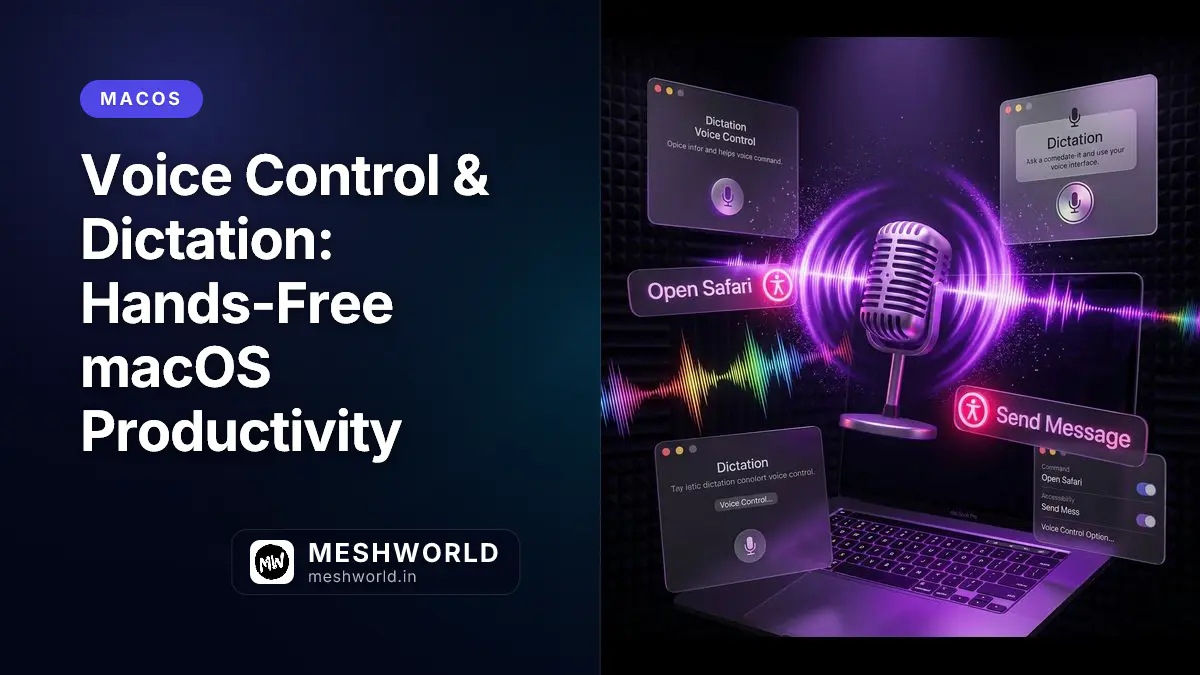
Typing isn’t always practical. Maybe your hands are full, you’re experiencing repetitive strain, or you simply think faster than you type. Voice input transforms how you interact with your Mac.
macOS includes two voice technologies:
- Dictation — Convert speech to text
- Voice Control — Navigate and command your Mac hands-free
Both are built-in, private (processing happens on your Mac), and surprisingly accurate with modern Apple Silicon chips.
This guide covers practical workflows for voice-powered productivity.
Dictation: Speech to Text
Dictation converts your spoken words into typed text in any app that accepts keyboard input.
Enabling Dictation
- System Settings > Keyboard > Dictation
- Toggle Dictation to ON
- Select Language (add multiple if needed)
- Choose Shortcut:
- Press Control key twice
- Press Function (Fn) key twice
- Press right Command key twice
- Or choose Custom for your own
Using Dictation
Start dictating:
- Place cursor in any text field
- Press your dictation shortcut (e.g.,
⌃ + ⌃) - Microphone icon appears
- Speak clearly
- Click Done or press shortcut again to stop
Dictation automatically:
- Inserts punctuation (say “period”, “comma”, “question mark”)
- Capitalizes first word of sentences
- Learns your vocabulary over time
Punctuation and Formatting
Speak these words to insert formatting:
| Say This | Inserts |
|---|---|
| “period” or “full stop” | . |
| “comma” | , |
| “question mark” | ? |
| “exclamation point” | ! |
| “new line” | Line break |
| “new paragraph” | Paragraph break |
| “open quote” / “close quote” | ” ” |
| “smiley” or “frowny” | 😊 / 🙁 |
| “colon” / “semicolon” | : / ; |
| “ellipsis” | … |
| “dash” | — |
Example:
Spoken: "Meeting at three period new line Please bring the report comma question mark"
Result: "Meeting at three.

Please bring the report, ?"
Dictation Anywhere
Dictation works in:
- Pages, Word, Notes — Document writing
- Mail, Messages — Emails and texts
- Search fields — Web searches, Spotlight
- Terminal — Command input
- Forms — Web forms, applications
Advanced Dictation Features
Auto-punctuation:
- System Settings > Keyboard > Dictation
- Enable “Auto-punctuation”
- macOS inserts periods and commas automatically based on pauses
Dictation Commands:
| Say This | Does This |
|---|---|
| “delete that” | Removes last phrase |
| “delete word” | Removes last word |
| “scratch that” | Removes entire dictated section |
| “capitalize that” | Capitalizes last word |
| “correct [word]” | Opens correction panel |
| “move left/right” | Moves cursor |
| “select [word/phrase]” | Selects text |
| “bold/italicize/underline that” | Applies formatting |
Dictation vs. Voice Control
| Feature | Dictation | Voice Control |
|---|---|---|
| Primary use | Text input | Full Mac control |
| Learning curve | Minimal | Moderate |
| Accuracy | Very high | High |
| Navigation | No | Yes (click, scroll, switch) |
| Commands | Limited formatting | Full app control |
| Accessibility | Good | Excellent |
Voice Control: Full Hands-Free Operation
Voice Control lets you navigate your entire Mac using only your voice. Open apps, click buttons, scroll pages, and edit text—without touching mouse or keyboard.
Enabling Voice Control
- System Settings > Accessibility > Voice Control
- Toggle Voice Control to ON
- Download language model (one-time, ~500MB)
- Microphone icon appears in menu bar when active
Voice Control Overlay
When Voice Control is on, numbers appear next to clickable elements:
[1] File  [2] Edit  [3] View  [4] Window
    [5] New Document
Click by number: Just say the number (“Click 5”)
Basic Navigation Commands
Mouse Control:
| Say This | Action |
|---|---|
| “Click” or “Tap” | Click at current position |
| “Click [number]” | Click numbered element |
| “Double-click [number]” | Double-click element |
| “Right-click [number]” | Right-click element |
| “Long press [number]” | Hold click |
| “Scroll down/up” | Scroll page |
| “Scroll right/left” | Horizontal scroll |
| “Go to top/bottom” | Jump to page top/bottom |
App Navigation:
| Say This | Action |
|---|---|
| “Open [app name]” | Launch application |
| “Quit [app name]” | Close application |
| “Show me [app name]” | Switch to app |
| “Show me all windows” | Mission Control |
| “Show me desktop” | Show Desktop |
| “Next window” | Switch to next window |
| “Close window” | Close front window |
| “Minimize window” | Minimize front window |
System Commands:
| Say This | Action |
|---|---|
| “Sleep” | Put Mac to sleep |
| “Lock screen” | Lock Mac |
| “Shut down” | Shut down Mac |
| “Restart” | Restart Mac |
| “Take screenshot” | Capture screen |
| “Show numbers” | Turn on overlay numbers |
| “Hide numbers” | Turn off overlay |
| “What can I say?” | Open command reference |
Text Editing with Voice Control
Voice Control includes powerful text editing:
Selection:
| Say This | Selects |
|---|---|
| “Select all” | Everything |
| “Select word” | Current word |
| “Select line” | Current line |
| “Select paragraph” | Current paragraph |
| “Select [word/phrase]” | Specific text |
| “Select previous/next word” | Adjacent word |
| “Select from [word] to [word]” | Range |
Editing:
| Say This | Action |
|---|---|
| “Copy that” / “Cut that” / “Paste that” | Clipboard operations |
| “Delete that” | Delete selection |
| “Bold that” / “Italicize that” | Format selection |
| “Capitalize that” / “Lowercase that” | Change case |
| “Correct that” | Open correction panel |
| “Undo that” / “Redo that” | Undo/redo |
| “Insert [text]” | Type specific text |
Numbered Grid
For precise clicking anywhere:
Say: “Show grid”
- Screen divides into numbered sections
- Say number to zoom to that section
- Sections keep dividing until you can click precisely
Precision clicking:
"Show grid" → "15" → "3" → "Click"
(Each command zooms closer to target)
Custom Commands
Create your own voice commands:
- System Settings > Accessibility > Voice Control > Commands
- Click + to add command
- Enter:
- When I say: Your custom phrase
- While using: Which apps it works in
- Perform: Action (open app, run shortcut, insert text, etc.)
Example Custom Commands:
| Say This | Does This |
|---|---|
| “Start work mode” | Opens work apps, enables DND |
| “Insert signature” | Types your email signature |
| “Open project folder” | Opens specific Finder folder |
| “Daily standup” | Opens meeting link, starts timer |
Voice Control for Accessibility
Voice Control is essential for users who can’t use traditional input:
- Motor impairments — Control Mac without physical movement
- Repetitive strain — Rest hands while continuing work
- Vision impairments — Paired with VoiceOver for full control
- Temporary injuries — Broken arm, wrist pain, etc.
Practical Voice Workflows
Workflow 1: Email Drafting
Hands-free email composition:
- “Open Mail”
- “Click New Message” (or click number)
- Dictate entire email with punctuation
- “Click Send” (or say number)
Time saved: 2-3x faster than typing for most people.
Workflow 2: Research and Notes
Capture research without typing:
- Open Notes or document
- Enable dictation
- Speak thoughts, ideas, findings
- Use “new paragraph” to organize
- Edit after capturing
Benefit: Capture flow state without typing slowing you down.
Workflow 3: Hands-Free Browsing
Navigate without mouse:
- “Open Safari”
- “Click address bar” (or number)
- Dictate search query
- “Press Return”
- “Scroll down” to view results
- “Click 5” (result number)
Workflow 4: Document Review
Read and navigate documents:
- Open document in Pages/Word
- “Scroll down” to read
- “Select paragraph” to highlight
- “Bold that” to emphasize
- “Insert comment” (if supported)
Improving Accuracy
Training Dictation
macOS learns your voice over time. Improve accuracy:
- System Settings > Keyboard > Dictation
- Click About Dictation & Privacy
- Toggle “Improve Dictation” ON
- macOS securely analyzes your audio to improve recognition
Note: This sends some audio to Apple for processing. Disable if privacy is paramount.
Microphone Quality
Better mic = better accuracy:
| Microphone | Accuracy |
|---|---|
| MacBook built-in | Good |
| AirPods/Beats | Very good |
| USB headset | Excellent |
| Studio microphone | Best |
Tips:
- Position mic 6-12 inches from mouth
- Minimize background noise
- Use directional mic if in noisy environment
Speaking Technique
- Speak at normal conversational pace
- Enunciate clearly
- Use consistent volume
- Pause between sentences (for punctuation)
- Proofread after—don’t expect perfection
Quick Reference: Common Commands
Dictation Commands
| Command | Function |
|---|---|
| “period” / “comma” / “question mark” | Punctuation |
| “new paragraph” | Line break |
| “delete that” | Remove last phrase |
| “correct [word]” | Fix error |
| “capitalize that” | Capitalize |
| “move [left/right/up/down]” | Navigation |
Voice Control Commands
| Command | Function |
|---|---|
| “Click [number]” | Click numbered item |
| “Open [app]” | Launch app |
| “Scroll [direction]” | Scroll page |
| “Select [text]” | Select specific text |
| “Show grid” | Precision grid |
| “Go to sleep” / “Wake up” | Pause/resume listening |
| “Show me what to say” | Command reference |
Troubleshooting
Dictation Not Working
- Check internet connection (unless using enhanced dictation, which is offline)
- Verify microphone selected in System Settings > Sound > Input
- Try different dictation shortcut
- Restart Mac
- Check language pack downloaded
Voice Control Not Responding
- Ensure language model downloaded (check Settings > Voice Control)
- Microphone icon should appear in menu bar when active
- Check mic isn’t muted
- “Wake up” if Voice Control went to sleep
- Restart Voice Control (toggle off/on in Settings)
Poor Recognition Accuracy
- Move to quieter environment
- Use better microphone
- Speak more clearly
- Enable “Improve Dictation” for learning
- Check for macOS updates
Related Articles
Complete your accessibility toolkit:
- Keyboard Mastery on macOS — Alternative input methods
- The Connected Mac — Voice syncs across devices
- Hidden macOS Settings — Customize your experience