One Screen, Multiple Workspaces
Modern workflows demand context separation. You need different environments for focused work, communication, creative tasks, and research. But a single screen limits you—or does it?
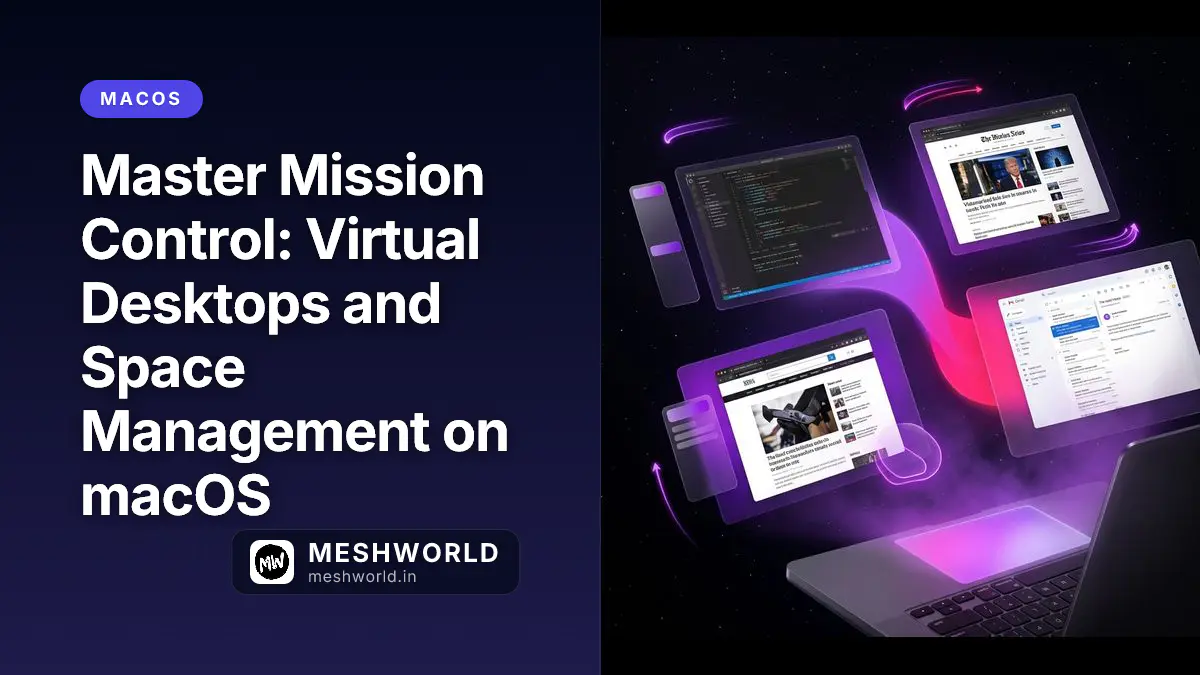
Mission Control is macOS’s virtual desktop manager. It lets you create multiple “Spaces” (virtual desktops), each with its own set of apps and windows. Switch between them instantly with gestures or shortcuts.
This guide covers everything from basic Space creation to advanced workflows that transform how you use your Mac.
Understanding Mission Control
Mission Control provides an overview of all your open windows, Spaces, and full-screen apps in one view.
Opening Mission Control
| Method | Action |
|---|---|
| Trackpad | Swipe up with three or four fingers |
| Keyboard | ⌃ + ↑ (Control + Up arrow) |
| Hot Corner | Move cursor to assigned corner |
| F3 key | On Apple keyboards with function keys |
What You See in Mission Control
- Top bar: All your Spaces (virtual desktops) and full-screen apps as thumbnails
- Center: All open windows grouped by app, spread across the screen
- Bottom: Dock (if visible)
Exiting Mission Control
- Click any window or Space
- Press
Esc - Swipe down with three fingers
- Click on the desktop background
Creating and Managing Spaces
Spaces are virtual desktops—separate work environments you can switch between instantly.
Creating a New Space
Method 1: Mission Control
- Open Mission Control (
⌃ + ↑) - Move cursor to top-right corner
- Click the + button that appears
- New Space created
Method 2: App to Full Screen
- Click the green full-screen button on any app window
- App becomes its own Space
- Swipe to other Spaces remains possible
Switching Between Spaces
| Method | Action |
|---|---|
| Trackpad | Swipe left/right with three or four fingers |
| Keyboard | ⌃ + ← or ⌃ + → (Control + arrow keys) |
| Mission Control | Click the Space thumbnail at top |
| Dock | Click app that’s assigned to another Space |
Reordering Spaces
- Open Mission Control (
⌃ + ↑) - Drag Space thumbnails left or right at the top
- Release to reorder
Deleting a Space
- Open Mission Control (
⌃ + ↑) - Hover over the Space thumbnail
- Click the X that appears
- Windows move to remaining Spaces
Assigning Apps to Specific Spaces
Keep apps in dedicated Spaces for organized workflows.
Assigning an App to a Space
- Open the app you want to assign
- Right-click the app’s icon in Dock
- Hover over Options
- Under Assign To, select:
- None — App opens in current Space
- This Desktop — App always opens in current Space
- All Desktops — App appears in every Space
Practical Assignments
| App | Assignment | Why |
|---|---|---|
| Email/Slack | “This Desktop” (Space 1) | Communication hub |
| Browser | “This Desktop” (Space 2) | Research and web work |
| IDE/Code Editor | “This Desktop” (Space 3) | Focused development |
| Music/Spotify | “All Desktops” | Always accessible |
| Notes | “This Desktop” (Space 2) | Reference while browsing |
Moving Windows Between Spaces
Method 1: Drag in Mission Control
- Open Mission Control (
⌃ + ↑) - Drag any window to another Space thumbnail at top
Method 2: Drag to Edge
- Drag window to left or right edge of screen
- Hold for 1-2 seconds
- Window moves to adjacent Space
Space Workflows by Profession
Developer Workflow
| Space | Contents | Purpose |
|---|---|---|
| Space 1 | IDE, Terminal | Coding focus |
| Space 2 | Browser (docs, Stack Overflow) | Reference |
| Space 3 | Communication apps | Slack, email |
| Space 4 | Design tools (Figma, Sketch) | UI work |
Navigation: Swipe or ⌃ + ←/→ to switch contexts instantly.
Content Creator Workflow
| Space | Contents | Purpose |
|---|---|---|
| Space 1 | Final Cut Pro / Premiere | Video editing |
| Space 2 | Finder (assets, footage) | Asset management |
| Space 3 | Browser, Notes | Research, scripts |
| Space 4 | Music, communication | Background/updates |
Executive Workflow
| Space | Contents | Purpose |
|---|---|---|
| Space 1 | Email, Calendar | Communication |
| Space 2 | Spreadsheets, reports | Analysis |
| Space 3 | Video calls | Meetings |
| Space 4 | Browser, reading | Research |
Full-Screen Apps as Spaces
When you make an app full-screen, it automatically becomes its own Space.
Making Apps Full-Screen
Method 1: Green Button
- Hover over green button (top-left of window)
- Click Enter Full Screen
- Or click green button while holding Option (hides menu bar)
Method 2: Shortcut
⌃ + ⌘ + F— Toggle full-screen mode
Method 3: Menu
- View > Enter Full Screen
Full-Screen Navigation
Full-screen apps appear in the Space bar at the top of Mission Control.
| Action | Method |
|---|---|
| Next app | Swipe left with three fingers |
| Previous app | Swipe right with three fingers |
| Jump to specific | ⌃ + [number] (if enabled) |
Split View in Full Screen
Combine two apps in one full-screen Space:
- Hover over green button
- Hold Option key
- Select Tile Window to Left/Right of Screen
- Click another app window to pair with it
- Both apps share the full-screen Space
Adjust split: Drag the divider between apps.
Mission Control Settings
Customize how Spaces behave.
System Settings Configuration
- System Settings > Desktop & Dock
- Mission Control section:
| Setting | Recommendation | Why |
|---|---|---|
| Automatically rearrange Spaces | OFF | Keep your Space order consistent |
| When switching to an app, switch to a Space with open windows | ON | App windows appear where they belong |
| Group windows by application | ON | Cleaner Mission Control view |
| Displays have separate Spaces | ON (multi-monitor) | Each monitor has own Spaces |
Keyboard Shortcuts
Enable shortcuts for direct Space access:
- System Settings > Keyboard > Keyboard Shortcuts
- Select Mission Control
- Enable “Switch to Desktop [number]”
- Assign shortcuts (e.g.,
⌃ + 1,⌃ + 2, etc.)
Now you can jump directly to any Space with ⌃ + [number].
Trackpad Gestures for Spaces
Master trackpad gestures for fluid Space navigation.
Essential Gestures
| Gesture | Action |
|---|---|
| Swipe up with 3 fingers | Open Mission Control |
| Swipe left/right with 3 fingers | Switch between Spaces |
| Swipe down with 3 fingers | App Exposé (see all windows of current app) |
Enabling/Configuring Gestures
- System Settings > Trackpad > More Gestures
- Configure:
- Mission Control — Swipe up with three fingers
- App Exposé — Swipe down with three fingers
- Swipe between full-screen apps — Swipe left/right
App Exposé: Window Management
App Exposé shows all open windows of the current application.
Opening App Exposé
| Method | Action |
|---|---|
| Trackpad | Swipe down with three fingers |
| Keyboard | ⌃ + ↓ (Control + Down arrow) |
| Dock | Click and hold app icon |
Using App Exposé
- See all windows of current app spread out
- Click any window to focus it
- Close windows by hovering and clicking X
Practical Use
When you have 10+ Finder windows open:
- Press
⌃ + ↓(Finder must be active) - See all Finder windows
- Click the one you need
- Or close unnecessary ones directly
Advanced Space Strategies
The Context Separation Method
Use Spaces to separate mental contexts:
- Work Space — Professional apps only
- Personal Space — Banking, shopping, social
- Learning Space — Courses, tutorials, notes
- Communication Space — Email, Slack, calls
Benefit: Prevents task switching fatigue. When you swipe to Work Space, you’re in work mode. Personal Space = off-duty.
The Project Method
Create Spaces per project instead of per context:
- Project Alpha Space — All resources for Project Alpha
- Project Beta Space — All resources for Project Beta
- Admin Space — Email, calendar, general tasks
Benefit: Everything for one project lives together. No hunting through windows.
The Single-Tasking Method
One Space per focused task:
- Create new Space
- Open only apps needed for current task
- Work without distraction
- Close Space when done
Benefit: Eliminates visual clutter and decision fatigue.
Troubleshooting Spaces
Spaces Keep Rearranging
Problem: macOS keeps moving your Spaces around.
Solution:
- System Settings > Desktop & Dock
- Uncheck “Automatically rearrange Spaces based on most recent use”
Apps Open in Wrong Space
Problem: App opens in current Space instead of assigned one.
Solutions:
- Check app assignment: Right-click Dock icon > Options > Assign To
- Ensure “When switching to an app, switch to a Space” is ON in Mission Control settings
- Restart the app after changing assignment
Gestures Not Working
Problem: Three-finger gestures don’t respond.
Solutions:
- Check System Settings > Trackpad > More Gestures — ensure gestures enabled
- Check for gesture conflicts (Look up & data detectors)
- Try four-finger gestures instead (less accidental triggers)
- Restart Mac if recently changed settings
Too Many Spaces to Manage
Problem: Created Spaces you don’t use.
Solutions:
- Delete unused Spaces (Mission Control > hover > X)
- Use full-screen apps instead (automatic Spaces)
- Limit to 3-4 Spaces for mental manageability
Quick Reference: Mission Control Shortcuts
| Shortcut | Action |
|---|---|
⌃ + ↑ | Open Mission Control |
⌃ + ↓ | App Exposé |
⌃ + ← | Previous Space |
⌃ + → | Next Space |
⌃ + 1/2/3/4 | Jump to specific Space (if enabled) |
F3 | Open Mission Control (on some keyboards) |
⌃ + ⌘ + F | Toggle full-screen mode |
⌘ + H | Hide current app |
⌘ + Option + H | Hide other apps |
Related Articles
Expand your macOS productivity:
- Master macOS Window Management — Split Screen, Stage Manager, and Hot Corners
- Keyboard Mastery on macOS — Master shortcuts and text snippets
- Hidden macOS Settings: 20 Customizations — Personalize your Mac beyond the obvious
- The Connected Mac: iPhone Mirroring, Universal Control — Use your Apple devices together seamlessly