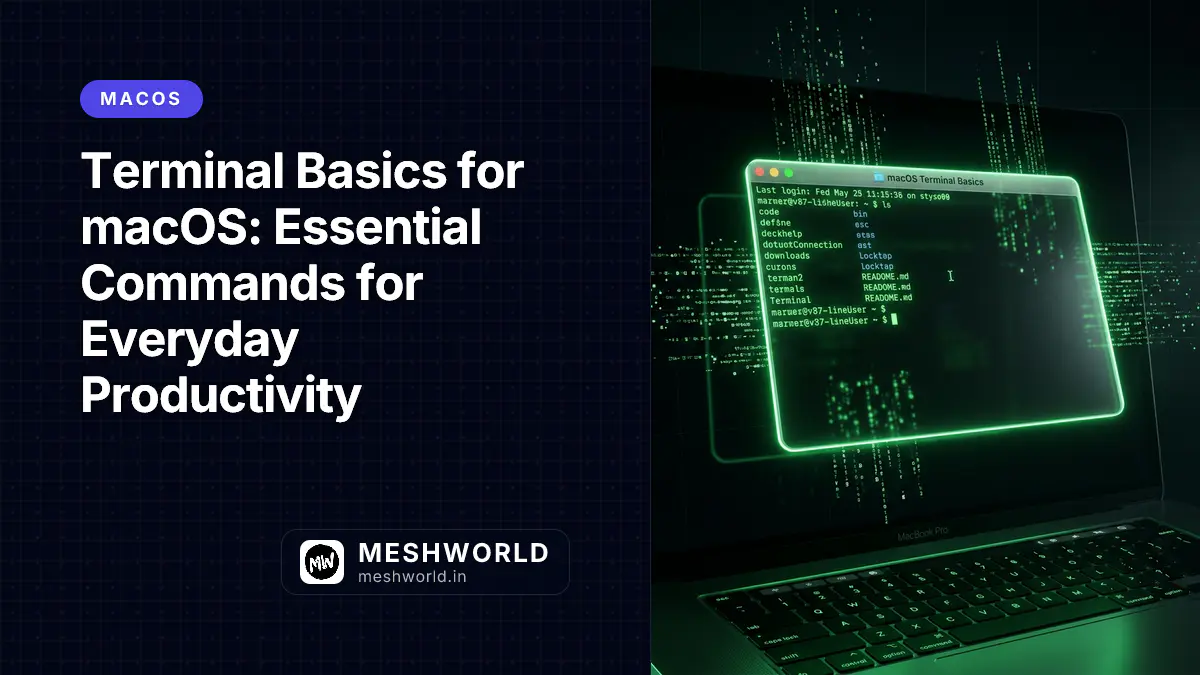
The Terminal: Your Mac’s Hidden Power
Behind macOS’s polished interface lies a powerful Unix-based operating system. The Terminal gives you direct access to that power—allowing you to perform tasks faster, automate operations, and access features hidden from the graphical interface.
You don’t need to be a programmer to benefit from Terminal. Many everyday tasks are simpler and faster on the command line:
- Renaming hundreds of files
- Finding and replacing text across documents
- Checking system information
- Installing developer tools
- Customizing hidden settings
This guide covers the essential commands and concepts you need to become confident with Terminal.
Opening Terminal
| Method | Action |
|---|---|
| Spotlight | ⌘ + Space, type “Terminal”, press Enter |
| Finder | Applications > Utilities > Terminal |
| Launchpad | Other folder > Terminal |
Pro tip: Right-click Terminal in Dock > Options > Keep in Dock for quick access.
Terminal Basics
Understanding the Prompt
When Terminal opens, you see something like:
Last login: Mon Apr 28 14:30:15 on ttys000
username@MacBook-Pro ~ %| Component | Meaning |
|---|---|
| username | Your account name |
| MacBook-Pro | Your computer’s name |
| ~ | Current directory (tilde = home folder) |
| % | Prompt (indicates ready for input) |
First Commands
Try these safe commands to get comfortable:
# Show current directory
pwd

# List files in current directory
ls

# List with details (permissions, size, date)
ls -la

# Clear screen
clsEssential Navigation Commands
Moving Between Directories
| Command | Action |
|---|---|
cd Documents | Go to Documents folder |
cd .. | Go up one level |
cd ~ | Go to home directory |
cd / | Go to root directory |
cd - | Go to previous directory |
Viewing Files and Folders
| Command | Action |
|---|---|
ls | List files |
ls -la | List all files (including hidden) with details |
ls -lh | List with human-readable file sizes |
ls -t | Sort by time (newest first) |
Creating Directories and Files
# Create directory
mkdir MyFolder

# Create directory and subdirectories
mkdir -p Projects/2026/April

# Create empty file
touch notes.txt

# Create multiple files
touch file1.txt file2.txt file3.txt
File Operations
Copying Files
# Copy file
cp document.txt backup.txt

# Copy directory (recursive)
cp -r MyFolder MyFolderBackup

# Copy with confirmation
cp -i document.txt backup.txt
Moving and Renaming
# Move file to another folder
mv document.txt Documents/

# Rename file
mv oldname.txt newname.txt

# Move and rename at once
mv document.txt Documents/backup.txt
Deleting Files
# Delete file
rm file.txt

# Delete directory (and contents)
rm -r MyFolder

# Delete with confirmation
rm -i file.txt

# Force delete (no confirmation) — USE WITH EXTREME CAUTION
rm -f file.txt
Viewing File Contents
# Display file contents
cat document.txt

# Display with line numbers
cat -n document.txt

# Display first 10 lines
head document.txt

# Display last 10 lines
tail document.txt

# Display last 20 lines
tail -n 20 document.txt

# Interactive viewer (scrollable)
less document.txt
# Press 'q' to quit less
Powerful Search Commands
Finding Files
# Find by name
find . -name "*.txt"

# Find by name (case insensitive)
find . -iname "*.jpg"

# Find in specific directory
find ~/Documents -name "report*"

# Find and execute command on results
find . -name "*.log" -delete

# Find files modified in last 24 hours
find . -mtime -1
Searching Within Files
# Search for text in files
grep "search term" file.txt

# Search in multiple files
grep "function" *.js

# Case insensitive search
grep -i "macbook" notes.txt

# Search recursively in directories
grep -r "TODO" Projects/

# Show line numbers
grep -n "error" log.txt

# Search and count occurrences
grep -c "word" document.txt
Combining Commands
# Find files and search within them
find . -name "*.md" -exec grep -l "Terminal" {} \;

# Search and replace across files
sed -i '' 's/old/new/g' file.txt
System Information Commands
Checking Storage
# Disk usage summary
df -h

# Folder size
du -sh Documents

# Detailed folder contents with sizes
du -h --max-depth=1 Documents
Checking Memory and Processes
# Memory usage
vm_stat

# Top processes (similar to Activity Monitor)
top
# Press 'q' to quit

# Filtered process list
ps aux | grep Safari
System Information
# macOS version
sw_vers

# Hardware overview
system_profiler SPHardwareDataType

# Battery information (laptops)
pmset -g batt

# Uptime (how long Mac has been running)
uptime
Customizing Your Shell
macOS uses zsh (Z Shell) by default. Customize it with aliases and settings.
Creating Aliases
Aliases are shortcuts for long commands.
# Open configuration file
nano ~/.zshrc
Add your aliases at the bottom:
# Navigation aliases
alias ..='cd ..'
alias ...='cd ../..'
alias docs='cd ~/Documents'
alias dl='cd ~/Downloads'

# List aliases
alias ll='ls -la'
alias lt='ls -lt'  # Sort by time

# Safety aliases
alias rm='rm -i'  # Always confirm before delete
alias cp='cp -i'  # Confirm before overwrite

# Quick edits
alias zshconfig='nano ~/.zshrc'
Save and reload:
source ~/.zshrcChanging the Prompt
Customize how your prompt looks:
# Edit .zshrc
nano ~/.zshrc
Add:
# Minimal prompt
PROMPT='%F{green}%~%f $ '

# Or detailed prompt
PROMPT='%F{cyan}%n%f@%F{magenta}%m%f:%F{green}%~%f$ '
Colors: black, red, green, yellow, blue, magenta, cyan, white
Installing Command Line Tools
Homebrew: The Missing Package Manager
Homebrew installs thousands of command-line tools:
# Install Homebrew (one-time)
/bin/bash -c "$(curl -fsSL https://raw.githubusercontent.com/Homebrew/install/HEAD/install.sh)"

# Search for packages
brew search wget

# Install a package
brew install wget

# Update all packages
brew update && brew upgrade
Popular Homebrew installs:
wget— Download files from command linetree— Visual directory tree displayhtop— Better process viewergit— Version control (if not installed)node— JavaScript runtime
Xcode Command Line Tools
Essential for developers and some Homebrew packages:
xcode-select --installPractical Terminal Workflows
Batch Rename Files
# Add prefix to all PNG files
for file in *.png; do mv "$file" "screenshot_$file"; done

# Remove "copy" from filenames
for file in *copy*; do mv "$file" "${file/copy /}"; done
Batch Resize Images (requires ImageMagick)
# Install first: brew install imagemagick

# Resize all JPGs in folder to 50%
for img in *.jpg; do convert "$img" -resize 50% "small_$img"; done
Find and Delete Large Files
# Find files over 100MB
du -h | grep '^[0-9]*M' | sort -rn

# Or specifically over 100MB
find . -size +100M -ls
Create Directory Structure
# Create entire project structure
mkdir -p Project/{src,docs,tests,assets/{images,fonts}}

# Creates:
# Project/
# ├── src/
# ├── docs/
# ├── tests/
# └── assets/
#     ├── images/
#     └── fonts/
Terminal Tips and Tricks
Command History
| Shortcut | Action |
|---|---|
↑ | Previous command |
↓ | Next command |
⌃ + R | Search history interactively |
!! | Run last command again |
!$ | Use last argument of previous command |
Keyboard Shortcuts
| Shortcut | Action |
|---|---|
⌃ + C | Cancel current command |
⌃ + A | Move cursor to start of line |
⌃ + E | Move cursor to end of line |
⌃ + U | Clear line (before cursor) |
⌃ + K | Clear line (after cursor) |
⌃ + L | Clear screen (same as clear) |
Tab | Auto-complete |
Tab Tab | Show all completions |
Multiple Terminals
| Shortcut | Action |
|---|---|
⌘ + T | New tab |
⌘ + N | New window |
⌘ + W | Close tab |
⌘ + → / ← | Switch tabs |
Safety First
Before Running Any Command
- Read it carefully — Understand what each part does
- Check the directory — Run
pwdto confirm location - Test on copies — Work on backup files first
- Use
-iflag — Interactive mode for safety
Dangerous Commands to Double-Check
# DELETES EVERYTHING - NEVER RUN THIS
rm -rf /

# DELETES HOME FOLDER - NEVER RUN THIS
rm -rf ~

# Overwrites without confirmation
> file.txt  # Empties the file
Safe Mode
When unsure, add these safety flags:
-i— Interactive (asks before each action)-v— Verbose (shows what’s happening)-n— Dry run (shows what would happen, doesn’t do it)
Example:
rm -iv file.txt # Will ask before deleting and show what's happeningQuick Reference: Essential Commands
| Command | Purpose |
|---|---|
pwd | Show current directory |
ls | List files |
cd | Change directory |
mkdir | Create directory |
touch | Create empty file |
cp | Copy |
mv | Move/rename |
rm | Delete |
cat | Display file contents |
grep | Search in files |
find | Find files |
head/tail | View file start/end |
chmod | Change permissions |
sudo | Run as administrator |
man | Show command manual |
Related Articles
Level up your Mac skills:
- Automator & Shortcuts — No-code automation for your workflows
- Hidden macOS Settings — Personalize your Mac beyond the obvious
- Finder Mastery — Navigate files faster than ever
- Keyboard Mastery — Master shortcuts and text snippets