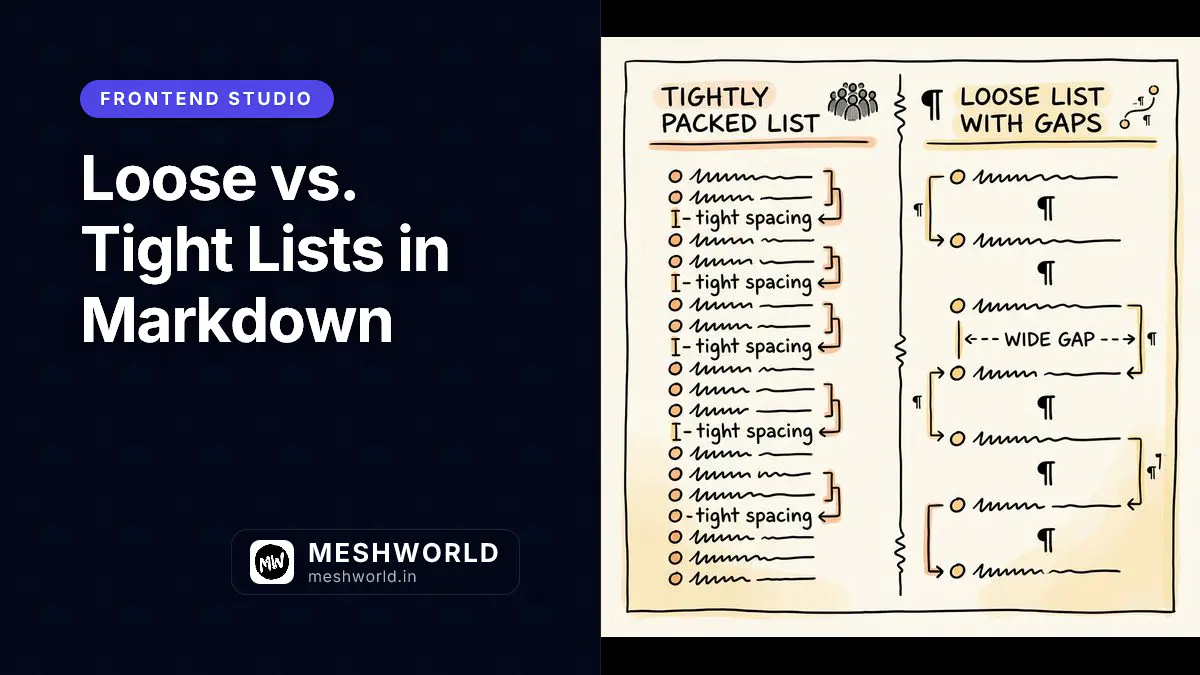
Two lists that look almost identical in the raw Markdown source can render with noticeably different spacing on the page. The difference usually comes down to a single blank line between items, something the list guide in this series doesn’t cover. This article explains the loose-vs-tight distinction, why it exists, and how to control it deliberately instead of running into it by accident.
What Is a Tight List?
A tight list has no blank lines separating its items. Content inside each item renders directly, without being wrapped in paragraph tags.
- First item
- Second item
- Third item
This renders compactly:
- First item
- Second item
- Third item
The HTML output has no <p> tags inside the list items:
<ul>
  <li>First item</li>
  <li>Second item</li>
  <li>Third item</li>
</ul>
What Is a Loose List?
A loose list has at least one blank line between two of its items. This changes how every item in that list renders, not just the ones next to the blank line.
- First item

- Second item

- Third item
This renders with visible spacing between items:
-
First item
-
Second item
-
Third item
The HTML output wraps each item’s content in <p> tags:
<ul>
  <li><p>First item</p></li>
  <li><p>Second item</p></li>
  <li><p>Third item</p></li>
</ul>Why Does This Matter in Practice?
The most common real-world surprise is writing a list where you added blank lines purely for readability in the source file, not realizing it would add visible spacing to the rendered page. If a tightly-packed list suddenly looks like it has extra gaps between items, check for a stray blank line.
- Setup local environment
- Install dependencies

- Run dev server
Because of the blank line before the third item, this entire list renders loose, spacing out all three items even though only one gap was added in the source.
How Do I Force a List to Stay Tight?
Remove every blank line between items. If you need a paragraph of explanation inside one item without affecting the others, indent it under that item instead of leaving a blank line before the next list marker.
- First item
- Second item, with an explanatory paragraph.

  This paragraph is part of the second item, not a new loose gap,
  because there's no blank line directly between two list markers.
- Third itemSummary Checklist
- No blank lines between items keeps a list tight, rendering without
<p>wrapping. - Even one blank line between two items makes the entire list loose.
- Looseness applies list-wide, not just to the items next to the blank line.
- Loose lists add visible vertical spacing compared to tight lists.
- A blank line before a nested paragraph inside one item doesn’t by itself make the list loose.
Frequently Asked Questions
Does this apply to both ordered and unordered lists?
Yes. The tight/loose distinction is a property of list blocks in general, and applies the same way regardless of whether the markers are -, *, +, or numbers.
Can I mix tight and loose sections in the same document?
Yes, as separate lists. Two lists separated by a non-list paragraph or heading are independent blocks, so one can be tight and the other loose without affecting each other.
Does looseness change how task list checkboxes render?
Not usually. GFM task list checkboxes render the same either way; looseness mainly affects whether the text content is wrapped in a paragraph tag, not the checkbox itself.
What to Read Next
- Markdown List Guide: Ordered and Unordered Lists — Review the base list syntax this article builds on.
- Horizontal Rules & Line Breaks in Markdown — Learn another case where blank lines and spacing change how content is parsed.