In an era of relentless digital distractions, reclaiming your attention is the ultimate superpower. True productivity is not about forcing yourself to do more; it is about engineering an environment where doing the right thing becomes the path of least resistance.
Prerequisites
Before diving into this comprehensive productivity workflow, ensure you have the necessary technical and mental foundations in place to make the most of these tools:
- iScreen V3 installed on your Chrome browser (standard or full flavor recommended for maximum feature access).
- A basic understanding of setting up your new tab layout and navigating the iScreen settings panel.
- An intention to block out at least one dedicated 45-minute deep work session today.
- A clear list of tasks you intend to accomplish during your focused blocks to avoid wasting time figuring out what to do next.
How Does Focus Mode Change Your Workflow?
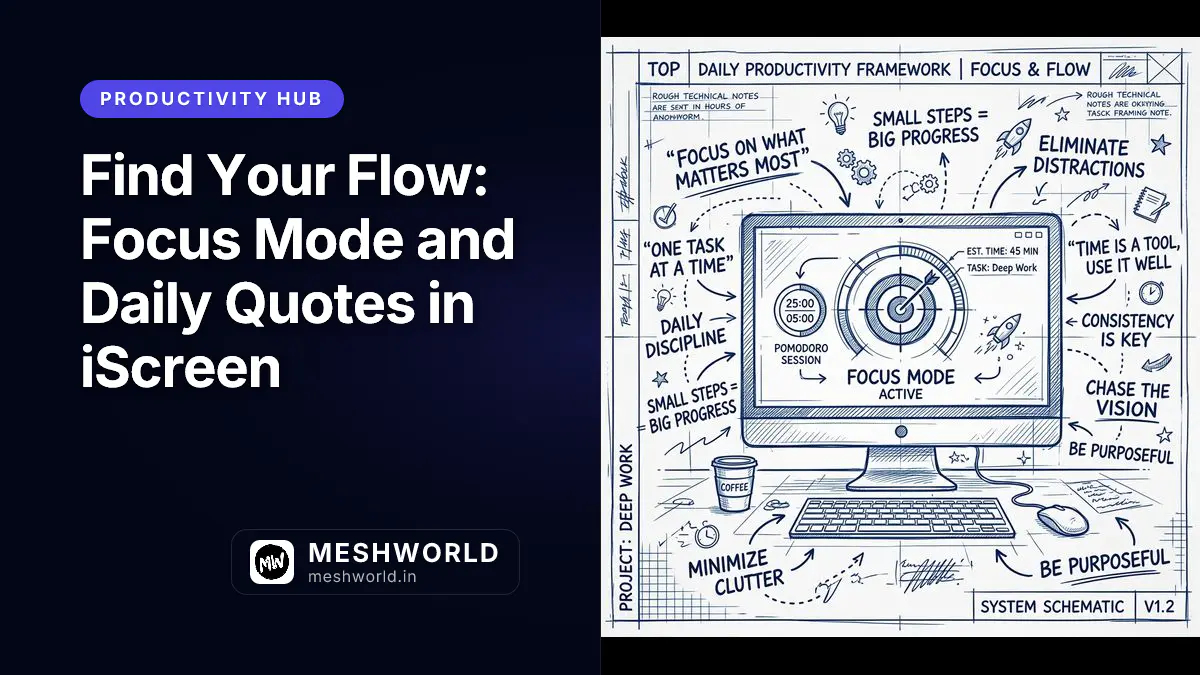
iScreen Focus Mode transforms your workflow by hiding all non-essential widgets, dashboards, and links on your new tab page, replacing them with a minimal interface centered around a clean clock. This immediately stops the context-switching and tab-surfing that drains your mental energy before you can even start working, returning you to a state of calm intention.
When you enter Focus Mode, the central focus shifts to a clean, distraction-free display. This acts as a visual trigger for your brain to transition into deep work. By removing quick links, weather updates, and feed notifications, the system lowers your cognitive load and helps you start your search or task with absolute intent. Constant visual stimuli can degrade focus over time, leading to decision fatigue. iScreen combats this by presenting a stark, minimalist environment that demands purposeful interaction rather than passive consumption.
Step-by-Step Walkthrough: Activating Focus Mode
To fully integrate Focus Mode into your daily routine, follow these systematic steps to build a reliable habit:
- Access the Dashboard: Open a new tab to view your default iScreen dashboard in all its typical glory.
- Locate the Toggle: Find the Focus Mode toggle switch, typically located in the top-right corner of the interface or nested within the quick settings menu.
- Engage the Mode: Click the toggle. You will notice an immediate transition—bookmark cards, complex widgets, and visual flair will fade away, leaving only the essentials.
- Set Your Intention: Before typing anything into the search bar or navigating away, take five seconds to mentally define the specific outcome you want from this session.
- Execute: Proceed with your task, knowing that subsequent new tabs will reinforce this minimalist environment until you explicitly disable the mode.
Advanced Feature: Focus Session Timers and Analytics
To elevate your productivity from basic minimalism to structured output, iScreen includes advanced Focus session timers. These aren’t just simple countdowns; they are integrated tools designed to map to your natural ultradian rhythms and track your progress over time.
- Pomodoro Compatibility: Set standard 25-minute work blocks followed by 5-minute breaks. This is perfect for administrative tasks, email processing, or tasks you’ve been procrastinating on.
- Deep Work Blocks: For more intensive tasks like coding, system design, or long-form writing, extend the timer to 45 or 90 minutes. This allows sufficient time to load the complex context into your working memory.
- Session Categories: Tag your focus sessions with categories (e.g., “Coding,” “Writing,” “Admin,” “Learning”) to review your time allocation at the end of the week.
- Performance Analytics: Review your weekly charts to see which days you achieve the most deep work and at what times you are most productive.
By attaching a timer to your Focus Mode, you create an artificial deadline, which capitalizes on Parkinson’s Law (work expands to fill the time allotted for its completion) to boost your immediate output. Furthermore, the gamification of tracking your successful sessions builds incredible momentum.
Why Do Daily Quotes Boost Your Motivation?
Daily quotes boost your motivation by acting as cognitive pattern interrupts that remind you of your goals whenever you open a new tab to navigate away from your work. Seeing a meaningful reminder instead of a blank page or a grid of distracting shortcuts provides a micro-push to keep you focused on your active tasks.
It might seem overly simple, but starting your work session with an inspiring thought anchors your mindset. iScreen allows you to select quote categories that align with your current project—whether you need coding philosophy, design inspiration, or general productivity tips. These values are cached locally and refreshed daily to prevent loading delays and respect your privacy, ensuring the new tab loads instantaneously.
The Mechanics of Inspiration and Habit Interruption
Consider the typical digital workflow: you hit a difficult bug, feel a surge of frustration, and instinctively hit Cmd+T or Ctrl+T to open a new tab, intending to check social media or the news as a quick escape.
Instead of a gateway to distraction, iScreen presents you with a stark, beautiful interface and a carefully selected quote. This moment of friction—this pattern interrupt—is often just enough to break the impulsive habit loop. It provides a split-second of mindfulness, prompting you to close the tab, take a deep breath, and return to the hard work.
Comparison: Default Tab vs. iScreen Focus Mode
To truly understand the value, let’s break down the differences between a standard browser experience and an optimized iScreen environment:
| Feature | Default Browser Tab | iScreen Focus Mode |
|---|---|---|
| Visual Clutter | High (News feeds, frequent sites, shopping suggestions) | Minimalist (Clock, Quote, Search input only) |
| Intentionality | Passive consumption and endless scrolling | Active execution and focused output |
| Customization | Very limited, often dictated by the browser vendor | Highly customizable (Timers, Quotes, Layouts) |
| Cognitive Load | High (Multiple decisions presented immediately) | Low (Only the next purposeful action is possible) |
| Habit Reinforcement | Encourages distraction and context switching | Encourages deep work blocks and sustained attention |
How Do You Customize Your Focus Layout?
To customize your Focus layout, open the settings panel on the new tab page, go to Focus Mode settings, and select exactly which widgets to hide or display. This modular approach lets you choose whether you want to keep a minimalist clock, a single quote, or a basic search input, tailoring the environment to your exact needs.
Once you have defined your rules, entering Focus Mode is as simple as clicking the toggle switch in the dashboard corner or using the configured keyboard shortcut. The extension will instantly transition the interface, fading out non-essential controls and leaving you with a distraction-free space optimized for execution.
Creating the Ultimate Minimalist Dashboard
If you want to push the boundaries of minimalism and create an environment that demands absolute focus, try this workflow guideline:
- Navigate to Settings: Open the main iScreen configuration panel via the gear icon.
- Select Focus Mode Configurations: Find the granular toggles for individual UI elements under the Focus section.
- Disable Everything Except the Essential:
- Turn off the weather widget and location services.
- Disable the quick-links and bookmarks grid entirely.
- Hide the recent tabs list and any news integrations.
- Enable the Core Duo: Keep only the center clock (to maintain temporal awareness and respect your schedule) and the daily quote (for intermittent motivation).
- Set the Background: Choose a solid dark color or a very subtle, desaturated background image to prevent visual competition with your quote text.
If you are also working on website optimization as part of your productivity goals, you might find our Squoosh Image Optimization Guide helpful for keeping your digital assets as clean and optimized as your new workspace.
Leveraging Categories for Contextual Motivation
One of the advanced features of the Daily Quotes widget is the ability to categorize your inspiration based on your current focus. This ensures the message you receive is highly relevant to the type of resistance you are facing.
- The Builder: Select the “Engineering & Logic” category when tackling complex algorithms, debugging legacy code, or planning system architecture.
- The Creator: Choose “Art & Design” when working on UI layouts, writing blog posts, or brainstorming marketing copy.
- The Grinder: Opt for “Discipline & Grit” during those long, unglamorous stretches of administrative work, repetitive data entry, or fixing minor bugs.
- The Strategist: Choose “Leadership & Vision” when planning quarterly goals or reviewing high-level business metrics.
By matching the tone of your quotes to the nature of your work, you create a cohesive environment that supports your specific cognitive state, making the transition into deep work that much smoother.
Summary
- Minimize Digital Clutter: Systematically hide bookmark cards, news feeds, and complex widgets you don’t immediately need to reduce cognitive load.
- Harness Micro-Motivation: Utilize daily quotes as a mental reset button to interrupt procrastination loops and re-center your focus.
- Configure Custom Displays: Personalize your focus layouts to show only a clock or a search bar, tailored to your exact preferences and aesthetic.
- Implement Timers: Use advanced focus session timers and categories to structure your deep work blocks effectively and track your progress.
- Build Consistent Habits: Develop your deep work discipline one intentionally focused session at a time, turning chaotic days into structured output.
Frequently Asked Questions
Does Focus Mode block websites entirely?
No, Focus Mode curates your immediate dashboard view to remove temptations rather than acting as a strict domain blocker or firewall. It relies on reducing the friction to start work and increasing the friction to get distracted, rather than restricting your access at the network level. If you need strict blocking, you can pair iScreen with a dedicated site blocker.
Can I add my own custom quotes to the rotation?
Yes, iScreen explicitly supports custom quote inputs where you can add your favorite inspiration, personal mantras, or project goals to the daily rotation. This ensures the motivation remains highly relevant to your specific journey and current objectives.
How long should my focus sessions be?
While the 25-minute Pomodoro standard is highly popular, most programmers and writers find 45 to 90 minutes optimal for deep focus. It often takes 15 to 20 minutes just to load the full context of a complex problem into your working memory, making longer, uninterrupted sessions far more effective for demanding cognitive tasks.
Are my focus session categories and timers synced across devices?
Yes, if you have enabled sync settings within your browser profile, iScreen will seamlessly sync your custom focus categories and timer preferences across all your active devices. This ensures a consistent, distraction-free environment whether you are on your laptop at the coffee shop or your main desktop rig at home.