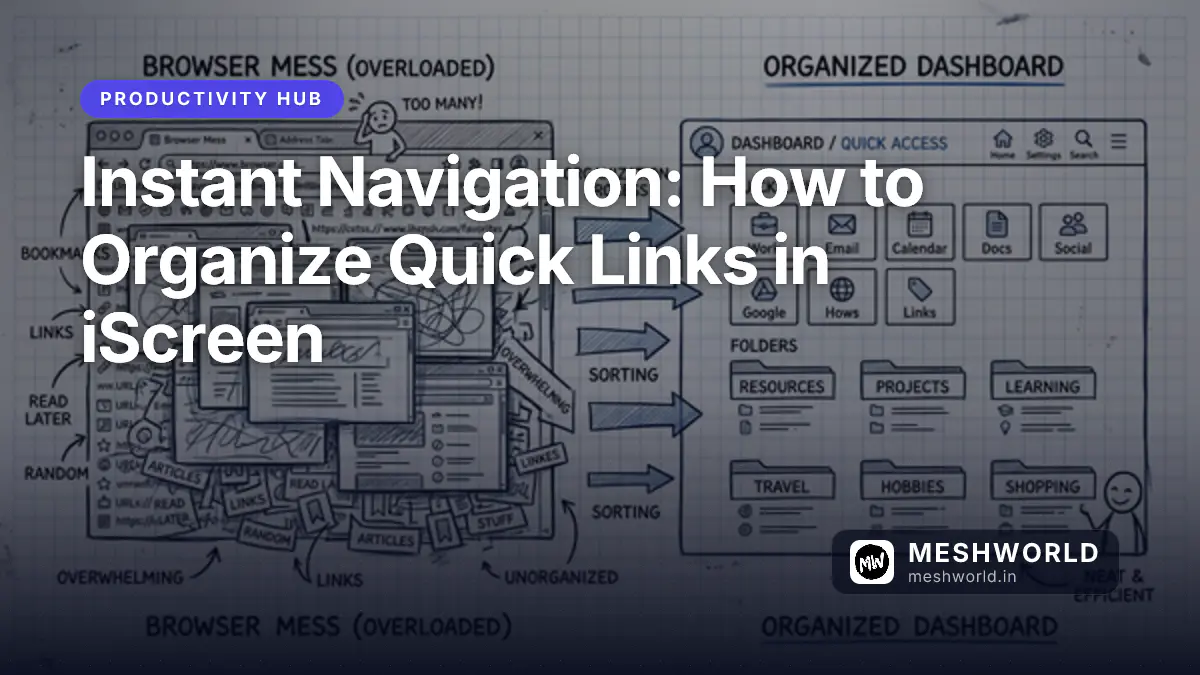
If your browser’s default bookmark bar looks like a digital junk drawer that slows down your morning routine, it is time for a serious upgrade. iScreen’s Quick Links feature transforms your chaotic browsing experience into a streamlined, highly visual productivity hub that saves you countless clicks and preserves your mental focus every single day. Let us explore the exact strategies to turn your new tab page into the ultimate launchpad for your digital life.
Prerequisites
Before diving into the detailed configuration of your dashboard, make sure you have the following ready to go:
- iScreen V3 installed and actively running on your Chrome browser (standard or full flavor).
- A handful of frequently visited websites ready to be organized.
- Basic familiarity with your dashboard layout settings.
- Approximately 15 minutes of dedicated time to construct your optimal setup.
Why Should You Organize Your Quick Links?
Organizing your Quick Links in iScreen reduces the cognitive fatigue of searching for tabs or scanning huge lists, letting you open your most-needed platforms in a single click without distraction. By building a curated visual dashboard, you actively eliminate the temptation of wandering onto distracting websites while trying to locate a buried bookmark in a massive folder tree.
A cluttered bookmark bar leads to visual distraction and lost productivity. When your browser opens to a clean, structured set of large visual icons representing your current active projects, you can immediately focus on the task at hand. This simple, elegant adjustment anchors your browsing sessions, ensuring that the friction between wanting to do work and actually starting the work is minimized to near zero.
Consider the compounding effect of saving just three seconds every time you need to open a vital tool like Jira, GitHub, or your email. Over the course of a year, that adds up to hours of reclaimed time and significantly reduced frustration.
Comparing Traditional Bookmarks to iScreen Quick Links
To truly understand the value, let’s look at a direct comparison:
| Feature | Traditional Bookmarks Bar | iScreen Quick Links Dashboard |
|---|---|---|
| Visual Recognition | Tiny 16x16 pixel favicons, mostly text. | Large, scalable, high-resolution icons and cards. |
| Target Area | Very small, requires precise clicking. | Large click targets, ideal for touchscreens or fast navigation. |
| Organization | Deeply nested folders that hide content. | Flat, visual groups and workspaces right on the dashboard. |
| Customization | Extremely limited, mostly restricted to renaming. | Fully customizable icons, colors, shapes, and layouts. |
| Aesthetic Value | Boring, utilitarian browser UI. | Beautiful, modern, glassmorphic design that inspires productivity. |
How Do You Set Up Your First Quick Links?
To set up your first Quick Links in iScreen, open your new tab page, click the prominent ‘Add Link’ plus icon in the links grid, and input your site’s URL and title. The extension will automatically fetch the website’s favicon and generate a high-resolution visual icon card for your dashboard, getting you started in seconds.
Once saved, the link card immediately joins your grid. However, the initial creation is just the beginning. You can edit the link details at any time by hovering over the card and clicking the edit icon (usually represented by a pencil). This allows you to dive into the customization options.
Step-by-Step Configuration Walkthrough
- Open the Dashboard: Open a new tab in Chrome to load the iScreen interface.
- Locate the Grid: Find the Quick Links widget (usually centered or on the left, depending on your layout flavor).
- Trigger the Modal: Click the large ”+” icon.
- Input the Core Data:
- URL: Paste the exact URL (e.g.,
https://github.com/). - Title: Give it a short, punchy name (e.g.,
GitHub). Avoid long titles that might truncate.
- URL: Paste the exact URL (e.g.,
- Customize the Visuals (Optional):
- Icon Source: Choose whether to use the auto-fetched favicon, upload a custom image, or select from the built-in vector icon library.
- Background Color: Assign a solid color or gradient to the card background for faster visual scanning.
- Save and Review: Click save and test the link to ensure it directs you exactly where you need to go.
By repeating this process for your top 8 to 12 most frequently used websites, you will immediately notice a dramatic shift in how quickly you can navigate the web.
What Is the Best Way to Categorize Your Links?
The best way to categorize your Quick Links is to group them by strict workflow contexts such as active projects, learning resources, and personal daily tasks to prevent context switching. This ensures that work-related bookmarks do not mix with entertainment links, maintaining clear boundaries between your intense productivity hours and your casual personal browsing time.
Creating mental models for your links is crucial for long-term organization. When you combine similar tools into the same visual quadrant of your screen, your muscle memory will naturally adapt. You will stop reading the labels and start clicking based purely on spatial location and color recognition.
Contextual Categories for Modern Professionals
For developers, creators, and designers, a clean category structure might look something like this:
- Work / Code Execution: Code repositories, issue trackers, CI/CD pipelines, and staging servers. (e.g., Jira, GitHub, Vercel, AWS Console).
- Reference / Continuous Learning: Framework documentation, coding cheat sheets, design inspiration, and optimization guides. For example, you might keep the Squoosh Image Optimization Guide here for quick access when compressing assets.
- Daily Essentials & Operations: Email clients, calendar apps, task managers, and team communication tools (e.g., Slack, Notion, Gmail).
- Deep Work / Utilities: Pomodoro timers, ambient noise generators, and focus tracking software.
How Do You Group Links for Maximum Efficiency?
You can group links for maximum efficiency by creating distinct Quick Link Folders or Workspaces within the iScreen dashboard to bundle related URLs into single, manageable blocks. This advanced feature allows you to maintain a minimalist aesthetic on the top level of your dashboard while still keeping dozens of important links just one click away.
Grouping is the secret weapon of the power user. Instead of having 30 individual icons cluttering your screen, you can condense them into 4 or 5 thematic groups.
Implementing Link Groups
To create a group, the process is incredibly straightforward:
- Enter Edit Mode: Click the settings gear or long-press on the dashboard to activate the layout editor.
- Drag and Drop to Combine: Click and hold on a Quick Link card, then drag it directly on top of another Quick Link card.
- Name the Group: A prompt will appear asking you to name the newly formed group (e.g., “Social Media” or “Dev Tools”).
- Expand and Collapse: Once created, clicking the group icon will reveal a beautiful pop-over or expanded grid showing the contained links.
Workflow Guideline: The “Rule of Seven”
When grouping, try to adhere to the psychological “Rule of Seven” (plus or minus two). Human short-term memory struggles when presented with more than 5 to 9 options simultaneously. If your “Dev Tools” group contains 15 links, it is time to break it down further into “Frontend Tools” and “Backend Tools.”
How Can You Import and Export Your Quick Links?
You can import and export your Quick Links by navigating to the iScreen settings menu, selecting the Data Management tab, and using the built-in JSON backup and restore functions. This ensures that your meticulously crafted dashboard configuration is never lost, even if you switch computers, reinstall your browser, or want to share your setup with a colleague.
Data portability is a cornerstone of modern software, and iScreen treats your dashboard configuration with the utmost importance. Whether you are migrating to a new laptop or just creating a secure backup, the import/export features are robust and reliable.
Exporting Your Configuration
Exporting your links is highly recommended as a weekly or monthly backup routine.
- Navigate to the Settings panel (usually accessible via the gear icon in the bottom right corner).
- Go to the Data Management or Backup section.
- Click on Export Quick Links.
- The system will generate a lightweight
.jsonfile containing all your URLs, titles, custom icon references, and grouping structures. Save this file to a secure location like a cloud drive.
Importing Existing Bookmarks and Configurations
Setting up a new dashboard from scratch can be tedious. iScreen offers two ways to speed this up:
- Restore from JSON: Use the Import Quick Links button in the settings panel to upload a previously exported
.jsonfile. This will instantly restore your exact layout. - Browser Bookmark Sync: In the premium or advanced flavors, you can authorize iScreen to read your native Chrome bookmarks and bulk-import them into the dashboard.
Best Practices and Pro-Tips
To truly master the iScreen Quick Links organization, consider adopting these advanced strategies:
- Keep the Grid Clean: Commit to a maximum number of top-level items. We recommend a 4x3 or 4x4 grid (12 to 16 items). Anything more should be grouped.
- Audit Monthly: Digital workflows change. Set a calendar reminder once a month to review your Quick Links. Delete platforms you no longer use and add new tools you have recently adopted.
- Leverage Custom Icons: While auto-fetched favicons are great, taking the time to upload cohesive, monochrome SVG icons for all your links creates a stunning, distraction-free aesthetic that resembles a high-end mobile operating system.
- Use Keyboard Shortcuts: Familiarize yourself with any iScreen keyboard shortcuts that allow you to focus the Quick Links grid and navigate via the arrow keys.
Summary
- Instant Visual Loading: Access essential platforms and tools immediately without typing URLs or scanning dense text lists.
- Auto-Favicon Retrieval: iScreen automatically fetches high-resolution icons for each card, saving you setup time.
- Logical Groups and Contexts: Categorize and bundle bookmarks into distinct folders by workflow context to preserve clean boundaries.
- Drag-and-Drop Sorting: Rearrange card positions dynamically to align perfectly with your daily habits and physical muscle memory.
- Full Data Portability: Seamlessly import native browser bookmarks or export your entire dashboard configuration to a JSON file for safe backup.
Frequently Asked Questions
Can I rearrange my Quick Links after adding them?
Yes, iScreen features full drag-and-drop support, allowing you to rearrange cards on your dashboard grid simply by dragging them into your preferred order. This dynamic sorting means your dashboard can evolve as your priorities change throughout the week.
Is there a limit to how many links I can add to the grid?
There is no hard limit, but we strongly recommend keeping your top-level grid limited to 12-16 primary links to avoid visual noise and maintain a high-focus environment. If you need more, utilize the grouping feature to organize them into expandable folders.
Do Quick Links sync across my devices?
Yes, as long as your Chrome browser profile is logged in and native syncing is enabled, your iScreen Quick Links configuration will securely sync across all your desktop devices.
Can I use my own images for the link cards?
Absolutely, iScreen allows you to override the default fetched favicon by uploading your own custom PNG, JPG, or SVG image files directly through the link editing modal.