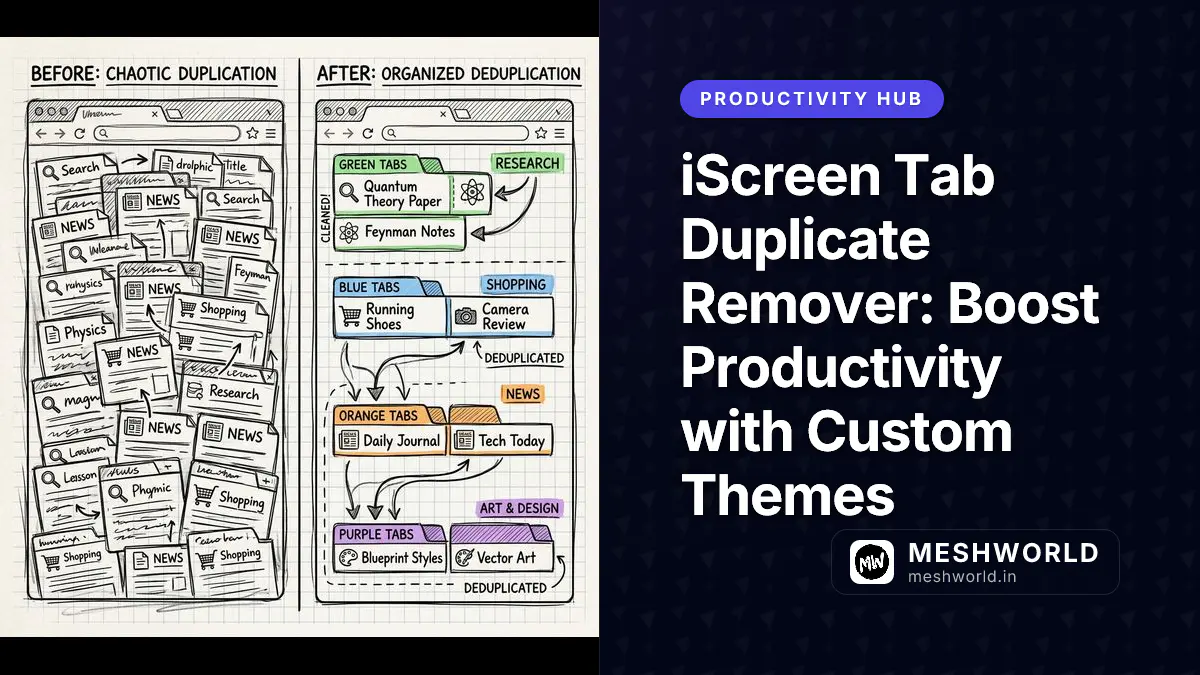
Are you constantly losing important tabs in a sea of identical, resource-hogging duplicates? Discover how the new iScreen Tab Duplicate Remover, combined with an expansive library of custom Floating Action Button (FAB) themes, will completely revolutionize your workflow and restore your sanity.
Why Are Duplicate Tabs a Productivity Killer?
Duplicate tabs are a severe productivity killer because they consume excessive memory, create massive visual clutter, and degrade overall browser performance, which inevitably leads to constant context switching and a complete loss of mental focus during deep work sessions.
When you operate a browser with dozens or hundreds of open tabs, the underlying engine has to allocate dedicated processes, memory (RAM), and CPU cycles to each one. Modern browsers like Chrome isolate every tab into its own sandbox to improve security and stability. While this architecture is fantastic for preventing complete browser crashes, it also means that having five identical Google Docs open will consume five times the system resources. Duplicate tabs exacerbate this issue immensely, turning a simple research or development session into a sluggish, frustrating experience.
Beyond the hardware limitations, there is a profound psychological cost to visual clutter. According to Hick’s Law, the time it takes for a person to make a decision increases with the number and complexity of choices. When you glance at your tab bar and see a sea of tiny, unreadable favicons—many of which are exact duplicates—your brain has to spend precious cognitive energy parsing that information. You aren’t just losing RAM; you are losing your train of thought.
To illustrate the impact, consider this memory usage comparison:
| Scenario | Tab Count | Duplicate Tabs | Estimated RAM Usage | Impact on Focus |
|---|---|---|---|---|
| Optimized | 10 | 0 | ~500 MB | High (Clear workspace) |
| Unmanaged | 30 | 10 | ~1.5 GB | Medium (Slight clutter) |
| Overloaded | 75 | 30 | ~4.0 GB+ | Low (High cognitive load) |
By implementing a robust deduplication strategy with the iScreen Tab Duplicate Remover, you reclaim both your system’s hardware resources and your own mental bandwidth.
What Are iScreen Tab Duplicate Remover Themes?
iScreen Tab Duplicate Remover Themes are customizable visual styles applied to the extension’s Floating Action Button (FAB) and interface, allowing you to seamlessly personalize your workspace aesthetics for better focus, accessibility, and overall workflow integration.
The latest major update to the iScreen extension introduces a massive overhaul to its visual customization engine. Because the Tab Duplicate Remover relies heavily on a Floating Action Button (FAB) that sits persistently on your screen, we knew that a one-size-fits-all design wouldn’t work for power users. You need an interface that either blends perfectly into your workflow or stands out exactly when you need it.
To address this, we have developed a comprehensive library of over 30 distinct FAB themes, broken down into five distinct aesthetic categories. This detailed breakdown ensures that every user, from the hardcore minimalist to the vibrant creative, has an option that suits their exact needs.
1. The Minimalist Collection
For users who want their tools to get out of the way.
- Clean White: Pure, unobtrusive, and blends perfectly into light mode web pages.
- Stealth Mode: Barely visible at 20% opacity until hovered, perfect for absolute minimalists.
- Ghost Outline: A simple 1px border that provides a gentle indication of presence without solid colors.
- Monochrome: Stark black and white high contrast without being overly distracting.
- Soft Ash: A gentle, neutral gray that sits quietly in the corner of your screen.
- Matte Slate: A flat, non-reflective style that feels modern, professional, and refined.
2. Vibrant & Creative
For designers and creatives who want their workspace to pop with energy.
- Neon Pop: Bright, engaging, and meant to draw the eye immediately.
- Cyberpunk 2077: A retro-futuristic blend of neon pinks, yellows, and cyan gradients.
- Sunset Orange: A warm, soothing gradient blend of orange and red for evening workflows.
- Radiant Pink: Energetic and bright, perfect for sparking joy during long creative sessions.
- Electric Violet: A deep, rich purple that signifies deep work, luxury, and intense focus.
- Ocean Breeze: Calming teals and blues designed to reduce anxiety during stressful, high-stakes tasks.
- Mango Tango: A vibrant, tropical orange-yellow to keep your energy high throughout the workday.
3. Dark Mode & Stealth
Optimized for developers and night owls who live in dark mode environments.
- Midnight Blue: A very dark blue that matches typical IDE dark mode backgrounds seamlessly.
- Obsidian Black: Pure #000000 designed specifically to save battery on OLED screens.
- Eclipse: A dark circular button with a subtle, glowing corona effect that triggers on hover.
- DarkOcean: Deep, marine blues that feel expansive and mysterious.
- Charcoal: A soft, textured dark gray that significantly reduces eye strain in low-light environments.
- The Void: A completely blacked-out icon that only reveals its functionality via a tooltip.
- Space Gray: An Apple-inspired sleek metallic darkness that looks incredibly premium.
4. Nature & Earth
Grounding, organic tones to reduce digital fatigue.
- Forest Green: Deep and natural, excellent for bringing a touch of the outdoors to your screen.
- Terracotta: Earthy and warm, reminiscent of fired clay and classic pottery.
- Sandstone: A light, beige tone that feels incredibly organic and calming.
- Autumn Leaf: Rich, comforting browns and burnt oranges.
- Spring Leaf: A vibrant, fresh green signifying new beginnings and fresh ideas.
- Riverstone: A smooth, polished gray-blue mimicking water over rocks.
5. High-Contrast & Accessibility
Functionality first, designed for maximum visibility.
- HighVis Yellow: Maximum visibility for visually impaired users, impossible to miss.
- Solar Flare: An extremely bright yellow-orange paired with high-contrast bold text.
- Contrast Mono: Pure black and pure white alternating elements for instant recognition.
- Bold Blue: The most accessible shade of blue, thoroughly tested for colorblind users.
- Deep Red: An urgent, high-alert color for critical, time-sensitive tasks.
- Pure White: Maximum contrast against any dark background to ensure it stands out.
How Can You Customize Your Workspace Themes?
You can completely customize your workspace themes by navigating to the iScreen settings panel, selecting the Tab Duplicate Remover section, and choosing your preferred aesthetic style from the extensive dropdown menu to instantly apply changes globally.
Customizing your experience is incredibly straightforward, but for power users, there are several advanced workflow guidelines to consider. The settings panel is highly responsive and updates in real-time, allowing you to preview themes without committing.
Step-by-Step Walk-Through
- Open the Dashboard: Click the iScreen extension icon in your Chrome toolbar to open the main dashboard popup.
- Navigate to Settings: Click the gear icon located in the bottom left corner to access global settings.
- Locate the Deduplicator: In the sidebar navigation, click on the Tab Duplicate Remover menu item.
- Browse the Gallery: Scroll down to the Appearance & Themes section. Here, you will see a visual grid of all 30+ available themes.
- Apply and Preview: Click on any theme. The FAB on your current active page will instantly update to reflect your choice.
For developers looking to understand the underlying architecture of such customizable interfaces, it’s worth noting the layout techniques involved. If you are building your own tools, you might find our comprehensive guide on CSS Grid vs Flexbox incredibly useful for structuring complex settings panels exactly like ours.
You can also interact with the iScreen configuration programmatically if you are using our developer API:
// Example: Configuring iScreen Theme settings programmatically via the API
const iscreenConfig = {
  feature: 'Tab Duplicate Remover',
  theme: 'Cyberpunk 2077',
  autoMerge: true,
  fabPosition: 'bottom-right'
};

window.iScreenAPI.setTheme(iscreenConfig.theme).then(() => {
  console.log("iScreen configured successfully with", iscreenConfig.theme);
});
How Does Theming Improve Your Focus?
Theming directly improves your focus by reducing cognitive load through a clear visual hierarchy, creating a personalized environment that minimizes external distractions, and establishing strong color-coded psychological associations for different work contexts.
Color psychology is a well-documented field, and its application in User Interface design cannot be overstated. When you look at a screen for eight to ten hours a day, the colors you are exposed to have a measurable impact on your mood, heart rate, and fatigue levels.
By allowing you to choose themes like “Ocean Breeze” or “Forest Green,” iScreen enables you to lower your visual stress. Conversely, when you need to power through a tight deadline, switching to “Radiant Pink” or “Deep Red” can provide the subconscious urgency required to stay on task. Personalization gives you agency over your digital environment, making it feel like a customized workspace rather than a generic, sterile application.
When duplicate tabs are automatically pruned and the remaining UI elements are beautifully themed to match your exact preferences, the resulting clarity translates directly into increased productivity. You spend less time searching for the right tab, less time squinting at bright white buttons in a dark room, and significantly more time executing your core tasks.
What Are The Best Practices For Tab Management?
The absolute best practices for tab management involve conducting regular tab audits, utilizing native tab groups for distinct projects, leveraging bookmarks for long-term storage, and aggressively eliminating duplicates using automated tools like iScreen.
Effective tab management goes far beyond simply installing an extension; it requires a systematic approach to how you handle information online. To truly optimize your workflow and become a power user, we recommend implementing the following strict guidelines:
- Conduct Regular Audits: Dedicate exactly five minutes at the end of each workday to review your open tabs. Close anything you haven’t looked at in the last 48 hours. If it’s important, bookmark it.
- Utilize Chrome Tab Groups: Group related tabs together (e.g., “Client X Research”, “Q3 Financials”) and collapse them when not in use. Use iScreen themes to complement the colors you assign to your tab groups.
- Embrace the Bookmark Manager: The biggest mistake users make is using open tabs as a to-do list. If you don’t need a tab immediately but want to save it for reference next week, bookmark it in a well-organized folder structure.
- Automate the Purge: Configure iScreen’s auto-merge feature to run in the background. Instead of manually clicking the FAB, let the extension silently close identical URLs the moment they are opened, preventing the problem before it even starts.
Summary
- The Tab Duplicate Remover automatically clears up massive amounts of memory, reduces visual clutter, and prevents context switching.
- The new update features over 30 customizable FAB themes across five distinct categories (Minimalist, Vibrant, Dark Mode, Nature, High-Contrast).
- Personalizing your UI colors reduces cognitive load, minimizes eye strain, and leverages color psychology to boost focus.
- Adopting strong tab management practices, like daily audits and utilizing tab groups, perfectly complements automated deduplication.
- You can easily configure and preview themes instantly from the settings dashboard without needing to restart your browser.
Frequently Asked Questions
Does the Tab Duplicate Remover close active tabs?
No, the Tab Duplicate Remover does not close your active tabs because it intelligently prioritizes keeping the currently focused instance or the oldest instance of a URL, while safely closing only the redundant background duplicates.
It uses advanced, intelligent algorithms to determine which tab you are most likely to need, ensuring a completely seamless and non-destructive browsing experience. You will never lose the form you were in the middle of filling out.
Are custom themes available in the free version?
Yes, several basic custom themes are absolutely available in the free version, while the more premium aesthetics, vibrant gradients, and advanced programmatic customization rules are exclusively unlocked in the Pro tier.
We firmly believe that a beautiful, organized, and accessible workspace should be available to everyone, which is why the High-Contrast and basic Dark Mode themes are included for all users at no cost.
How do I report a bug or request a new theme?
You can easily report a bug or request a brand new theme directly through the iScreen extension’s built-in feedback portal, or by joining our highly active Discord community for direct access to the developers.
We love hearing from our community! Many of the 30+ themes currently available—including the highly popular “Cyberpunk 2077” and “The Void”—were directly requested by users just like you.