How to Fix apt & dpkg “Could Not Get Lock” Errors on Ubuntu and Debian
When you see “Could not get lock”, “dpkg frontend is locked by another process”, or “Unable to lock the administration directory”, it usually means something else is already using apt or dpkg.
Debian, Ubuntu, and their derivatives (Kubuntu, Xubuntu, Linux Mint, Pop!_OS, elementary OS) use lock files to stop multiple package operations from running simultaneously. This is actually good design—running two installs or upgrades at once can corrupt your package database.
Most of the time, the fix is straightforward: wait, close any software updater or package manager, then try again. If a crash or interrupted update left behind a stale lock file, you might need to remove it and repair dpkg—but only after you’re sure no package process is actually running.
This guide covers these common errors:
E: Could not get lock /var/lib/dpkg/lock - open (11: Resource temporarily unavailable)
E: Unable to lock the administration directory (/var/lib/dpkg/), is another process using it?
E: Could not get lock /var/lib/apt/lists/lock
dpkg frontend is locked by another process
Unable to lock directory /var/cache/apt/archives/
Why am I getting the “Could Not Get Lock” apt error?
You’re seeing this error because either another process is using apt or dpkg, or a previous package operation crashed and left behind a stale lock file.
Here’s what usually causes it:
- Another terminal is running
sudo apt update,sudo apt upgrade, orsudo apt install - Ubuntu’s Software Updater is running in the background
- GNOME Software, KDE Discover, Synaptic, Mint Update, or another GUI package manager is open
unattended-upgradesorapt-dailyis installing updates automatically- A previous package operation got interrupted (system crash, network issue, etc.)
What should I do first?
Wait a few minutes and check for running package processes. Don’t immediately delete lock files—that’s how people break their systems.
Run this to see what’s happening:
ps -eo pid,ppid,stat,etime,cmd | grep -E 'apt|apt-get|aptitude|dpkg|unattended-upgrade|packagekit|update-manager|gnome-software|plasma-discover|synaptic|mintupdate' | grep -v grepIf you see an active update or install process, let it finish.
How do I fix the apt lock error in 60 seconds?
Likely cause
Another package manager process is running—apt, apt-get, dpkg, unattended-upgrade, Software Updater, GNOME Software, KDE Discover, Synaptic, or Mint Update.
Safest first commands
Check what’s running:
ps -eo pid,ppid,stat,etime,cmd | grep -E 'apt|apt-get|aptitude|dpkg|unattended-upgrade|packagekit|update-manager|gnome-software|plasma-discover|synaptic|mintupdate' | grep -v grepThen check which process is holding the lock:
sudo lsof /var/lib/dpkg/lock-frontend /var/lib/dpkg/lock /var/lib/apt/lists/lock /var/cache/apt/archives/lockWhat to do next if the lock persists
If no apt, dpkg, updater, or package-manager process is running, remove the stale lock files and repair the package state:
sudo rm -f /var/lib/dpkg/lock-frontend /var/lib/dpkg/lock /var/lib/apt/lists/lock /var/cache/apt/archives/lock
sudo dpkg --configure -a
sudo apt --fix-broken install
sudo apt update
Important: Only remove lock files after you’ve confirmed no package process is running.
What are dpkg lock files and why do they exist?
What is dpkg?
dpkg is the low-level Debian package manager that handles installing, removing, and configuring .deb packages. Tools like apt and apt-get sit on top of dpkg and use it for the actual package operations.
What are lock files?
Lock files are how apt and dpkg signal that a package operation is in progress. They stop multiple package managers from trying to modify package lists, archives, or the package database simultaneously—which would be bad.
Why removing lock files can be dangerous
If you delete lock files while apt or dpkg is still running, you allow another package operation to start at the same time. This can corrupt your package database or leave packages half-installed.
What is the safest path to fix apt lock errors?
If you want the safest, shortest version, here’s what to do:
- Close Software Updater, GNOME Software, KDE Discover, Synaptic, Mint Update, and any terminal running
apt. - Wait 2–5 minutes.
- Check for running package processes:
ps -eo pid,ppid,stat,etime,cmd | grep -E 'apt|apt-get|aptitude|dpkg|unattended-upgrade|packagekit|update-manager|gnome-software|plasma-discover|synaptic|mintupdate' | grep -v grep- If nothing relevant is running, repair
dpkg:
sudo dpkg --configure -a
sudo apt --fix-broken install
sudo apt update- Then retry:
sudo apt upgradeor:
sudo apt install <package>Only move to lock-file removal if the lock error persists and you’ve confirmed no apt/dpkg process is active.
How do I fix apt and dpkg lock errors step-by-step?
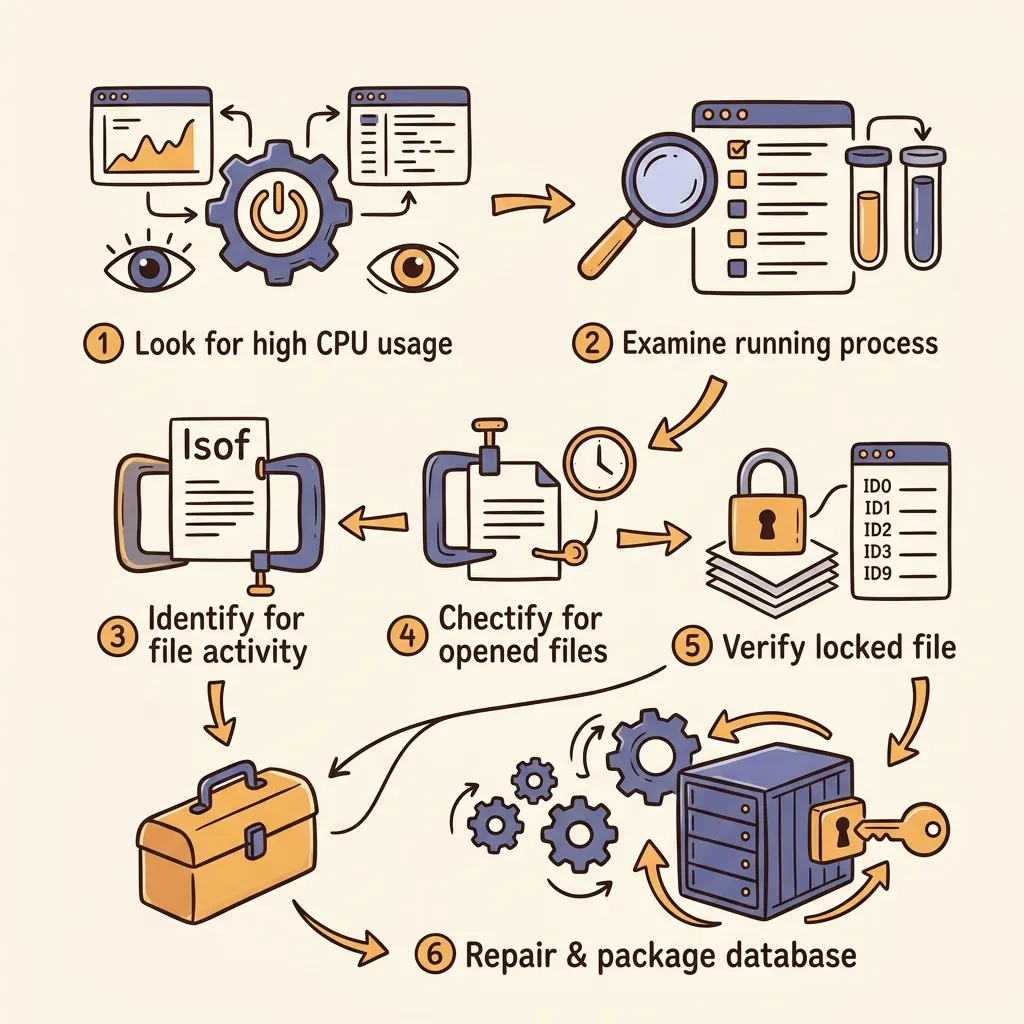
Step 1: Check whether apt, dpkg, or software centers are running
First, look for active package-management processes.
ps -eo pid,ppid,stat,etime,cmd | grep -E 'apt|apt-get|aptitude|dpkg|unattended-upgrade|packagekit|update-manager|gnome-software|plasma-discover|synaptic|mintupdate' | grep -v grepYou might see processes like:
apt upgrade
apt-get install ...
dpkg --configure ...
unattended-upgrade
packagekitd
update-manager
gnome-software
plasma-discover
synaptic
mintupdate
Note: packagekitd is the PackageKit daemon (used by some distros), and update-manager is Ubuntu’s update manager.
If you’re on a desktop system, also close any open graphical package managers:
- Software Updater
- Ubuntu Software / GNOME Software
- KDE Discover
- Synaptic Package Manager
- Mint Update
- Pop!_Shop or other distribution software centers
Expected results
- If you see an active
apt,apt-get,dpkg, or updater process, wait for it to finish. - If nothing relevant appears, continue to Step 2 or Step 3.
Step 2: Stop conflicting services or processes safely
If a user-facing package manager is open, close it from the application first.
If system-managed update services are running, check their status:
systemctl status apt-daily.service apt-daily-upgrade.serviceOn many Debian/Ubuntu systems, background apt jobs are triggered by systemd timers. You can inspect them with:
systemctl list-timers 'apt-daily*'If apt-daily.service or apt-daily-upgrade.service is actively running and seems stuck, you can stop them:
sudo systemctl stop apt-daily.service apt-daily-upgrade.serviceIf your system uses unattended-upgrades, check its service status:
systemctl status unattended-upgrades.serviceIf it’s actively running and blocking you, stop it:
sudo systemctl stop unattended-upgrades.serviceIf the command says a unit doesn’t exist or isn’t loaded, your system might not use that service—no problem.
Expected results
- Active background update services should stop cleanly.
- If a service was performing a legitimate upgrade, stopping it might leave packages partially configured, so run the repair commands in Step 5 afterward.
Step 3: Verify which lock is held with lsof or fuser
Before deleting anything, check whether a process is actually holding one of the known apt/dpkg lock files.
Use lsof:
sudo lsof /var/lib/dpkg/lock-frontend /var/lib/dpkg/lock /var/lib/apt/lists/lock /var/cache/apt/archives/lockIf lsof isn’t installed, you can use fuser (available on Debian/Ubuntu through the psmisc package):
sudo fuser -v /var/lib/dpkg/lock-frontend /var/lib/dpkg/lock /var/lib/apt/lists/lock /var/cache/apt/archives/lockHere’s what the lock files usually mean:
/var/lib/dpkg/lock-frontend— front-end tools likeaptare usingdpkg/var/lib/dpkg/lock— thedpkgdatabase is locked/var/lib/apt/lists/lock— apt package lists are locked (usually duringapt update)/var/cache/apt/archives/lock— downloaded package archives are locked (usually during install or upgrade)
Expected results
- If
lsoforfusershows a process, don’t delete the lock file. Identify the process and let it finish or stop it safely. - If there’s no output for the lock files and no package process is running, the lock is probably stale.
Step 4: Remove stale lock files only if confirmed safe
This is the last-resort step.
Only remove lock files if all of these are true:
- No
apt,apt-get,aptitude, ordpkgprocess is running - No software center or updater is open
lsoforfuserdoesn’t show a process holding the lock- You’re confident the lock is stale
Then remove the standard Debian/Ubuntu apt and dpkg lock files:
sudo rm -f /var/lib/dpkg/lock-frontend /var/lib/dpkg/lock /var/lib/apt/lists/lock /var/cache/apt/archives/lockDon’t remove package database files like /var/lib/dpkg/status.
Expected results
- The stale lock files are removed.
aptanddpkgshould be able to run again, but the package database might still need repair. Continue to Step 5.
Step 5: Repair dpkg state after an interrupted apt operation
After clearing a stale lock, fix any half-configured packages.
First run:
sudo dpkg --configure -aThen fix broken dependencies if needed:
sudo apt --fix-broken installThe equivalent apt-get command:
sudo apt-get -f installThen update package lists:
sudo apt updateExpected results
sudo dpkg --configure -ashould finish configuring interrupted packages.sudo apt --fix-broken installshould install or remove packages needed to restore dependency consistency.sudo apt updateshould complete without lock errors.
Step 6: Re-run apt and interpret common follow-up errors
Once locks are cleared and dpkg is repaired, retry your original command.
Update package lists:
sudo apt updateUpgrade installed packages:
sudo apt upgradeInstall a package:
sudo apt install <package>You can also use apt-get if you prefer it for scripts or old habits:
sudo apt-get update
sudo apt-get upgrade
sudo apt-get install <package>
Common follow-up errors
dpkg was interrupted, you must manually run 'sudo dpkg --configure -a'
Run:
sudo dpkg --configure -aThen:
sudo apt --fix-broken installCould not open lock file ... Permission denied
You probably forgot sudo.
Use:
sudo apt updatenot:
apt updateUnable to correct problems, you have held broken packages
Try:
sudo apt --fix-broken install
sudo apt update
Then retry the install or upgrade. If the issue persists, it’s probably dependency-related rather than lock-related.
Repository errors after the lock is fixed
Errors like missing Release files, invalid signatures, or unreachable mirrors aren’t lock problems. You’ll need to fix repository configuration or network access instead.
Expected results
- Your original
apt update,apt upgrade, orapt installcommand should now work. - If you get a different error, troubleshoot that separately.
Which apt lock file is causing your error?
| Lock file | Likely cause | What to check | Safe action |
|---|---|---|---|
/var/lib/dpkg/lock | dpkg is configuring, installing, or removing packages | sudo lsof /var/lib/dpkg/lock or sudo fuser -v /var/lib/dpkg/lock | Wait for dpkg to finish. If no process holds it, remove stale lock and run sudo dpkg --configure -a. |
/var/lib/dpkg/lock-frontend | An apt, apt-get, aptitude, or GUI package manager process is using dpkg | sudo lsof /var/lib/dpkg/lock-frontend and check for Software Updater or package managers | Close the package manager or wait. If stale, remove the lock and repair with sudo dpkg --configure -a. |
/var/lib/apt/lists/lock | Package lists are being updated, usually by apt update or a background update job | sudo lsof /var/lib/apt/lists/lock; check apt-daily.service | Wait or stop the update service safely. If stale, remove the lock and rerun sudo apt update. |
/var/cache/apt/archives/lock | Packages are being downloaded or installed from apt’s archive cache | sudo lsof /var/cache/apt/archives/lock; check active install/upgrade commands | Wait for install/upgrade to finish. If stale, remove the lock and run sudo apt --fix-broken install. |
Why do background updates trigger apt lock errors?
Desktop Debian/Ubuntu systems often run package operations without you typing an apt command.
Common background or GUI sources:
unattended-upgradesapt-daily.serviceapt-daily-upgrade.service- Software Updater
- GNOME Software
- KDE Discover
- Synaptic
- Mint Update
- Distribution-specific software centers
These tools can legitimately trigger apt or dpkg, so a terminal command like:
sudo apt updatemight temporarily fail with a lock error.
Desktop vs server behavior
On desktops, lock errors usually come from GUI package managers or background update checks.
On servers, lock errors are more often from unattended upgrades, automation, provisioning scripts, configuration management tools, or another admin running package commands.
The troubleshooting flow is the same: identify the running process, wait or stop it safely, then repair dpkg if the operation was interrupted.
What mistakes should you avoid when clearing apt locks?
Do not delete lock files immediately
Deleting lock files should be a last resort. Always check for running apt or dpkg processes first.
Do not delete locks while apt or dpkg is running
This allows two package operations to run at once and can damage package state.
Do not remove random files from /var/lib/dpkg/
Never delete important package database files like:
/var/lib/dpkg/statusLock files aren’t the same as the package database.
Do not force reboot during an active package operation
Avoid rebooting while packages are being installed or configured. If the system is genuinely frozen and you have no other option, you’ll need to repair package state afterward:
sudo dpkg --configure -a
sudo apt --fix-broken install
Do not kill package processes unless you understand the risk
Killing dpkg during configuration can leave packages partially installed. Wait or stop systemd-managed services cleanly instead.
How do I perform advanced apt lock diagnostics?
Identify exact process IDs holding locks
Use:
sudo lsof /var/lib/dpkg/lock-frontend /var/lib/dpkg/lock /var/lib/apt/lists/lock /var/cache/apt/archives/lockOr:
sudo fuser -v /var/lib/dpkg/lock-frontend /var/lib/dpkg/lock /var/lib/apt/lists/lock /var/cache/apt/archives/lockThen inspect a process:
ps -fp <PID>You can also check elapsed runtime:
ps -o pid,ppid,stat,etime,cmd -p <PID>Check systemd journal logs for apt services
For apt daily jobs:
journalctl -u apt-daily.service -u apt-daily-upgrade.service --no-pagerFor unattended upgrades (if the service exists):
journalctl -u unattended-upgrades.service --no-pagerTemporarily prevent apt timers from starting again
If you’re actively repairing a system and apt timers keep restarting, temporarily stop the timers:
sudo systemctl stop apt-daily.timer apt-daily-upgrade.timerAfter repair, start them again:
sudo systemctl start apt-daily.timer apt-daily-upgrade.timerDon’t disable update timers permanently unless you have a separate update-management plan.
Rebuild package state after interruption
Use this sequence:
sudo dpkg --configure -a
sudo apt --fix-broken install
sudo apt update
sudo apt upgrade
If you prefer apt-get:
sudo dpkg --configure -a
sudo apt-get -f install
sudo apt-get update
sudo apt-get upgrade
Frequently Asked Questions (FAQ)
Why does Ubuntu say “dpkg frontend is locked by another process”?
Because another tool—usually apt, Software Updater, GNOME Software, KDE Discover, or unattended-upgrades—is already using the package-management backend.
Is it safe to remove /var/lib/dpkg/lock?
Only if no apt, apt-get, aptitude, dpkg, updater, or software-center process is running. Removing it while package management is active is unsafe.
How do I fix E: Could not get lock /var/lib/apt/lists/lock?
Check for running update processes, wait or stop them safely, then remove the stale lock only if no process holds it. Afterward run:
sudo apt updateHow do I fix Unable to lock directory /var/cache/apt/archives/?
Check whether an install or upgrade is downloading packages. If not, verify the lock is stale, remove /var/cache/apt/archives/lock, then run:
sudo apt --fix-broken installShould I use apt or apt-get?
For interactive use, apt is fine. For scripts, many admins prefer apt-get because its command-line interface is more stable for automation.
What if the lock error comes back after reboot?
A background updater might be starting automatically, or the previous package operation might still need repair. Check running processes, then run:
sudo dpkg --configure -a
sudo apt --fix-broken install
What is the final recommended apt recovery sequence?
Use this only after checking that no package process is running:
sudo lsof /var/lib/dpkg/lock-frontend /var/lib/dpkg/lock /var/lib/apt/lists/lock /var/cache/apt/archives/lock
sudo rm -f /var/lib/dpkg/lock-frontend /var/lib/dpkg/lock /var/lib/apt/lists/lock /var/cache/apt/archives/lock
sudo dpkg --configure -a
sudo apt --fix-broken install
sudo apt update
sudo apt upgrade
After that, package installation should work again:
sudo apt install <package>Summary: Safe handling of apt and dpkg lock errors
Fixing apt and dpkg lock errors on Debian and Ubuntu isn’t complicated, but it does require patience. The systematic approach is: identify running processes, safely stop conflicting services, verify which lock is held, remove stale locks only when you’re sure it’s safe, repair dpkg state, then re-run your original command.
The golden rule: never delete lock files while package management is active. That’s how people corrupt their package databases, and then you’re in for a much worse time than a simple lock error.
Read next: