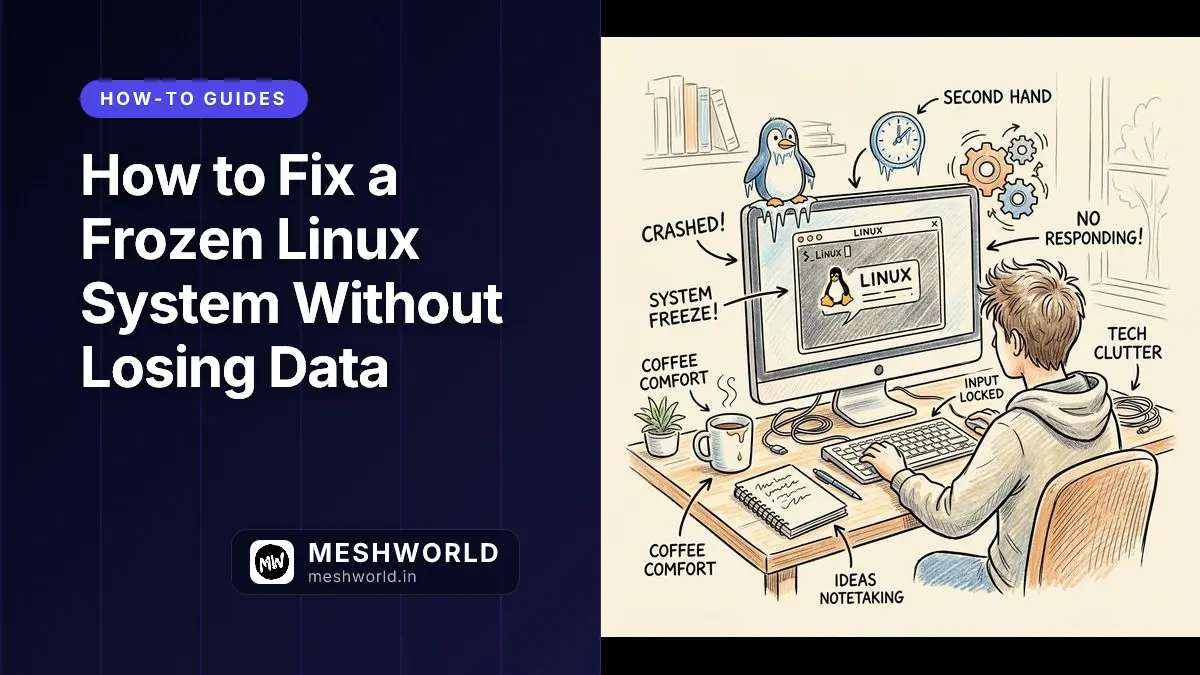
I have been there: in the middle of a critical terminal session, debugging a complex memory leak, finally finding the solution, compiling the code, opening a few browser tabs—and then, total silence. The mouse stops. The screen freezes. The cursor is locked. Panic sets in as I realize my unsaved changes are trapped.
My first instinct used to be reaching for the physical power button to force a hard reboot. However, after corrupting my files, breaking dkms kernel modules, and interrupting package installations one too many times, I learned that there are much safer ways to handle a frozen system.
A sudden system freeze on Linux can instantly derail your productivity. Whether you are running Ubuntu (including 24.04 LTS or 26.04), Pop!_OS (GNOME or the new COSMIC desktop), Linux Mint, Debian, Zorin OS, or elementary OS, a complete user interface lockup is a shared hurdle across the Debian/Ubuntu lineage. Fortunately, there are safer ways to handle the situation. This comprehensive guide covers everything from reviving a locked desktop to executing a clean kernel-level reboot, along with advanced diagnostics to prevent future freezes.
Supported Linux Distributions
The troubleshooting steps below work universally across these systems because they all share the same core architecture, libraries, and systemd initialization. When I help developers fix frozen systems, these distributions tend to have identical root causes, even if they look different visually.
- Ubuntu (All official flavors: Ubuntu Desktop, Kubuntu, Xubuntu, Lubuntu, Ubuntu Budgie, MATE)
- Pop!_OS (GNOME-based official desktop and the newer COSMIC Rust-based variant)
- Linux Mint (Cinnamon, MATE, and Xfce editions)
- Zorin OS and elementary OS
- Debian (Stable, Testing, and Unstable branches)
I’ve helped countless developers on these platforms when their critical terminal sessions in the middle of complex debugging scenarios suddenly hit a complete freeze, leaving them staring at an unresponsive computer screen.
Prerequisites
Before starting, ensure you have the following:
- A Debian-based Linux distribution (Ubuntu, Pop!_OS, Linux Mint, Debian, Zorin OS, or elementary OS).
- A keyboard with a dedicated
Print Screen/SysRqkey. - Sudo/root administrative access to execute system service restarts.
In addition, understanding terminal escape routes is highly useful. If you ever get stuck inside terminal interfaces, read my guide on How to Exit Emacs: Save, Quit, and Force Close to learn basic editor escape commands.
How Do You Use the Linux Rescue Decision Tree?
When your Linux system locks up, your immediate instinct might be to hold down the power button. I’ve done it myself. Don’t! Doing this can corrupt your filesystem, interrupt package installations, or break hardware drivers you spent hours configuring.
Use this visual decision tree to safely revive Ubuntu, Pop!_OS, Linux Mint, or other Debian-based systems without losing data. I’ve walked through these steps dozens of times when my development workflows hit a snag.
── THE LINUX RESCUE DECISION TREE ──
Look at your screen and follow the branch that matches your current situation:

                  [ SYSTEM IS FROZEN ]
                           │
         Is your mouse cursor still moving?
         ├─── YES: It's a Graphical UI / Shell Freeze
         │         └──> Go to STEP 1 (Restart UI or Terminal)
         │
         └─── NO: Entire Screen is Completely Locked
                   │
         Does the Caps Lock / Num Lock light toggle on your keyboard?
         ├─── YES: The Linux Kernel is alive!
         │         └──> Go to STEP 2 (TTY Virtual Console Switch)
         │
         └─── NO: Hard Lockup (Mouse, Screen, and Keyboard dead)
                   └──> Go to STEP 3 (The Magic SysRq REISUB Safe Reboot)
STEP 1: The Quick Rescue (Graphical Shell Freeze)
Your cursor moves, but apps, panels, and clock are completely frozen.
For X11 Sessions (Linux Mint, Older Ubuntu/Pop!_OS)
Alt + F2 ──> (Type r into the dialog box) ──> Press Enter
Result: The GNOME/Cinnamon desktop interface instantly refreshes without closing your open windows, browser tabs, or development workspaces.
For Wayland Sessions (Modern Ubuntu & Pop!_OS COSMIC)
Wayland disables the shortcut above for security. Instead, use a keyboard shortcut to force a terminal and terminate the rogue process:
- Press Ctrl + Alt + T (Launches Terminal)
- Type:
(Example:BASH
pkill -9 <name_of_frozen_app>pkill -9 chromeorpkill -9 firefox)
STEP 2: The TTY Switch (The Text Console Escape)
The graphical UI is totally unresponsive, but your keyboard hardware lights (Caps Lock) still turn on/off.
You can drop underneath your broken desktop interface into a purely text-based Linux terminal:
Ctrl + Alt + F3 ──> Enter Username & Password ──> Restart Display Manager
Once you log into the text screen, type the command that corresponds to your distribution to cleanly recycle your graphical environment and return to a fresh login screen:
| Distribution | Default Display Manager | Command to Restart GUI |
|---|---|---|
| Ubuntu / Pop!_OS | GDM3 | sudo systemctl restart gdm3 |
| Linux Mint / Zorin OS | LightDM | sudo systemctl restart lightdm |
| Kubuntu (KDE) | SDDM | sudo systemctl restart sddm |
STEP 3: The Nuclear Option (The Magic SysRq Safe Reboot)
The system is stone cold frozen. No mouse movement, no TTY response, keyboard lights are dead.
Do not cut the power! The Linux kernel has an emergency low-level mechanism hardwired to accept raw commands directly.
To verify if your kernel currently has Magic SysRq enabled, run this command in your terminal beforehand:
cat /proc/sys/kernel/sysrqIf the command returns 1, all SysRq features are active. If it returns 176 (the default on modern Ubuntu/Pop!_OS), critical unmount, sync, and reboot commands remain fully active. If it returns 0, you must enable it permanently (see the FAQ at the bottom).
-
HOLD DOWN: Alt + Print Screen / SysRq
-
WHILE HOLDING, SLOWLY TYPE THESE LETTERS (Pause 1-2 seconds between each):
R ──> E ──> I ──> S ──> U ──> B
🔍 How It Works (The REISUB Breakdown)
Think of this as an automated, orderly evacuation sequence executed directly by your CPU’s hardware instructions:
R (Raw Control) ──> E (End Processes) ──> I (Instant Kill) ──> S (Sync RAM) ──> U (Unmount Drives) ──> B (Boot System)
- R (Raw Control): Retakes input controls from the broken graphics engine back to the keyboard.
- E (End Processes): Ends apps gently by sending SIGTERM, letting text editors save active states.
- I (Instant Kill): Instantly forces uncooperative, locked processes closed with a SIGKILL.
- S (Sync RAM): Syncs all cached data stuck in RAM directly onto your hard drive or SSD.
- U (Unmount Drives): Unmounts your filesystems and remounts them safely as “Read-Only” to prevent corruption.
- B (Boot System): Boots your motherboard instantly into a clean hardware restart.
STEP 4: Permanent Preventions (Stop the Freezes)
If your Linux desktop is locking up consistently, use this quick checklist to find and fix the root architectural bottleneck:
                        [ DIAGNOSING CRASH LOGS ]

     Open a Terminal and type this command immediately after a freeze-reboot:
                       journalctl -b -1 -p 3..0

  (This reads the system log from the previous boot cycle to pinpoint hardware failures)
🛠️ Common Fixes for Frequent Freezes
-
Out of Memory (OOM) Lockups: If opening too many browser tabs crashes your system, your drive is likely bottlenecking trying to handle swap files. Install an automated memory manager to drop rogue apps before they tank the kernel:
BASHsudo apt install earlyoom && sudo systemctl enable --now earlyoom -
NVIDIA Graphics Driver Panic: Open your system app menu, look for Additional Drivers, and ensure you are using the official proprietary, tested NVIDIA driver binary, rather than the community-made Nouveau open-source fallback driver.
-
Corrupted GNOME Extensions: Third-party layout themes and extensions frequently suffer from memory leaks. Turn them all off in your Extensions app to see if your system stability immediately returns to 100%.
How to Restart the Desktop GUI?
If your mouse cursor still moves but windows, panels, and menus are completely unresponsive, the issue is likely isolated to your display server or desktop shell rather than a full system crash.
Method A: For X11 Sessions (Older Ubuntu, Linux Mint Cinnamon, older Pop!_OS)
- Press Alt + F2 on your keyboard.
- A small command execution box will appear in the center of your screen.
- Type the single letter r and hit Enter.
This instantly restarts the desktop shell smoothly without closing your open applications, saving your active workspace session.
Method B: For Wayland Sessions & Pop!_OS COSMIC
If you are running a modern Wayland session (the default on recent Ubuntu versions) or utilizing Pop!_OS’s native COSMIC desktop environment, the Alt + F2 + r shortcut is intentionally disabled due to Wayland’s architecture. Instead, use system shortcuts to kill the frozen task:
- Press Ctrl + Alt + T to force-open a terminal window.
- If the terminal opens, launch the system monitor:
BASH
htop - Identify the rogue process using your arrow keys, and press
F9followed by15(SIGTERM) or9(SIGKILL) to terminate it.
Alternatively, if you know the name of the app causing the freeze (e.g., Chrome, Firefox, an IDE), run:
pkill -9 <process_name>How to Kill Rogue Processes via Virtual TTY Console?
When the entire graphical user interface (GUI) freezes but your keyboard’s Caps Lock or Num Lock lights still toggle when pressed, your Linux kernel is still completely functional. You can bypass the broken GUI entirely by dropping into a virtual text console (TTY).
[GUI Frozen] ──> Press Ctrl + Alt + F3 ──> TTY Text Prompt ──> Restart Display Manager Image Prompt: A premium hand-drawn sketch note diagram. Playful doodles explaining switching from a frozen GUI to a text-based TTY console, showing hotkeys Ctrl+Alt+F3, computer screens, and cute terminal indicators on a cream paper background.
- Press Ctrl + Alt + F3 simultaneously (if F3 doesn’t respond, try F4, F5, or F6).
- Your screen will turn black and display a command-line login prompt.
- Enter your system username and press Enter, then type your password (note: no characters or asterisks will show as you type your password for security reasons).
- Once logged in, you can choose to cleanly restart your specific Display Manager (which manages your login screen and desktop graphical environment). Choose the command that matches your operating system:
For Ubuntu / Pop!_OS (using GDM):
sudo systemctl restart gdm3For Linux Mint / Zorin OS (using LightDM):
sudo systemctl restart lightdmFor Kubuntu (using SDDM):
sudo systemctl restart sddmOnce executed, the system will instantly recycle your graphics server and drop you safely back to your user login screen.
How to Safely Reboot with Magic SysRq Keys?
If the system is entirely unresponsive—meaning the mouse cursor is dead, the keyboard lock lights won’t toggle, and TTY shortcuts fail—avoid hard-resetting via the physical power button. Instead, leverage the Magic SysRq key, a low-level fallback mechanism built directly into the Linux kernel to safely flush data to the storage drive and reboot.
How to Execute the REISUB Sequence
Press and hold both the Alt key and the Print Screen / SysRq key down together. While keeping them held down, type the following letters slowly on your keyboard, waiting 1 to 2 seconds between each individual keystroke:
R ──> E ──> I ──> S ──> U ──> B
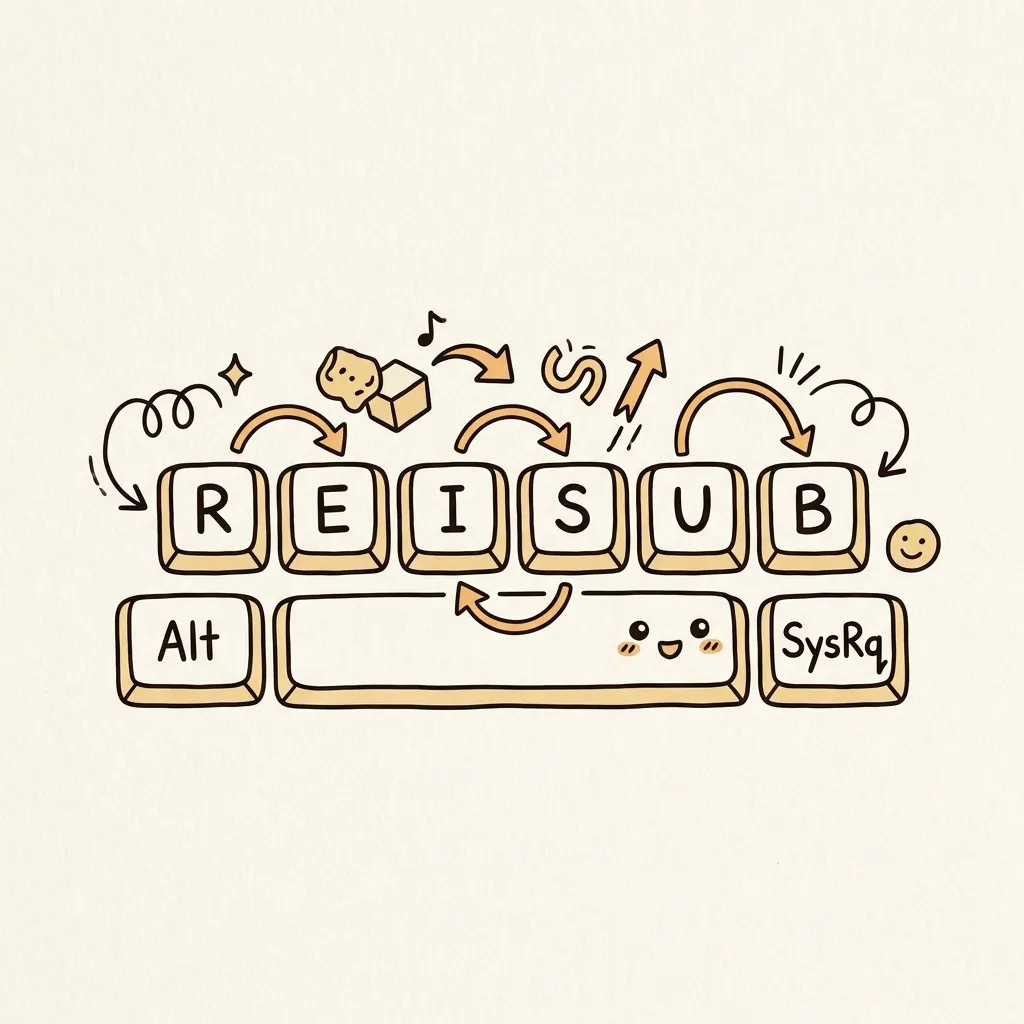 Image Prompt: A premium hand-drawn sketch note diagram. A keyboard layout showing keys Alt, SysRq, and the REISUB letters, with cute arrows, playful doodles, and recovery explanations in a warm hand-drawn style on a cream paper background.
| Key | Action Performed directly by the Linux Kernel |
|---|---|
| R | Retake control of the keyboard back from the graphical display server (X-server/Wayland). |
| E | Send SIGEnd (SIGTERM) to all running processes, allowing them to save their states. |
| I | Send SIGInstant-Kill (SIGKILL) to force-close any remaining rogue applications. |
| S | Sync all cached data still floating in your RAM onto your hard drive/SSD (prevents data corruption). |
| U | Unmount and remount all file systems as “Read-Only” to protect disk structural integrity. |
| B | Force an immediate, safe, and clean hardware reBoot. |
How to Prevent Future System Freezes?
If your Linux machine freezes systematically, it is often due to recurring driver conflicts, hardware limitations, or optimization mismatches. Use these diagnostics to permanently fix the root cause.
A. Troubleshooting Proprietary NVIDIA Graphics Drivers
NVIDIA driver updates sometimes conflict with newly deployed Linux kernels, resulting in intermittent desktop hangs or graphical artifacts.
The Fix: Ensure you are utilizing the tested proprietary driver rather than the open-source Nouveau driver.
- On Ubuntu or Linux Mint, open the Additional Drivers app via the application menu.
- Select the latest Tested Proprietary branch and click Apply Changes.
- On Pop!_OS, always ensure you download the dedicated NVIDIA ISO variant. You can force-reinstall the verified System76 stable pipeline using:
BASH
sudo apt install --reinstall system76-driver-nvidia
B. Handling Out-of-Memory (OOM) Lockups
If your machine locks up when opening many browser tabs, virtual machines, or heavy development IDEs, your system is likely running out of physical RAM, forcing the OS into an intensive swap-thrashing state where disk access bottlenecks the CPU.
The Fix: Check your current swap space allocation using:
swapon --showIf your system lacks sufficient active swap or you want a proactive solution, install earlyoom. This daemon automatically terminates rogue, resource-heavy background processes before they destabilize the OS kernel.
sudo apt install earlyoom
sudo systemctl enable --now earlyoomC. Pinning a Stable Kernel
If a recent automated system update introduces a regression in the Linux kernel that triggers frequent hardware freezes, you can revert to a previous, stable kernel version.
- Reboot your computer.
- At the boot splash screen, open your boot loader menu (hold
Shifton older GRUB systems, tapEscrepeatedly on newer UEFI systems, or use theSpacebarfor systemd-boot on Pop!_OS). - Select Advanced Options for Ubuntu/Pop!_OS and boot into an older, working kernel version.
- Once safely booted, you can temporarily pin your working kernel so system updates won’t overwrite it:
BASH
sudo apt-mark hold linux-image-$(uname -r)
D. Finding the Culprit via Logs
If the system freezes again, reboot and run this terminal command immediately to look at the system logs from the exact moment of the previous crash:
journalctl -b -1 -p 3..0This filters the log file from the previous boot cycle (-b -1) for high-priority errors, pointing you directly to the exact hardware component or software application that caused the system failure.
Summary
In this guide, you learned:
- How to restart the GUI shell or kill specific windows under X11 and Wayland display environments.
- How to switch to virtual text console TTY logins to restart desktop display managers.
- How to use kernel SysRq inputs safely to prevent drive corruption during full crashes.
- How to isolate system freezes by managing GPU drivers, configuring OOM termination tools, and examining boot logs.
Frequently Asked Questions
Does REISUB work on Wayland?
Yes, the Magic SysRq key is handled directly by the Linux kernel, meaning it works regardless of whether you are running X11, Wayland, or no display server at all.
Why does my screen remain black after restarting lightdm or gdm3?
Sometimes display managers fail to reinitialize the GPU driver context after a crash. If this happens, you may need to drop back into TTY (Ctrl + Alt + F3) and run sudo reboot for a clean system restart.
How do I enable the Magic SysRq key permanently?
If REISUB does not work, it might be disabled in your kernel configuration. You can enable it permanently by adding kernel.sysrq=1 to your /etc/sysctl.d/99-sysctl.conf file and running:
sudo sysctl --systemWhat to Read Next
- How to Install and Configure Git on Ubuntu — Set up your developer workspace properly once your system is stable.
- How to Set Up a Secure LAMP Stack on Ubuntu — Build web apps on a reliable stack on your clean machine.