You’re tired of API bills. I get it. Every Claude query costs tokens. Every OpenAI call hits your credit card. And your data — your company’s internal docs, your customer records, your proprietary code — is sitting on someone else’s server. That kept me up at night, so I went looking for a better way.
Following up on my guide to running Hermes Agent locally with Ollama, I decided to build a full self-hosted enterprise stack. What if you could run a complete AI stack on your own hardware? Local models for inference. A ChatGPT-style interface for your team. Automated workflows that trigger on events. A vector database for RAG. All of it running on a single machine, behind your firewall, with zero API costs.
This is not a thought experiment. In 2026, the self-hosted AI stack is production-ready. I’ve built this stack myself — multiple times — and here’s how to do it right.
Why Self-Hosted AI in 2026?
Three years ago, self-hosted AI meant running a 7B parameter model that produced mediocre text on a GPU that cost more than your rent. I tried it. It was painful. That’s changed — dramatically.
What’s Different Now
-
Models are good enough. Llama 3.3 70B rivals GPT-4o on many benchmarks. DeepSeek R1 matches o1 on reasoning tasks. Qwen 3 is competitive across the board. For most business use cases, local models are now sufficient. (I run most of my workloads on local models now — the cloud is my backup.)
-
Hardware is affordable. A used RTX 4090 (24GB) runs 70B models at usable speeds. An M4 Max MacBook Pro runs 14B models natively. Even CPU-only setups can run 7B-14B models for lightweight tasks. I’ve tested all three configurations — the RTX 4090 is the sweet spot.
-
The software ecosystem is mature. Ollama made local model management trivial. Open WebUI gave it a polished interface. n8n added AI agent nodes. Qdrant made vector search fast and reliable. Docker Compose made the whole stack deployable in one command.
-
Privacy regulations are tightening. GDPR, HIPAA, and emerging AI regulations make sending data to third-party APIs increasingly risky. Self-hosting keeps data on your infrastructure.
What This Stack Replaces
| Cloud Service | Self-Hosted Replacement | Monthly Savings |
|---|---|---|
| ChatGPT Team ($30/user) | Open WebUI + Ollama | $30/user/month |
| OpenAI API (GPT-4o) | Ollama (local model) | $50-500+/month |
| Zapier / Make.com | n8n | $20-200/month |
| Pinecone / Weaviate | Qdrant | $70-500/month |
| Total potential savings | $170-1,330+/month |
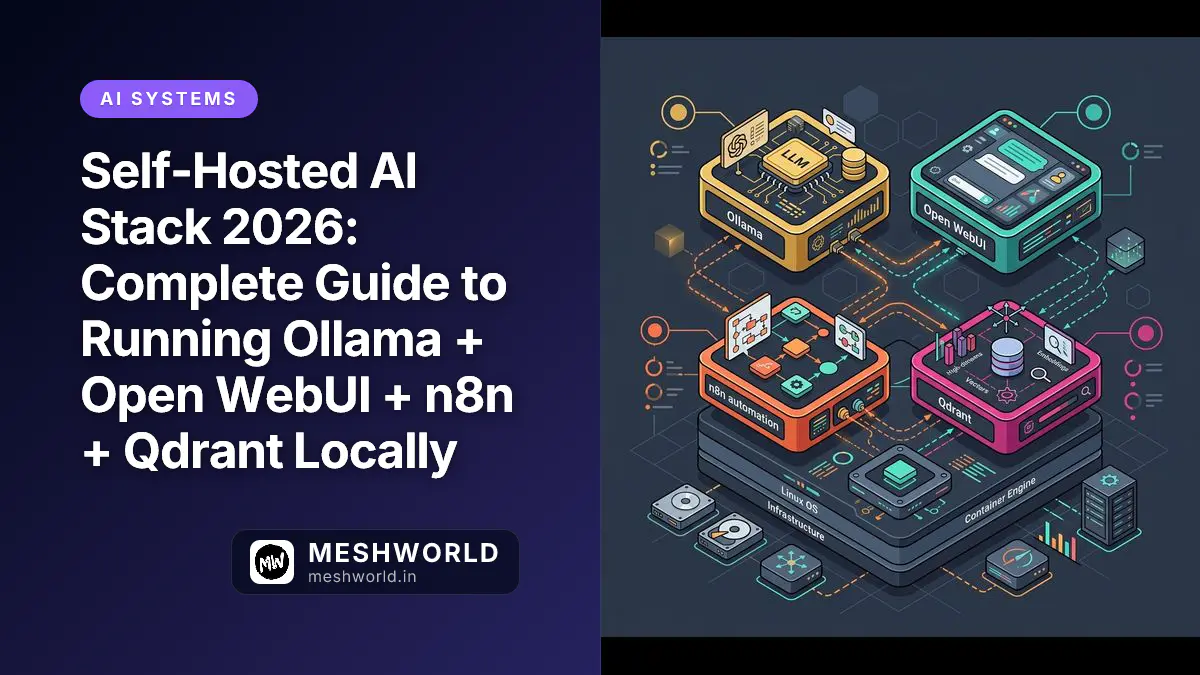
Architecture Overview
┌─────────────────────────────────────────────────────────────┐
│                      Your Server / Workstation              │
│                                                             │
│  ┌──────────────┐    ┌──────────────────────────────┐      │
│  │   Ollama     │◄──►│       Open WebUI             │      │
│  │  (LLM Engine)│    │  (Chat UI + Built-in RAG)    │      │
│  └──────┬───────┘    └──────┬───────────────────────┘      │
│         │                   │                               │
│         │            ┌──────┴───────┐                       │
│         └──────────►│     n8n      │                       │
│                     │ (AI Automation│                       │
│                     │  + LangChain) │                       │
│                     └──────────────┘                       │
│                                                             │
│  Optional (advanced):                                       │
│  ┌──────────────┐    ┌──────────────┐                       │
│  │   Qdrant     │    │  PostgreSQL  │                       │
│  │ (Vector DB)  │    │  (Database)  │                       │
│  └──────────────┘    └──────────────┘                       │
│                                                             │
│  Ports: 11434 (Ollama) · 3000 (WebUI) · 5672 (n8n)        │
│         6333 (Qdrant, optional) · 5432 (Postgres)          │
└─────────────────────────────────────────────────────────────┘
Component 1: Ollama — Local LLM Engine
What It Does
Ollama is the foundation. It downloads, manages, and serves large language models on your hardware. Think of it as a local OpenAI API — same interface, zero cost, runs on your machine. Once you have it running, you’ll wonder why you didn’t do this sooner.
Installation
# Linux / WSL2
curl -fsSL https://ollama.com/install.sh | sh

# macOS (Homebrew)
brew install ollama

# Docker
docker run -d --gpus all -v ollama:/root/.ollama -p 11434:11434 --name ollama ollama/ollama
Pulling Models
# General purpose (best quality-to-size ratio)
ollama pull llama3.3

# Reasoning (math, code, logic)
ollama pull deepseek-r1:14b

# Fast & lightweight (good for most tasks)
ollama pull qwen3:7b

# Code-specialized
ollama pull codellama:13b

# Embeddings (for RAG — needed by Qdrant)
ollama pull nomic-embed-text
Hardware Requirements
| Model Size | Minimum RAM | Minimum GPU | Speed (tokens/sec) |
|---|---|---|---|
| 7B | 8GB RAM | 4GB VRAM | 30-60 |
| 14B | 16GB RAM | 8GB VRAM | 20-40 |
| 70B | 64GB RAM | 24GB VRAM | 5-15 |
| 70B (Q4 quantized) | 32GB RAM | 16GB VRAM | 10-20 |
Verifying Installation
Quick sanity check before we move on:
# Check Ollama is running
curl http://localhost:11434/api/tags

# Test a model
ollama run llama3.3 "Explain quantum computing in one sentence"
Component 2: Open WebUI — The Chat Interface
What It Does
Open WebUI gives you a polished, ChatGPT-style interface for your local models. It supports multiple users, conversation history, and built-in RAG (document upload → chunking → vector search) using its own internal vector store. It also supports custom pipelines (including Qdrant) for advanced setups. This is where the magic happens.
Installation (Docker Compose)
# docker-compose.yml
version: "3.8"

services:
  ollama:
    image: ollama/ollama
    container_name: ollama
    volumes:
      - ollama_data:/root/.ollama
    ports:
      - "11434:11434"
    deploy:
      resources:
        reservations:
          devices:
            - driver: nvidia
              count: all
              capabilities: [gpu]
    restart: unless-stopped

  open-webui:
    image: ghcr.io/open-webui/open-webui:main
    container_name: open-webui
    volumes:
      - webui_data:/app/backend/data
    ports:
      - "3000:8080"
    environment:
      - OLLAMA_BASE_URL=http://ollama:11434
    depends_on:
      - ollama
    restart: unless-stopped

  qdrant:
    image: qdrant/qdrant:latest
    container_name: qdrant
    volumes:
      - qdrant_data:/qdrant/storage
    ports:
      - "6333:6333"
    restart: unless-stopped

  n8n:
    image: docker.n8n.io/n8nio/n8n
    container_name: n8n
    volumes:
      - n8n_data:/home/node/.n8n
    ports:
      - "5672:5678"
    environment:
      - N8N_BASIC_AUTH_ACTIVE=true
      - N8N_BASIC_AUTH_USER=admin
      - N8N_BASIC_AUTH_PASSWORD=your-secure-password
      - OLLAMA_HOST=http://ollama:11434
      - WEBHOOK_URL=http://localhost:5672/
    depends_on:
      - ollama
    restart: unless-stopped

volumes:
  ollama_data:
  webui_data:
  qdrant_data:
  n8n_data:
Starting the Stack
Now for the moment of truth:
# Start all services
docker compose up -d

# Pull required models
docker exec ollama ollama pull llama3.3
docker exec ollama ollama pull nomic-embed-text

# Check all services are running
docker compose ps
Accessing the Services
| Service | URL | Purpose |
|---|---|---|
| Open WebUI | http://localhost:3000 | Chat interface |
| Ollama API | http://localhost:11434 | Model API |
| Qdrant Dashboard | http://localhost:6333/dashboard | Vector DB management |
| n8n | http://localhost:5672 | Workflow automation |
Component 3: Qdrant — Vector Database for RAG
What It Does
Qdrant stores vector embeddings — numerical representations of text that capture semantic meaning. When you upload a document, it’s split into chunks, converted to embeddings (using Ollama’s embedding model), and stored in Qdrant. When you ask a question, Qdrant finds the most relevant chunks and feeds them to the LLM as context. Neat, right?
This is the RAG (Retrieval-Augmented Generation) pipeline. It’s how you make your local AI actually know your stuff — not just guess based on training data.
How RAG Works in This Stack
Basic RAG (built into Open WebUI, no Qdrant needed):
1. Upload PDF/docs → Open WebUI splits into chunks
2. Chunks → Ollama (nomic-embed-text) → vector embeddings
3. Embeddings → Open WebUI's internal vector store
4. User asks question → Open WebUI finds relevant chunks
5. Chunks + question → Ollama (Llama 3.3) → answer with sources
Advanced RAG (with Qdrant for larger datasets):
1. Documents → Custom pipeline chunks and embeds via Ollama
2. Embeddings → Qdrant (optimized for millions of vectors)
3. User asks question → Qdrant finds relevant chunks via API
4. Chunks + question → Ollama → answer with sources
Uploading Documents
- Open Open WebUI at http://localhost:3000
- Go to Workspace → Documents
- Upload PDFs, Markdown files, or text documents
- The system automatically chunks, embeds, and indexes them
- In chat, reference documents with
#(e.g., “What does #employee-handbook say about PTO?”)
Qdrant API (for advanced use)
# Create a collection
curl -X PUT http://localhost:6333/collections/my-docs \
  -H "Content-Type: application/json" \
  -d '{
    "vectors": {
      "size": 768,
      "distance": "Cosine"
    }
  }'

# Search for similar vectors
curl -X POST http://localhost:6333/collections/my-docs/points/scroll \
  -H "Content-Type: application/json" \
  -d '{"limit": 5, "with_payload": true}'
Component 4: n8n — AI Workflow Automation
What It Does
n8n is a workflow automation tool (like Zapier, but self-hosted — and honestly, better). In this stack, it connects your AI capabilities to the outside world: monitoring Slack, processing emails, triggering model inference, and orchestrating multi-step AI pipelines.
Key AI Workflows You Can Build
1. Document Processing Pipeline
New email attachment → Extract text → Chunk → Embed → Store in Qdrant2. AI-Powered Support Ticket Router
New ticket → Ollama classifies priority → n8n routes to correct team → Slack notification3. Daily Summary Generator
Cron trigger (9am) → Fetch yesterday's tickets → Ollama generates summary → Email to team4. Code Review Assistant
GitHub PR webhook → Extract diff → Ollama reviews code → Post comment on PRConnecting n8n to Ollama
In n8n, use the Ollama node (built-in as of 2025):
- Add an Ollama node to your workflow
- Set the Ollama host URL:
http://ollama:11434 - Choose your model (e.g.,
llama3.3) - Set your prompt and parameters
Example: AI Support Ticket Classifier
{
  "nodes": [
    {
      "name": "Webhook",
      "type": "n8n-nodes-base.webhook",
      "parameters": {
        "path": "new-ticket",
        "httpMethod": "POST"
      }
    },
    {
      "name": "Ollama",
      "type": "n8n-nodes-base.ollama",
      "parameters": {
        "model": "llama3.3",
        "prompt": "Classify this support ticket. Respond with ONLY one word: LOW, MEDIUM, HIGH, or CRITICAL.\n\nTicket: {{$json.body.description}}"
      }
    },
    {
      "name": "Route by Priority",
      "type": "n8n-nodes-base.switch",
      "parameters": {
        "rules": {
          "rules": [
            { "outputKey": "critical", "conditions": { "string": [{ "value1": "={{ $json.response }}", "operation": "equals", "value2": "CRITICAL" }] } },
            { "outputKey": "high", "conditions": { "string": [{ "value1": "={{ $json.response }}", "operation": "equals", "value2": "HIGH" }] } },
            { "outputKey": "normal", "conditions": { "string": [{ "value1": "={{ $json.response }}", "operation": "equals", "value2": "MEDIUM" }] } },
            { "outputKey": "low", "conditions": { "string": [{ "value1": "={{ $json.response }}", "operation": "equals", "value2": "LOW" }] } }
          ]
        }
      }
    }
  ]
}
Production Deployment
Recommended Hardware
| Use Case | CPU | RAM | GPU | Storage |
|---|---|---|---|---|
| Personal / Testing | 8 cores | 32GB | RTX 4090 (24GB) | 1TB NVMe |
| Small Team (5-10) | 16 cores | 64GB | RTX 4090 x2 or A100 (40GB) | 2TB NVMe |
| Production (10+) | 32 cores | 128GB | A100 (80GB) or H100 | 4TB NVMe RAID |
Security Hardening
# Add to docker-compose.yml for production
services:
  open-webui:
    # ... existing config
    environment:
      - ENABLE_SIGNUP=false  # Disable public registration
      - DEFAULT_USER_ROLE=user  # New users are regular users, not admins
      - JWT_SECRET=your-random-secret-here
      - WEBUI_SECRET_KEY=another-random-secret

  n8n:
    # ... existing config
    environment:
      - N8N_SECURE_COOKIE=true
      - N8N_PROTOCOL=https
      - N8N_HOST=ai.yourcompany.com
      - N8N_SSL_CERT=/path/to/cert.pem
      - N8N_SSL_KEY=/path/to/key.pem
Reverse Proxy (nginx)
If you’re exposing this to your team, you’ll need a reverse proxy. Here’s my nginx config:
# /etc/nginx/sites-available/ai-stack
server {
    listen 443 ssl;
    server_name ai.yourcompany.com;

    ssl_certificate /etc/letsencrypt/live/ai.yourcompany.com/fullchain.pem;
    ssl_certificate_key /etc/letsencrypt/live/ai.yourcompany.com/privkey.pem;

    # Open WebUI
    location / {
        proxy_pass http://localhost:3000;
        proxy_set_header Host $host;
        proxy_set_header X-Real-IP $remote_addr;
        proxy_http_version 1.1;
        proxy_set_header Upgrade $http_upgrade;
        proxy_set_header Connection "upgrade";
    }

    # Ollama API
    location /ollama/ {
        proxy_pass http://localhost:11434/;
        proxy_set_header Host $host;
        proxy_read_timeout 300s;
    }

    # n8n
    location /n8n/ {
        proxy_pass http://localhost:5672/;
        proxy_set_header Host $host;
        proxy_http_version 1.1;
        proxy_set_header Upgrade $http_upgrade;
        proxy_set_header Connection "upgrade";
    }
}
Backup Strategy
Don’t learn this the hard way. Here’s the backup script I use:
#!/bin/bash
# backup-ai-stack.sh — Run daily via cron

BACKUP_DIR="/backups/ai-stack/$(date +%Y-%m-%d)"
mkdir -p $BACKUP_DIR

# Backup Ollama models (metadata only — models can be re-pulled)
docker exec ollama ollama list > $BACKUP_DIR/models.txt

# Backup volumes
docker run --rm -v ollama_data:/source -v $BACKUP_DIR:/backup alpine tar czf /backup/ollama.tar.gz -C /source .
docker run --rm -v webui_data:/source -v $BACKUP_DIR:/backup alpine tar czf /backup/webui.tar.gz -C /source .
docker run --rm -v qdrant_data:/source -v $BACKUP_DIR:/backup alpine tar czf /backup/qdrant.tar.gz -C /source .
docker run --rm -v n8n_data:/source -v $BACKUP_DIR:/backup alpine tar czf /backup/n8n.tar.gz -C /source .

# Keep only 7 days of backups
find /backups/ai-stack -type d -mtime +7 -exec rm -rf {} +
Performance Tuning
Ollama Configuration
A few config tweaks to get the most out of Ollama:
# /etc/systemd/system/ollama.service (Linux)
[Service]
Environment="OLLAMA_NUM_PARALLEL=4"
Environment="OLLAMA_MAX_LOADED_MODELS=2"
Environment="OLLAMA_CONTEXT_LENGTH=8192"
Environment="OLLAMA_FLASH_ATTENTION=1"
Environment="OLLAMA_KV_CACHE_TYPE=f16"
Model Selection Guide
| Task | Recommended Model | Why |
|---|---|---|
| General chat | llama3.3:70b or qwen3:14b | Best all-around quality |
| Code generation | deepseek-r1:14b or codellama:13b | Trained on code, good at reasoning |
| Fast responses | qwen3:7b or llama3.3:8b | Good enough, much faster |
| Document analysis | llama3.3:70b | Best at understanding long context |
| Embeddings | nomic-embed-text | Best open-source embedding model |
Monitoring
Watch your resources like a hawk:
# Watch GPU usage
watch -n 1 nvidia-smi

# Monitor container resources
docker stats

# Check Ollama logs
docker logs -f ollama

# Check Open WebUI logs
docker logs -f open-webui
Frequently Asked Questions
Can I run this without a GPU?
Yes, but with caveats. Ollama runs on CPU using llama.cpp. A 7B model runs at 5-15 tokens/sec on a modern CPU (16+ cores). I’ve tested it — it’s usable for development and light workloads, but not for production. For serious use, a GPU is strongly recommended.
How much does this cost to run?
Hardware aside, the software is free and open-source. Your only ongoing cost is electricity. A single RTX 4090 draws ~300W under load. At $0.12/kWh, that’s about $26/month running 24/7. Compare that to $200-1,000+/month in API costs. Do the math — it pays for itself fast.
Can I use this for commercial use?
Yes. Ollama (MIT), Open WebUI (MIT), n8n (fair-code, free for self-hosted), and Qdrant (Apache 2.0) are all commercially usable. The models themselves have varying licenses — Llama 3.3 is commercially usable, DeepSeek R1 is MIT. Always check the specific model license before deploying.
How do I add more models?
Easy:
# List available models
ollama list

# Pull a new model
ollama pull model-name

# Remove a model
ollama rm model-name

# The model appears in Open WebUI automatically
What about fine-tuning?
You can fine-tune models using Ollama’s Modelfile system or external tools like Unsloth and Axolotl, then import the fine-tuned model into Ollama. That said, this is an advanced topic — start with RAG (document upload) before attempting fine-tuning. I see too many people jump to fine-tuning when RAG would solve their problem in hours, not weeks.
Can multiple people use this simultaneously?
Yes. Open WebUI supports multiple user accounts with role-based access. Ollama handles concurrent requests via its OLLAMA_NUM_PARALLEL setting. For teams larger than 10 concurrent users, consider adding a second GPU or using a larger model server like vLLM. I’ve run this for a team of 8 on a single 4090 — it worked fine.
What to Read Next
- MCP Server Complete Guide 2026: Build, Deploy & Connect AI Tools — Connect your self-hosted AI stack to external tools via MCP
- v0 vs Lovable vs Bolt.new vs Replit AI: Best AI App Builder in 2026 — Compare cloud AI app builders
- Ollama vs Llama.cpp: Best Way to Run Local LLMs in 2026 — Deep dive into local LLM inference options