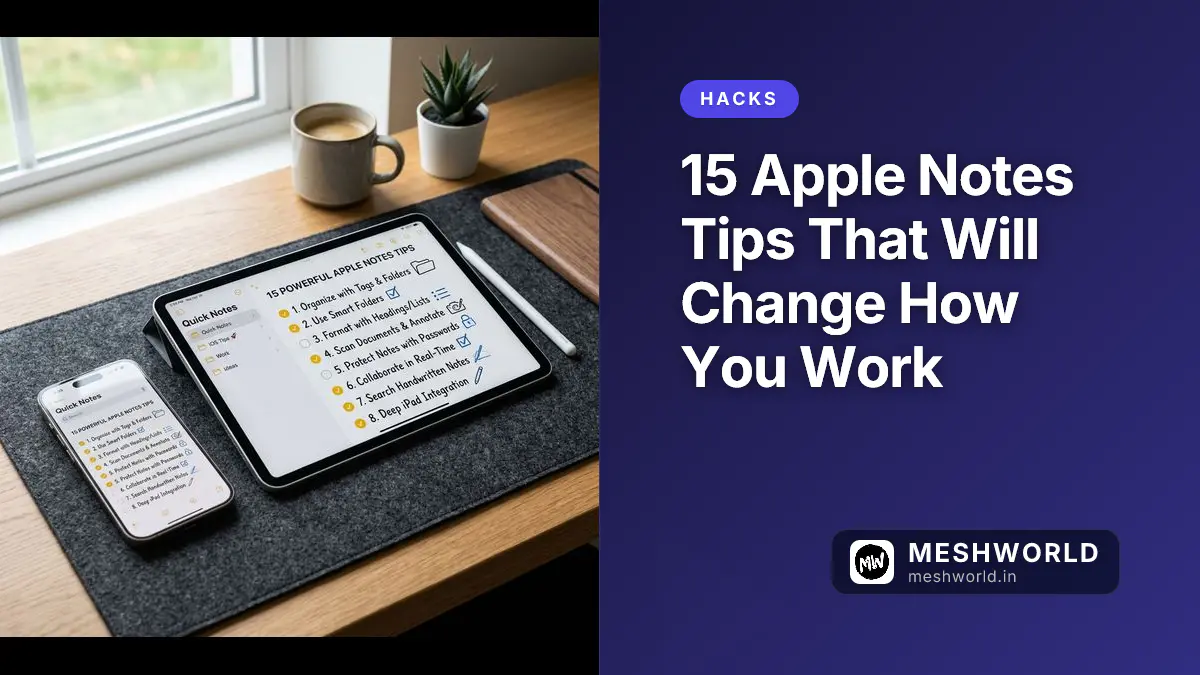
Your notes are scattered across apps, and you’re wasting time switching between tools just to capture a simple idea. While Apple Notes comes preinstalled on every Apple device, most users only scratch the surface of its capabilities.
Apple has steadily enhanced Notes with each OS release, and 2026 brings powerful integrations with Apple Intelligence, system-wide automation, and cross-platform features that transform it from a basic note-taking app into a central hub for your digital life. Here are 15 essential tips to master Apple Notes in 2026.
If you’re looking to build a complete Apple productivity system, check out our guide on Notes, Reminders & Calendar: The macOS Productivity Trio which shows how these three apps work together effectively.
Capture Ideas Instantly with Quick Notes
The fastest way to jot down a thought is no longer opening the Notes app. With Quick Notes, you can create a note from anywhere in the system.
On iPhone or iPad running iOS 18/iPadOS 18 or higher, swipe down from the top-right corner to open Control Center, then tap the Quick Note icon. On Mac, use the Fn-Q keyboard shortcut or add Quick Note to your menu bar.
You can also invoke Quick Notes from within any app using the Share sheet—perfect for saving a recipe from a website, an excerpt from an ebook, or flight details from your travel app. The note saves automatically and appears in the Quick Notes folder for easy retrieval later.
Protect Sensitive Information with Biometric Locks
Starting with iOS 16, you can lock individual notes using your device passcode, a custom password, Touch ID, or Face ID. This is essential for storing financial information, passwords, journal entries, or work-related confidential data.
To lock a note, open it, tap the More button (•••), and select Lock. For biometric authentication, go to Settings → Apps → Notes → Password and enable “Use Face ID” or “Use Touch ID.” Note that shared notes cannot be locked for security reasons.
Work Offline When Needed
While Notes excels at iCloud syncing, sometimes you need truly local notes that don’t leave your device. Enable the “On My iPhone/iPad/Mac” account in Settings → Apps → Notes to create notes that stay exclusively on that device.
These offline notes won’t sync via iCloud, but if you have iCloud Backup enabled, they’ll still be included in your device backups. This approach works well for temporary information, device-specific configurations, or notes you want to keep strictly private.
Transform Handwriting with Scribble and Apple Pencil
If you use an iPad with Apple Pencil, Notes becomes a powerful digital notebook. Write naturally with the pen tool, then use Scribble to automatically convert your handwriting to text in real-time.
iPadOS 26 adds a Reed pen option for calligraphic effects—select the pen tool with a silver nib to try it. For cleaner writing, use the Straighten option in the three-dots menu or add lines and grids to guide your handwriting.
On iPhone, handwriting mode is available but less precise without a stylus—still useful for quick sketches or when you prefer writing to typing.
Scan and Mark Up Documents Like a Pro
Notes includes a capable document scanner that’s better than many standalone apps. Create a new note, tap the camera icon, and select “Scan Documents.” The app automatically detects borders, captures the image, and enhances it for readability.
With iOS 17 and later, you can mark up scanned PDFs and images directly in Notes. Open the scanned item, tap the markup icon, and use drawing tools to emphasize, add text, or draw shapes. This eliminates the need for separate PDF annotation apps for basic markup tasks.
Organize with Tags and Smart Folders
Basic folders work for broad categories, but tags (#work #ideas #reference) let you cross-classify notes across multiple folders. Tap the folder icon in the bottom-left to create a Smart Folder that automatically gathers notes matching specific criteria.
For example, create a Smart Folder for all notes tagged #urgent, or filter by date range, attachment type (photos, scans), or shared status. Smart Folders update automatically as you add or modify notes, keeping your organization system current without manual effort.
Visualize Your Notes with Gallery View
Switch from list to gallery view to see your notes as thumbnail cards showing previews of content, images, and sketches. This view is particularly useful for visual notes, recipe collections, design inspiration, or photo journals.
Tap the ellipsis icon (•••) in any folder and select “View as Gallery.” Notes displays thumbnails with text previews and media previews. Return to list view the same way when you need to sort or batch-edit notes.
Collaborate in Real-Time with Shared Notes
Notes isn’t just for solo use—you can collaborate with others in real-time. Open a note, tap the Share icon, and invite people via email or Messages. Choose whether they can view only or edit the note.
Shared notes show live cursors as others type, making them perfect for meeting notes, shopping lists, project planning, or family coordination. All changes sync instantly across devices via iCloud.
Extract Text from Images and Photos
Have text in a photo or screenshot that you want to edit or search? Notes can extract it using Live Text. Tap and hold on text in an image within a note, then select “Copy” to extract it or “Look Up” to get definitions, translations, or web search results.
This works for photos you’ve added to notes, scanned documents, or screenshots—turning visual information into actionable text without manual retyping.
Enhance Notes with Apple Intelligence (2024+)
On iPhone 15 Pro or newer, iPad with M1 chip or newer, or Mac with Apple Silicon, Apple Intelligence brings AI-powered writing tools to Notes:
- Proofread: Fix spelling, grammar, and tone with one tap
- Rewrite: Try different versions (Friendly, Professional, Concise)
- Summarize: Condense long notes into key points or paragraphs
- Compose with ChatGPT: Generate drafts from prompts using integrated AI
Access these tools by selecting text and tapping the Writing Tools icon in the toolbar, or double-tap with Apple Pencil to bring up the contextual menu.
Turn Sketches into Professional Images
The Image Wand feature (iPadOS 18+/macOS 15+) transforms rough sketches into polished artwork. Draw a rough sketch with any pen or pencil tool, then select the Image Wand and draw a circle around it.
Describe what you want the image to look like, and Notes generates multiple variations based on your sketch and description. This works great for illustrating concepts, creating diagrams, or visualizing ideas without artistic skill.
Record and Transcribe Audio Directly in Notes
Create audio notes by tapping the recording icon in a note—perfect for capturing lectures, meetings, or voice memos while keeping your hands free. On supported devices with Apple Intelligence, Notes can automatically transcribe and summarize recordings.
After recording, tap the Transcript icon to view the text version or Summary to see an AI-generated overview. This combines the convenience of voice capture with the searchability and organization of text.
Format Notes as Lists and Tables with AI
Need to turn unstructured text into an organized list or table? Apple Intelligence can reformat your notes intelligently. Select text, tap Writing Tools, then choose “List” for bulleted lists or “Table” for structured data.
This works best with sortable information like inventories, comparisons, or step-by-step processes. The AI recognizes patterns and applies appropriate formatting—saving you time on manual reorganization.
Link Notes to Build Knowledge Networks
Connect related notes using internal links to create a personal knowledge base. In any note, type double brackets [[ or use the link tool to search for and link to other notes in your collection.
This creates bidirectional connections—perfect for linking meeting notes to project plans, research snippets to outlines, or ideas to implementation details. Follow links to jump instantly between related information without searching.
Use Advanced Search to Find Anything Fast
iOS 26 and iPadOS 26 introduced a redesigned search interface consistent across Apple apps. Tap the search field at the bottom of the screen and enter your query to find notes by text content, tags, attachment type, or creation date.
Tap the search field to reveal filters for shared notes, locked notes, notes with checklists, drawings, scanned documents, or specific date ranges. Combine filters for laser-focused results—no more scrolling through endless lists to find that one note from last month.
Access Notes from Your Wrist with Apple Watch
In watchOS 26, the Notes app comes to Apple Watch for quick capture from your wrist. Open the app on your watch to view existing notes or create new ones by typing, writing (with Scribble), or speaking them.
Tap the pointing hand icon to choose your input method—ideal for capturing sudden ideas, workout notes, or grocery reminders when your iPhone isn’t handy. Changes sync instantly with your other devices via iCloud.
Export and Backup Your Notes Strategically
While Notes doesn’t offer bulk export natively, you have several options for backups or transfers:
- Use third-party tools like Exporter for complete backups
- Enable iCloud Backup to include Notes in device backups
- Forward individual notes via Mail or Messages as needed
- Print to PDF for archival versions of important notes
For switching apps, look for import tools in your target application—many note-taking apps support importing from Notes via standard formats.
Work with Tables and Data Directly in Notes
Notes supports basic tables for organizing information—insert one by typing ”/” and selecting “Table” or using the format menu. Add rows and columns as needed, then fill with text, numbers, or dates.
For calculations, type formulas like “625/5” and drop the ”=” sign to see results. Enable “Insert Results” in the three-dots menu to have Answers automatically placed in your note. Use variables for dynamic calculations—perfect for budgets, measurements, or tracking metrics.
Author: Nirav is a Systems Specialist at MeshWorld India, focusing on practical productivity strategies that help knowledge workers maximize their digital tools.