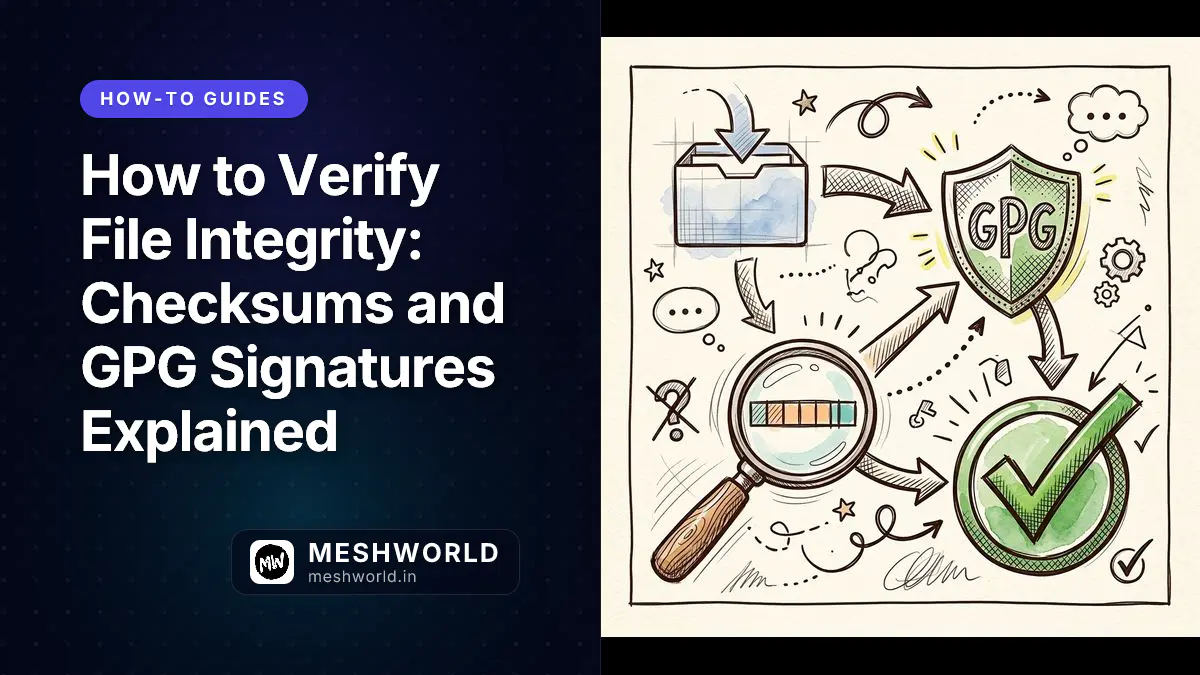
You downloaded a 4GB Ubuntu ISO from a mirror you don’t fully trust. The file looks right. The filename matches. But without verification, you have no proof the bytes weren’t swapped, truncated, or tampered with in transit.
Checksums and GPG signatures exist to solve exactly that problem. They’re not paranoia; they’re standard practice for Linux distributions, security tools, and any software where a compromised binary could own your machine.
Last updated: July 13, 2026
Key Takeaways
- SHA-256 checksums detect accidental corruption and simple tampering—compare the hash of your file against the publisher's published value.
- GPG signatures prove the file was signed by the project's key—protects against mirror compromise, not just bit-flips.
- Linux distros publish both: always verify GPG when available, checksum as a minimum.
- On Windows, use CertUtil; on macOS, use shasum -a 256; on Linux, use sha256sum.
- Repack sites that publish hash files (e.g. FitGirl) should be checked the same way before you run installers.
Prerequisites
- The file you want to verify (ISO, archive, installer)
- The published checksum or signature from the official project page
- Terminal access (Linux/macOS) or Command Prompt (Windows)
- For GPG:
gpginstalled (sudo apt install gnupgon Debian/Ubuntu)
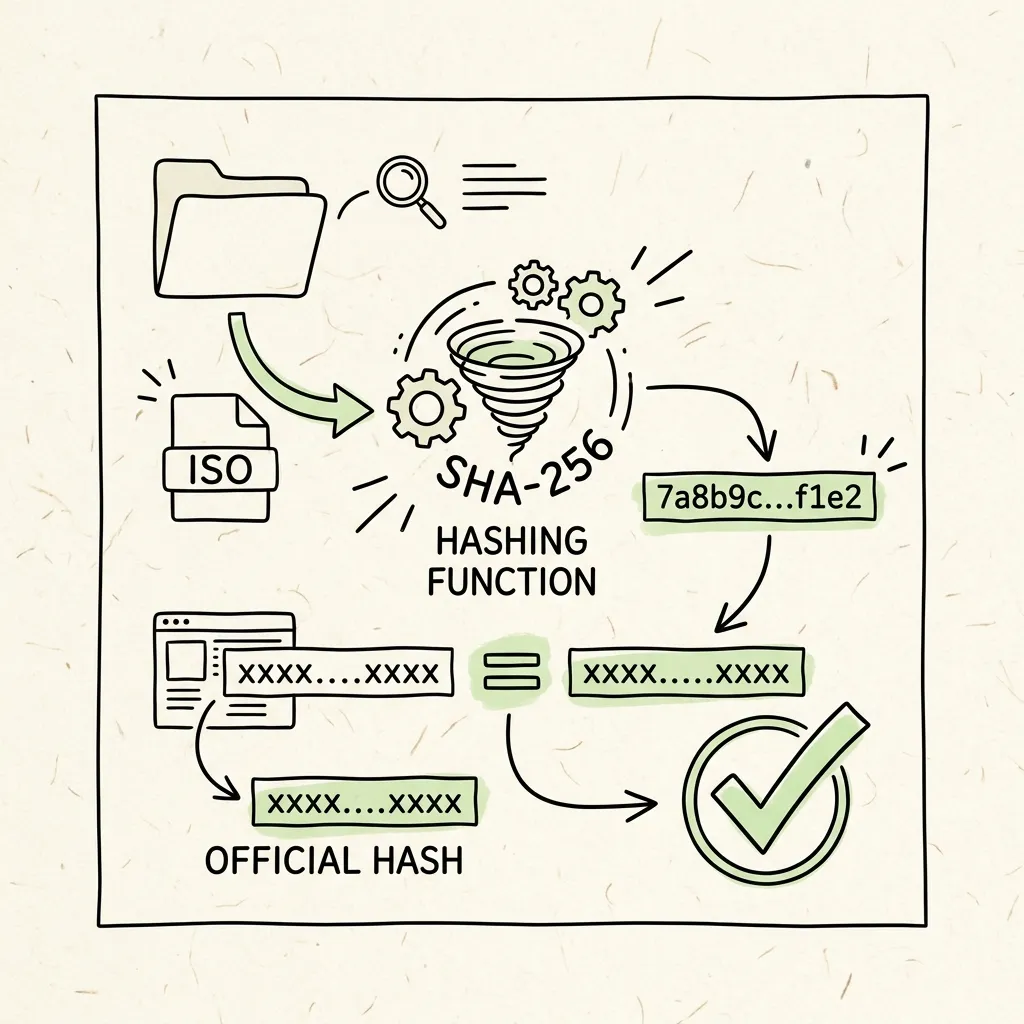 Image Prompt: A premium hand-drawn sketch note style illustration showing a file verification process, depicting how an ISO file is run through a hashing function to compare its checksum against the official hash.
What is the difference between a checksum and a GPG signature?
| Method | What it proves | Protects against |
|---|---|---|
| SHA-256 checksum | Your file’s bytes match the expected hash | Corruption, truncated downloads, simple substitution |
| GPG signature | A trusted key holder vouched for this exact file | Malicious mirrors, supply-chain swaps |
A checksum alone doesn’t tell you who published the expected value—if an attacker controls the download page, they can publish a matching hash for their malware. GPG closes that gap by tying the file to a cryptographic identity.
The Scenario: Ubuntu publishes
SHA256SUMSandSHA256SUMS.gpg. You verify the GPG signature on the sums file first, then compare your ISO’s hash against the signed list. A compromised mirror can’t fake both steps without the project’s private key.
How do you verify a SHA-256 checksum on Linux?
Download the file and the published checksum side by side from the official project site—not a third-party mirror’s copy of the checksum unless you trust the mirror chain.
Step 1: Generate the hash of your file:
sha256sum ubuntu-24.04.2-desktop-amd64.isoStep 2: Compare the output to the value in the project’s SHA256SUMS file:
grep ubuntu-24.04.2-desktop-amd64.iso SHA256SUMS
sha256sum -c SHA256SUMS --ignore-missing
The -c flag reads the sums file and reports OK or FAILED for each entry.
How do you verify a SHA-256 checksum on macOS and Windows?
macOS:
shasum -a 256 your-file.isoWindows (Command Prompt):
certutil -hashfile your-file.iso SHA256Compare the output character-for-character with the published hash. One mismatched character means the file is not authentic.
How do you verify a GPG signature on a Linux ISO?
Most distributions sign their checksum files. Ubuntu’s process is representative:
Step 1: Import the project’s signing key (one-time):
gpg --keyid-format long --recv-keys 0x843938DF228D22F7B3742BC0D94AA3F0EFE21092Step 2: Download SHA256SUMS and SHA256SUMS.gpg from the official release page.
Step 3: Verify the signature on the sums file:
gpg --verify SHA256SUMS.gpg SHA256SUMSYou want Good signature from ... in the output. Warnings about trust level are normal on first import.
Step 4: Verify your ISO against the now-trusted sums file:
sha256sum -c SHA256SUMS --ignore-missingHow do you verify hash files from repack or third-party releases?
Some repack publishers include SHA-256 or MD5 hash files alongside downloads. The process is the same—hash your downloaded archive and compare—but the trust model is different:
- You’re trusting the repack operator’s reputation, not a distro’s GPG web of trust
- Hash files on the same page as the download don’t protect against a fully compromised site
- Combine hash verification with source reputation and network traffic auditing if anything behaves unexpectedly after install
For context on which repack sources publish verifiable hashes, see our torrenting sites safety ranking.
What are common verification mistakes?
- Skipping verification because the download “looked fine”: corruption and tampering are invisible at the GUI level
- Copying the hash from a forum post: always pull checksums from the official release page
- Using MD5 for security decisions: MD5 is fine for accidental corruption checks; prefer SHA-256 for anything security-sensitive
- Ignoring GPG trust warnings without reading them:
BAD signaturemeans stop; don’t install
Frequently Asked Questions
Is verifying checksums enough for torrent downloads?
For legal content from reputable publishers (Linux ISOs, Creative Commons releases), checksum verification against official values is the right standard. For anything else, verification confirms file integrity but says nothing about legality or malware intent—executable payloads can be “correctly” hashed and still malicious.
What if gpg says “Can’t check signature: No public key”?
Import the project’s signing key using the key ID from their documentation, then re-run gpg --verify.
Can I automate verification in a script?
Yes. Most CI pipelines and install scripts use sha256sum -c in quiet mode:
echo "expectedhash filename.iso" | sha256sum -c -Summary
- Always verify Linux ISOs and security tools with SHA-256 at minimum; use GPG when the project provides it.
- Checksums detect corruption; GPG signatures detect supply-chain substitution.
- Never trust hashes from unofficial sources: pull them from the project’s own release page.
- Repack hash files follow the same mechanics but a weaker trust model than distro GPG signing.
What to Read Next
- 10 Best Torrenting Sites of 2026: Privacy, Speed, and Safety Ranked
- The Complete VPN Guide for Everyone (Including Torrent Users)
- How to Audit What Data Your Apps Are Sending
Related Articles
Deepen your understanding with these curated continuations.

How to Audit What Data Your Apps Are Sending
Learn to audit app network traffic on macOS, Linux, and mobile. Use mitmproxy, Wireshark, and Charles Proxy to see exactly what data your apps are sending.


How to Harden SSH on a Linux Server
Step-by-step SSH hardening guide. Learn to disable root login, enforce SSH keys, change ports, and add 2FA to protect your Linux server from brute-force bots.


How to Reset a Forgotten Password on Pop!_OS, Ubuntu, or Linux Mint
Forgot your Linux user password? Learn how to reset your password on Pop!_OS, Ubuntu, Linux Mint, and Debian using GRUB, systemd-boot init edits, or live USB chroot.