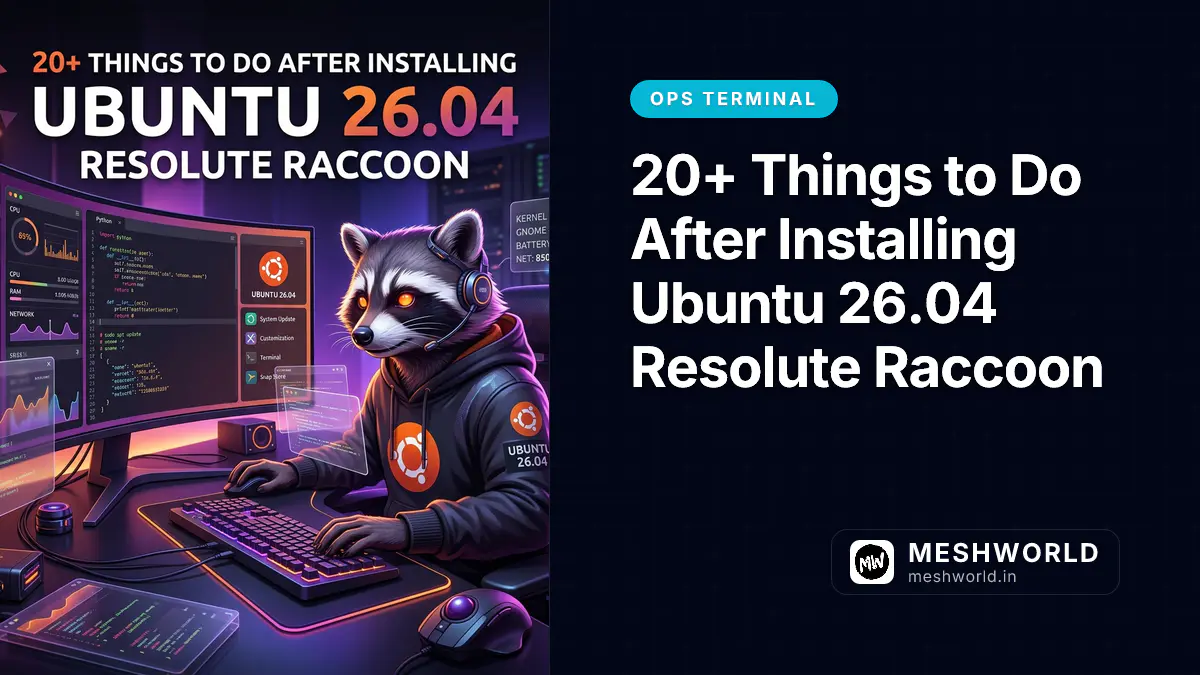
The Scenario: You’ve just finished the “clean install” dance. The Ubuntu 26.04 installer has finished, you’ve removed the USB drive, and you’re staring at the default Resolute Raccoon desktop. It’s clean, it’s fast, and it’s… totally unoptimized for your actual work.
Ubuntu 26.04 is an LTS (Long Term Support) release running Linux Kernel 7.0 and GNOME 50, which means you’re going to be living in this environment for a long time. Spending 30 minutes now on a proper post-install checklist will save you hours of “Why isn’t this faster?” frustration later.
Whether you’re a developer, a designer, or a power user, these are the 20+ things you should do immediately after installing Ubuntu 26.04.
- Terminal Shift — Embrace Ptyxis, the new GTK4 default terminal.
- Enable Restricted Extras — Get those codecs and fonts early.
- Install Flatpak — Expand your app ecosystem beyond Snaps.
- Kernel Optimization — Consider XanMod or Zen for lower latency.
- Dev-Tool Blitz — Install Bun, Docker, and NVM in one go.
1. Did you run the “Mega Update” yet?
The ISO you installed is already out of date. Before you do anything else, pull the latest security patches.
sudo apt update && sudo apt full-upgrade -y2. Are you enabling “Ubuntu Restricted Extras”?
For legal reasons, Ubuntu doesn’t ship with certain proprietary codecs and fonts (like Microsoft’s Arial/Times New Roman). Install them now to avoid broken media later.
sudo apt install ubuntu-restricted-extras -y3. Should you swap to a Performance Kernel?
If you’re gaming or doing high-frequency development, the default kernel is built for stability, not lowest latency. Consider XanMod or the Liquorix kernel.
# Example for XanMod
wget -qO - https://dl.xanmod.org/archive.key | sudo gpg --dearmor -o /usr/share/keyrings/xanmod-archive-keyring.gpg
echo 'deb [signed-by=/usr/share/keyrings/xanmod-archive-keyring.gpg] http://dl.xanmod.org/releases bionic main' | sudo tee /etc/apt/sources.list.d/xanmod-kernel.list
sudo apt update && sudo apt install linux-xanmod-x64v3
4. Is GNOME Tweaks installed for UI control?
The default settings panel is limited. GNOME Tweaks unlocks the real power: changing window title bars, managing extensions, and fine-tuning fonts.
sudo apt install gnome-tweaks gnome-shell-extension-manager -y5. Have you enabled Flatpak support?
Snap is the default, but Flatpak is essential for the latest versions of many apps.
sudo apt install flatpak gnome-software-plugin-flatpak -y
flatpak remote-add --if-not-exists flathub https://flathub.org/repo/flathub.flatpakrepo
6. Are you using “Dash to Dock” for a Mac-style workflow?
Open the Extension Manager you just installed and search for “Dash to Dock.” It gives you much more control than the default sidebar.
7. Is “Night Light” configured?
Protect your eyes. Head to Settings > Displays > Night Light and set it to your local sunset time.
8. Have you set up your Backup strategy?
Pika Backup (Flatpak) is the gold standard for simple, incremental backups. Do it now before you have data to lose.
9. Is “Minimize on Click” enabled?
Why this isn’t the default in 2026 is a mystery. Run this to make icons in the dock minimize windows when clicked:
gsettings set org.gnome.shell.extensions.dash-to-dock click-action 'minimize'10. Did you install a proper Font?
The default fonts are fine, but Inter or JetBrains Mono for coding are game-changers.
sudo apt install fonts-inter fonts-jetbrains-mono -y11. Is “Firewall” active?
Ubuntu ships with ufw, but it’s disabled by default.
sudo ufw enable12. Have you optimized Swappiness?
On systems with 16GB+ RAM, Ubuntu swaps to disk too aggressively. Change the swappiness value from 60 to 10.
sudo sysctl vm.swappiness=10
# Make it permanent
echo 'vm.swappiness=10' | sudo tee -a /etc/sysctl.conf
13. Is your Dev Toolchain ready?
Install the essentials for 2026:
# NVM (Node Version Manager)
curl -o- https://raw.githubusercontent.com/nvm-sh/nvm/v0.39.7/install.sh | bash

# Bun (The fast JS runtime)
curl -fsSL https://bun.sh/install | bash

# Docker
sudo apt install docker.io -y
sudo usermod -aG docker $USER
14. Have you enabled “Fractional Scaling”?
If you’re on a 4K monitor, 100% is too small and 200% is too big. Turn on fractional scaling in Settings > Displays.
15. Is “Blur my Shell” installed?
For that premium glassmorphic look, install the “Blur my Shell” extension via the Extension Manager.
16. Did you set up Zsh and Oh My Zsh?
Replace the default Bash with a more powerful shell.
sudo apt install zsh -y
sh -c "$(curl -fsSL https://raw.github.com/ohmyzsh/ohmyzsh/master/tools/install.sh)"
17. Is “TLP” managing your laptop battery?
If you’re on a laptop, TLP is non-negotiable for battery life.
sudo apt install tlp tlp-rdw -y
sudo tlp start
18. Have you cleaned up the Snap bloat?
Remove pre-installed Snaps you don’t use (like the “Welcome to Ubuntu” snap) to speed up your system.
19. Is “VLC” your default player?
The default media player is basic. VLC handles everything.
sudo apt install vlc -y20. Did you install “Timeshift”?
System snapshots are like “System Restore” for Linux. If a kernel update breaks something, Timeshift gets you back in 60 seconds.
sudo apt install timeshift -y21. Is “Neofetch” (or Fastfetch) ready for your first screenshot?
You didn’t really install Linux if you don’t post a fetch screenshot.
sudo apt install fastfetch -y22. Have you enabled “Dark Mode” properly?
It’s 2026. Standardize your Dark Mode in Settings > Appearance.
23. Is “Synaptic Package Manager” installed?
Sometimes you need a more powerful GUI for package management than the “Software Center.”
sudo apt install synaptic -y24. Did you configure your Git identity?
git config --global user.name "Your Name"
git config --global user.email "your@email.com"
25. Are you using a modern Browser?
Chrome is the default for many, but Brave or Firefox (with Manifest V3 resistance) are the power-user choices.
Bonus: Verified Security Tips
Spending 5 minutes on these hardening steps will significantly reduce your attack surface without breaking your workflow.
- Explicit Firewall Policies: Go beyond just enabling
ufw. Set it to deny incoming by default:sudo ufw default deny incoming sudo ufw default allow outgoing - Enable Unattended Upgrades: Don’t wait for the GUI popup. Ensure security patches apply automatically in the background:
sudo apt install unattended-upgrades sudo dpkg-reconfigure --priority=low unattended-upgrades - Secure Shared Memory: Prevent the execution of malicious scripts in shared memory by mounting
/run/shmwithnoexec,nosuid. Edit/etc/fstaband add:none /run/shm tmpfs defaults,size=4G,noexec,nosuid 0 0 - Harden SSH Access: If you must use SSH, disable root login and password-based auth. Edit
/etc/ssh/sshd_configto setPermitRootLogin noandPasswordAuthentication no.
Comparison: Snap vs Flatpak vs Apt
| Type | Pros | Cons | Use For |
|---|---|---|---|
| Apt | Fastest, System integration | Older versions | Drivers, Kernel, Core tools |
| Snap | Auto-updates, Canonical support | Slower startup | Spotify, Slack, Discord |
| Flatpak | Latest versions, Sandboxed | Disk usage | GUI Apps (GIMP, VLC) |
FAQ
Is Ubuntu 26.04 stable enough for daily use? Yes, 26.04 is an LTS release. While it’s new, the core infrastructure is built on the proven Oracular Oriole and Plucky Puffin foundations.
Should I use Wayland or X11? Wayland is the default and is significantly smoother in 2026. Only switch to X11 if you have specific legacy apps or screen-sharing tools that break under Wayland.
What’s the best way to install VS Code?
The .deb from the official website is generally preferred over the Snap version for better terminal and extension host performance.
What to Read Next
- Install and Configure PHP on Ubuntu 26.04 — Set up your backend environment on Resolute Raccoon.
- Install and Secure MySQL on Ubuntu 26.04 — Hardening your database from the start.
- 11 VS Code Alternatives Worth Trying in 2026 — Now that you’ve installed Ubuntu, pick the right editor.