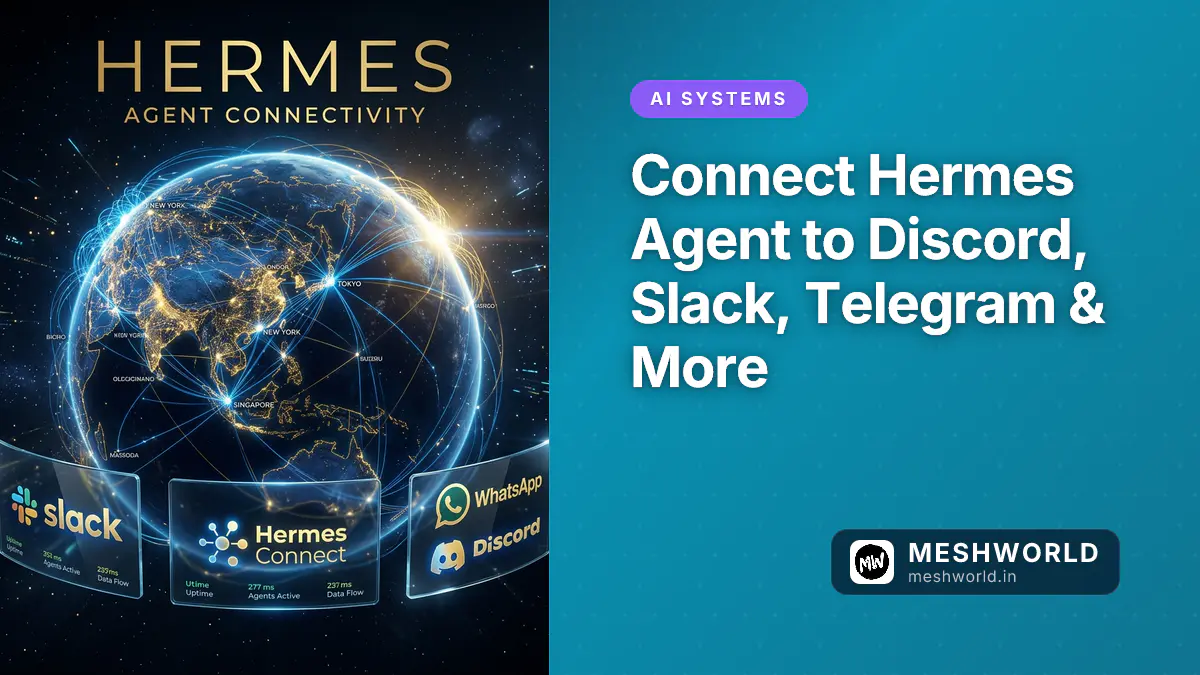
Right now, Hermes lives in your terminal. That’s fine for testing. But the real power? Living on Discord with your team. Or Slack during work. Or Telegram in your pocket.
One Hermes instance. Multiple platforms. Unified learning across all of them.
Here’s how to connect.
Why Multi-Platform Matters
Most AI assistants live in one place. You use ChatGPT on the web. You use Claude in the app. They’re separate instances with separate memories.
Hermes learns once, everywhere. Ask something on Discord Monday, ask the same thing on Slack Friday—Hermes has already learned the answer.
Part 1: Discord Setup
Discord is the easiest starting point. Your bot can live in servers, learn from team conversations, and handle tasks.
Step 1: Create a Discord Application
Go to discord.com/developers/applications and click “New Application”.
Give it a name: “Hermes Agent” (or whatever you want).
Step 2: Create a Bot User
In your application settings:
- Go to the “Bot” tab
- Click “Add Bot”
- Under TOKEN, click “Copy” (save this, you’ll need it)
This token is like a password. Keep it secret. Anyone with it can control your bot.
Step 3: Set Bot Permissions
Still in Bot settings, scroll to “OAuth2 Scopes” and select:
bot(to make it a bot)
Then select these permissions:
Send MessagesRead Message HistoryMention @everyoneReact to Messages
Step 4: Get Your Invite Link
In OAuth2 → URL Generator, copy the generated URL and open it. Select the server where you want the bot and authorize.
Your bot is now in your Discord server, but it won’t respond yet.
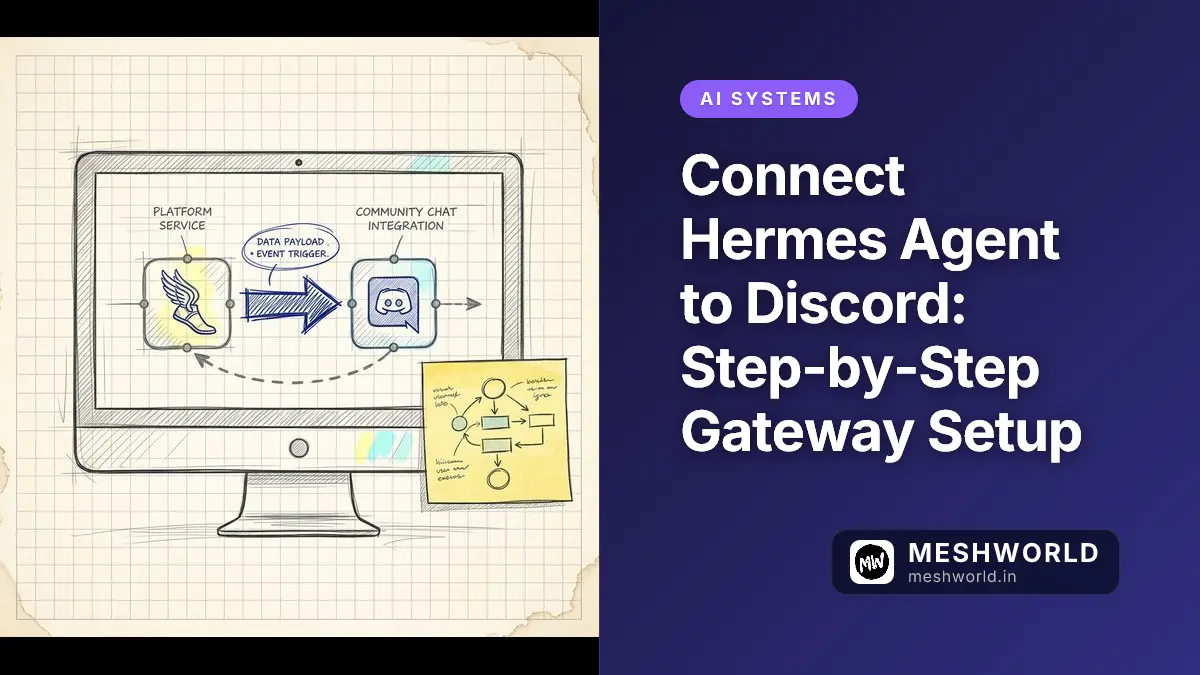
Step 5: Connect to Hermes
Back in your terminal, run setup again (or edit config):
hermes setupWhen asked for platform, choose discord.
It’ll ask for:
Discord Bot Token: [paste the token you copied earlier]
Server IDs (optional): [leave blank for now]
Learn from conversations: Y/n [choose Y to let Hermes learn]
Step 6: Start Hermes
hermesNow try it. Go to your Discord server and mention the bot:
@Hermes Agent what is machine learning?Your bot should respond in the channel.
Part 2: Slack Setup
Slack is slightly more complex, but still straightforward.
Step 1: Create a Slack App
Go to api.slack.com/apps and click “Create New App”.
Choose “From scratch” → Name it → Select your workspace.
Step 2: Add Bot Token Scopes
In OAuth & Permissions:
- Scroll to “Scopes”
- Add these bot token scopes:
chat:writechannels:readgroups:readim:readapp_mentions:read
Step 3: Install App to Workspace
Click “Install to Workspace” and authorize.
Copy the “Bot User OAuth Token” (starts with xoxb-).
Step 4: Enable Event Subscriptions
Go to “Event Subscriptions” and toggle ON.
Request URL: https://your-hermes-server.com/slack/events (if self-hosted)
For local testing, you can skip this and use the CLI for now.
Step 5: Connect to Hermes
hermes setupChoose slack when prompted:
Slack Bot Token: xoxb-[paste your token]
Channels to monitor: general,dev-team
Learn from messages: Y/n [choose Y]
Step 6: Test in Slack
Message your bot directly or mention it in a channel:
@Hermes Agent create a summary of today's standupPart 3: Telegram Setup
Telegram is the fastest. No app registration, no OAuth. Just a bot token.
Step 1: Create Bot via BotFather
Open Telegram and search for “@BotFather”. Start a chat.
Send:
/newbotBotFather will ask:
- “What should your bot be called?” → “Hermes Agent”
- “Give your bot a username” → “hermes_bot” (must end with _bot)
BotFather gives you a token. Copy it.
Step 2: Connect to Hermes
hermes setupChoose telegram:
Telegram Bot Token: [paste the token]
Learn from chats: Y/n [choose Y]
Step 3: Start Chatting
Open Telegram, find your bot (@hermes_bot), and message it:
What can you do?Boom. Hermes responds.
Part 4: WhatsApp, Signal, Email (Advanced)
These require more setup because they need endpoint URLs or API keys. Covered briefly:
WhatsApp: Requires Twilio integration + phone number Signal: Requires Signal API key Email: Requires SMTP/IMAP credentials
For now, stick with Discord, Slack, or Telegram. They’re the easiest.
Configuration: Managing Multiple Platforms
Once you have platforms connected, your config looks like:
platforms:
  discord:
    token: ${DISCORD_BOT_TOKEN}
    learn_from_conversations: true

  slack:
    token: ${SLACK_BOT_TOKEN}
    channels: ["general", "dev-team"]
    learn_from_messages: true

  telegram:
    token: ${TELEGRAM_BOT_TOKEN}
    learn_from_chats: true
All platforms share the same memory. Same skills. Same learnings.
Platform-Specific Tips
Discord:
- Bots need channel permissions to send messages (set in role settings)
- Server size doesn’t matter—works in 5-person or 50,000-person servers
- Hermes learns from all conversations it can see
Slack:
- Works in channels, group DMs, or direct messages
- Configure which channels Hermes monitors
- Great for async team feedback
Telegram:
- Best for personal use or small private groups
- No friction—just add the bot and go
- Fastest response times
Security: Protecting Your Tokens
Your platform tokens are credentials. Treat them like passwords:
✅ Good:
export DISCORD_BOT_TOKEN="your-token-here"
# In config, reference: ${DISCORD_BOT_TOKEN}
❌ Bad:
# Never hardcode tokens
token: "xoxb-123456789"
Best practice: Use a secret manager (1Password, HashiCorp Vault, AWS Secrets Manager).
For local testing, environment variables in .env file work fine:
# ~/.hermes/.env
DISCORD_BOT_TOKEN=xoxb-xxxxx
SLACK_BOT_TOKEN=xoxb-xxxxx
TELEGRAM_BOT_TOKEN=123456:ABCdef
Shared Memory Across Platforms
This is where it gets powerful:
- User asks Hermes on Discord: “Create a sales report”
- Hermes learns how to create the report, stores skill
- User on Slack Friday: “Sales report again”
- Hermes retrieves Discord skill, executes it (already optimized)
Same brain. Different interfaces.
Monitoring Connected Platforms
Check what’s connected:
hermes config show
# Output:
# Platforms:
#   discord: connected
#   slack: connected
#   telegram: connected
View active listeners:
hermes status
# Platform Status:
#   Discord: 1 server, 47 users
#   Slack: 2 channels, 23 users
#   Telegram: 12 chats
Real-World Scenario: Team Integration
Monday morning: You connect Hermes to your Slack workspace (#dev-team channel).
Monday 2pm: A developer asks “How do we deploy to production?” Hermes figures it out, learns the process.
Wednesday: Someone new joins. Asks the same question. Hermes answers in 2 seconds (skill retrieval).
Friday: The deployment process changes. Hermes learns the update.
Next Monday: Everyone’s using Hermes for standard questions. Manual context-switching is gone.
Saved hundreds of “how do I deploy” explanations.
Troubleshooting Platform Connections
“Bot not responding in Discord”
- Check bot has permission to post in channel
- Verify token is correct
- Check
hermes statusshows Discord connected
“Slack bot only responds to direct messages”
- Add channel scopes in Slack app settings
- Bot might need to be added to specific channels
- Refresh token after changing permissions
“Telegram bot not working”
- Token might be expired (rare)
- Check bot started in Hermes:
hermes status - Try
/startcommand with bot first
Platform Limits & Considerations
| Platform | Max Users | Best For | Setup Time |
|---|---|---|---|
| Discord | Unlimited | Team collaboration | 5 min |
| Slack | Unlimited | Work integration | 10 min |
| Telegram | Unlimited | Personal / groups | 2 min |
| Unlimited | Customers | 20 min | |
| Any | Async responses | 15 min |
Pick the one(s) where your team already hangs out.
What to Read Next
- Securing Platform Tokens — Protect your bot credentials
- Advanced Multi-Platform Setup — Scaling to 1000s of users
- Troubleshooting Platform Issues — Common connection problems
That’s it. Your Hermes Agent now lives where your team lives. One instance. Multiple brains. Shared learning.